History
Clock symbol
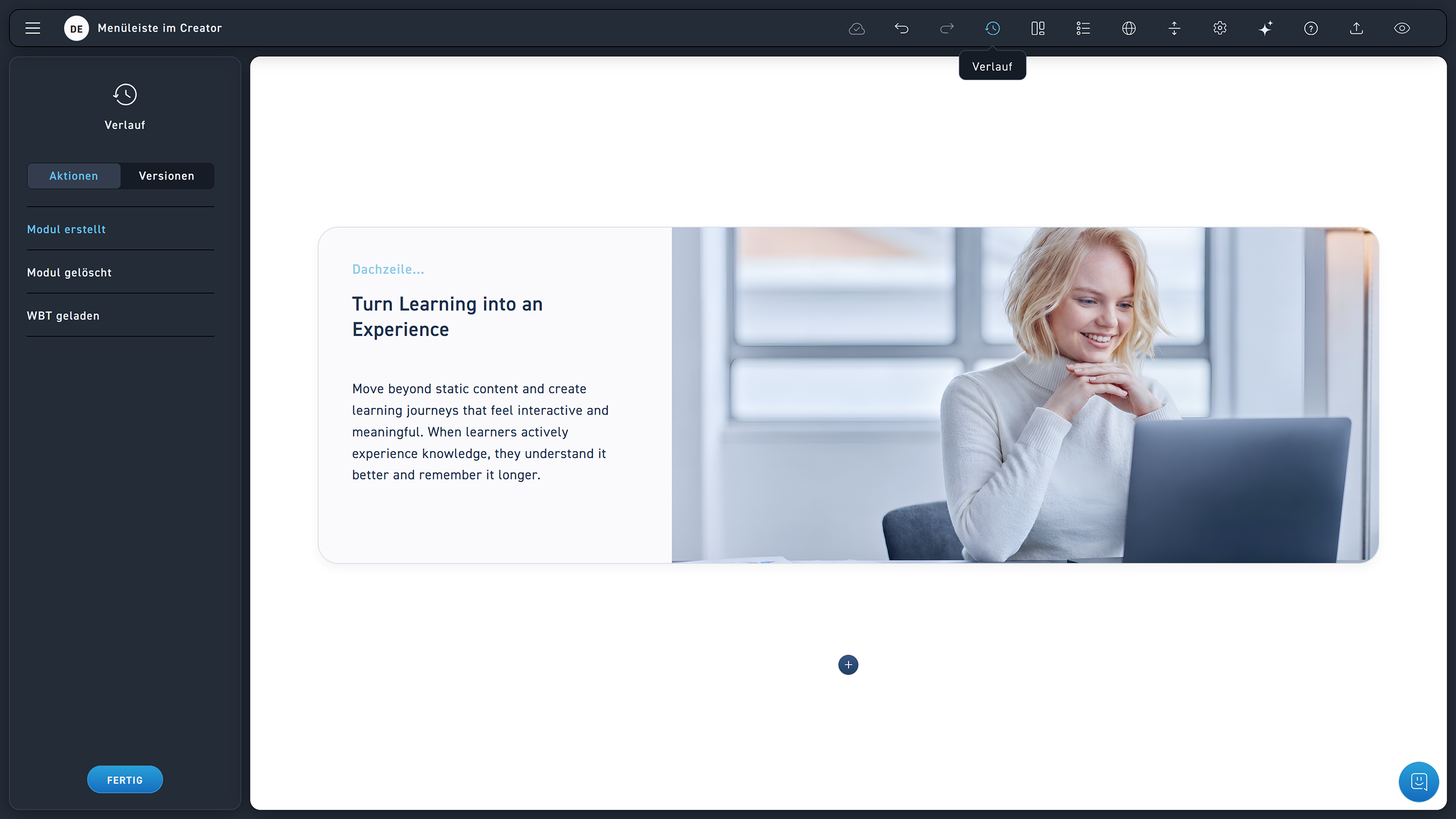
Open actions via the clock icon in the menu bar.
Promotions
Above you can see your last action. Click on the action below it and undo your actions by one step. You can also go back multiple steps at once. As long as you haven't performed any further edits, you can also redo your actions. To do this, click on the dimmed actions. An alternative to the actions panel is keyboard shortcuts. You can simply press CTRL + Z (Windows) or CMD + Z (Mac OS) to go back one step.
Clock symbol
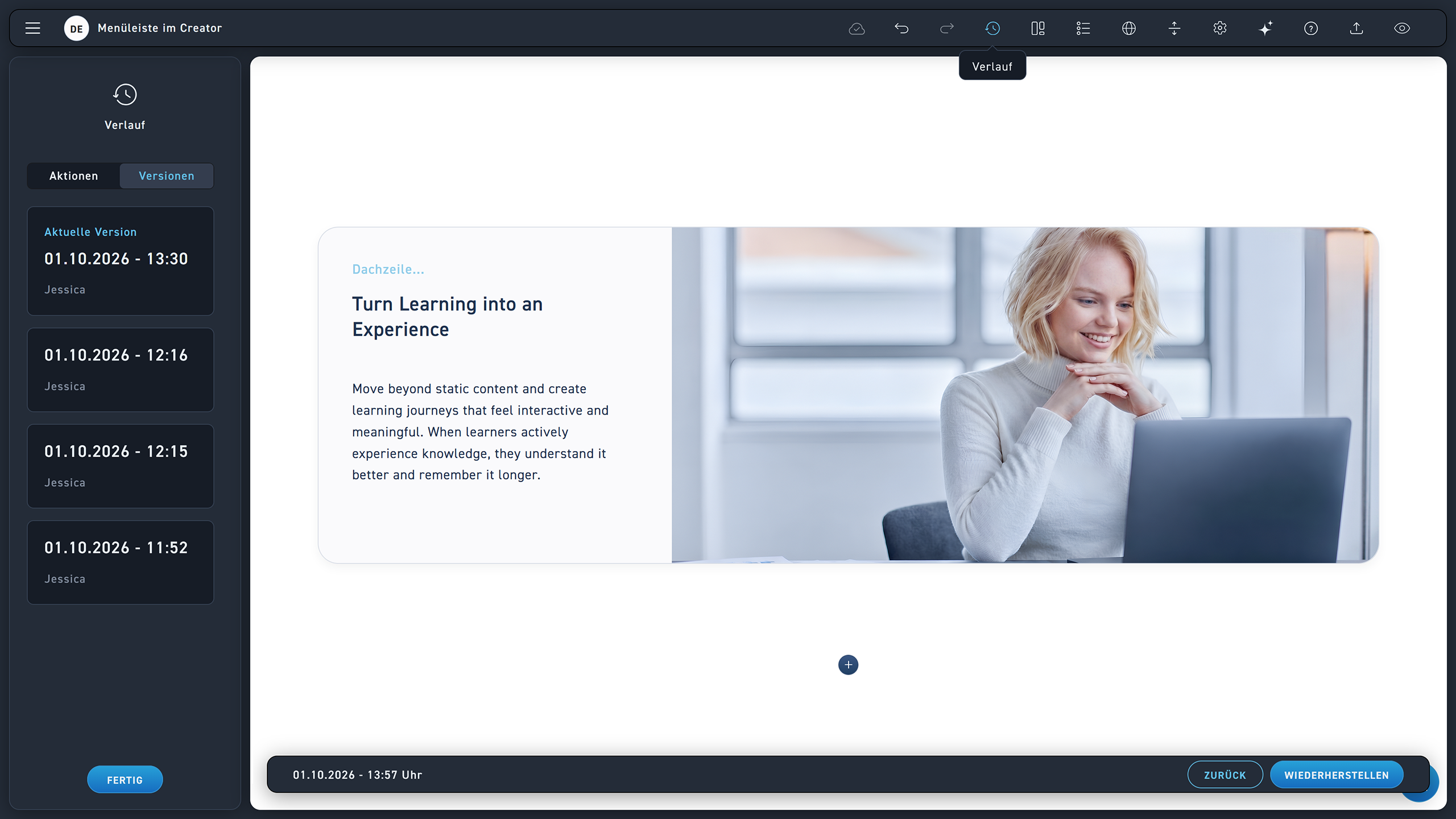
Open the version history via the clock icon in the menu bar.
Click on the desired version.
Excelerate automatically saves every action.
Restore button
Click the restore button to switch between versions.