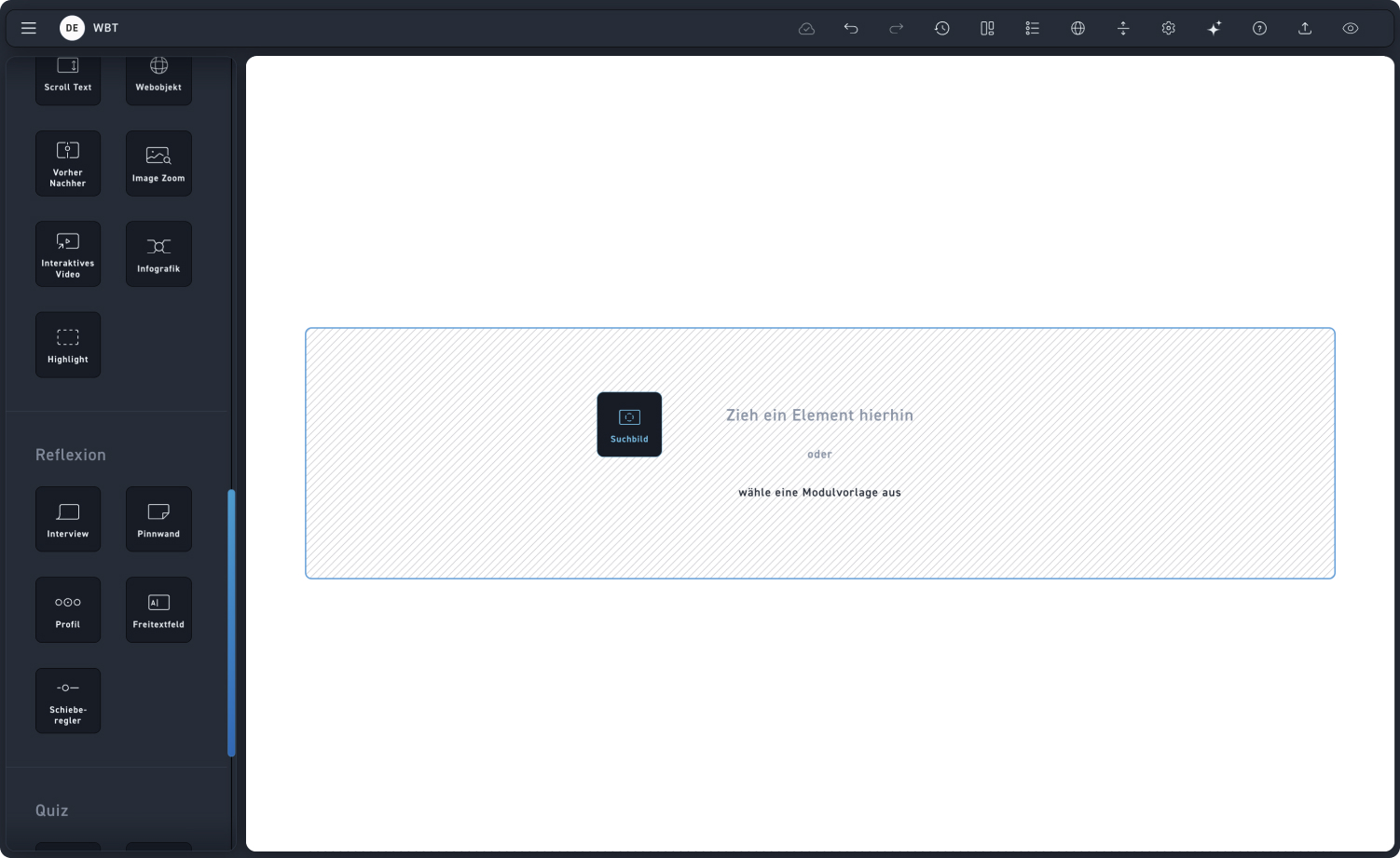
Hidden object picture
Picture
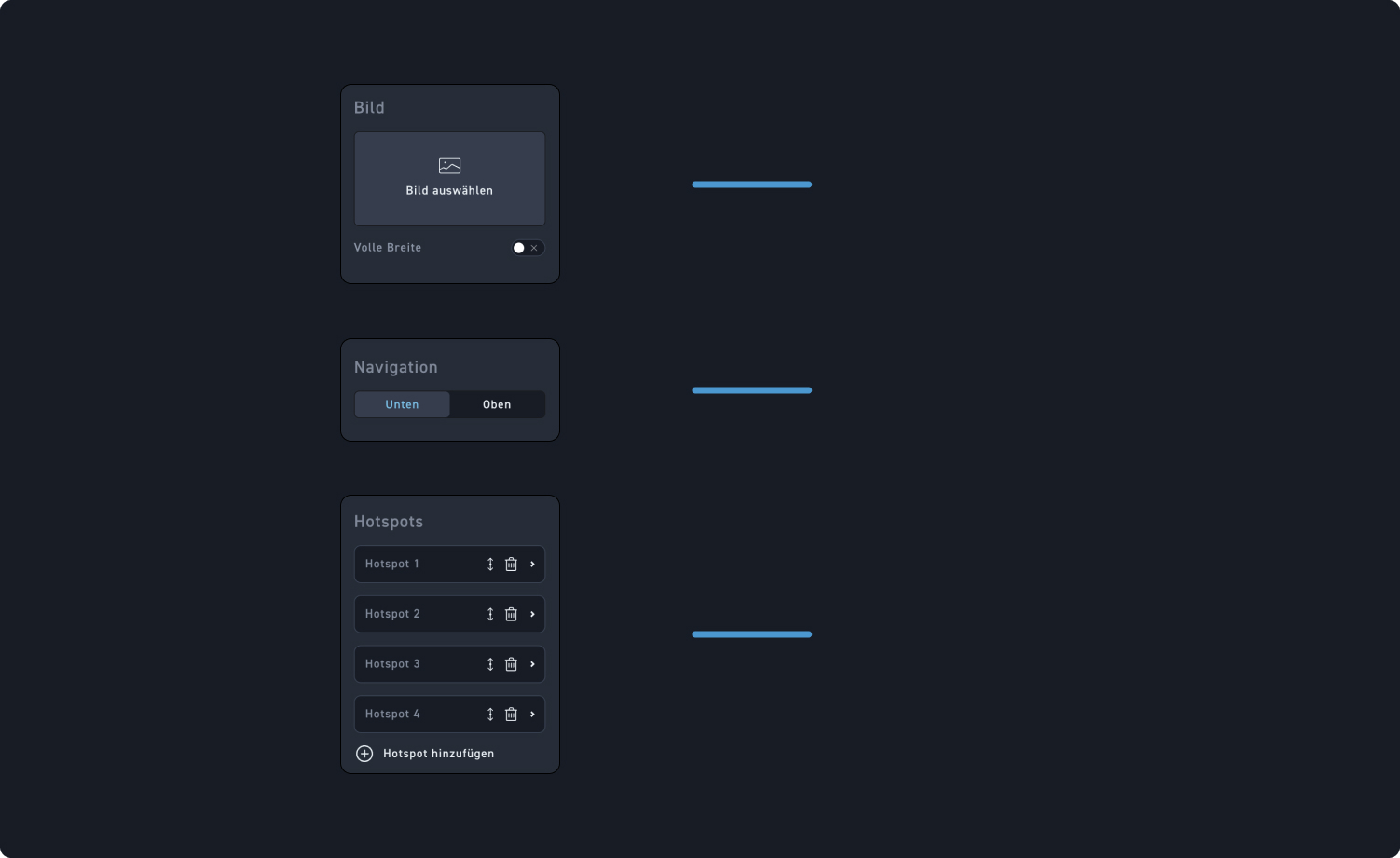
Add an image from the media library or upload a new image to your search image
Navigation
Decide whether the navigation should be at the bottom or top.
Hotspots
You can move, delete, or click on a hotspot to edit it. We'll show you which settings are available there in the next section.
Form
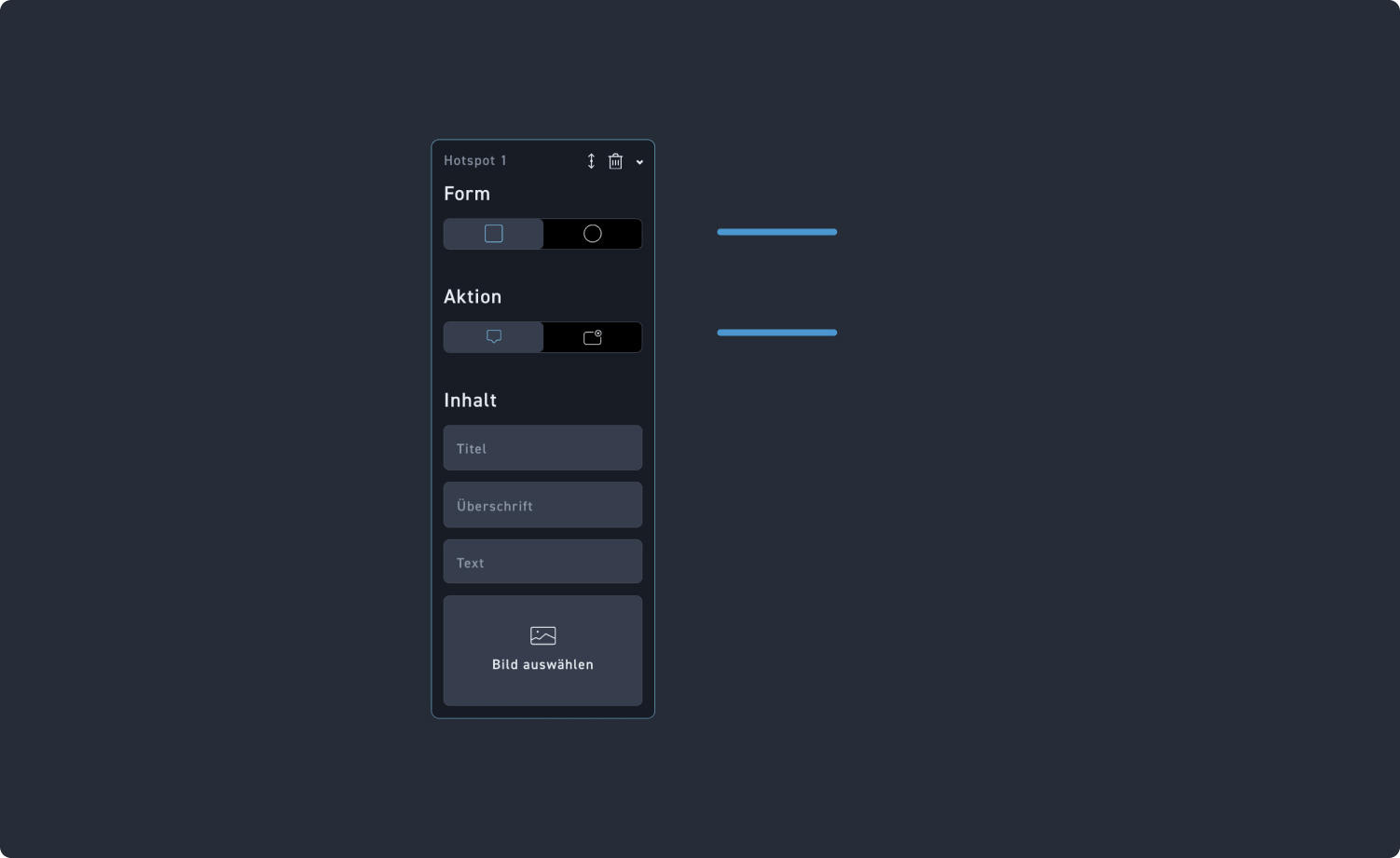
Decide whether the starting shape of the hotspot should be a rectangle or a circle.
Action
Check out the Hotspot help page to understand the setup of the Hotspot settings.
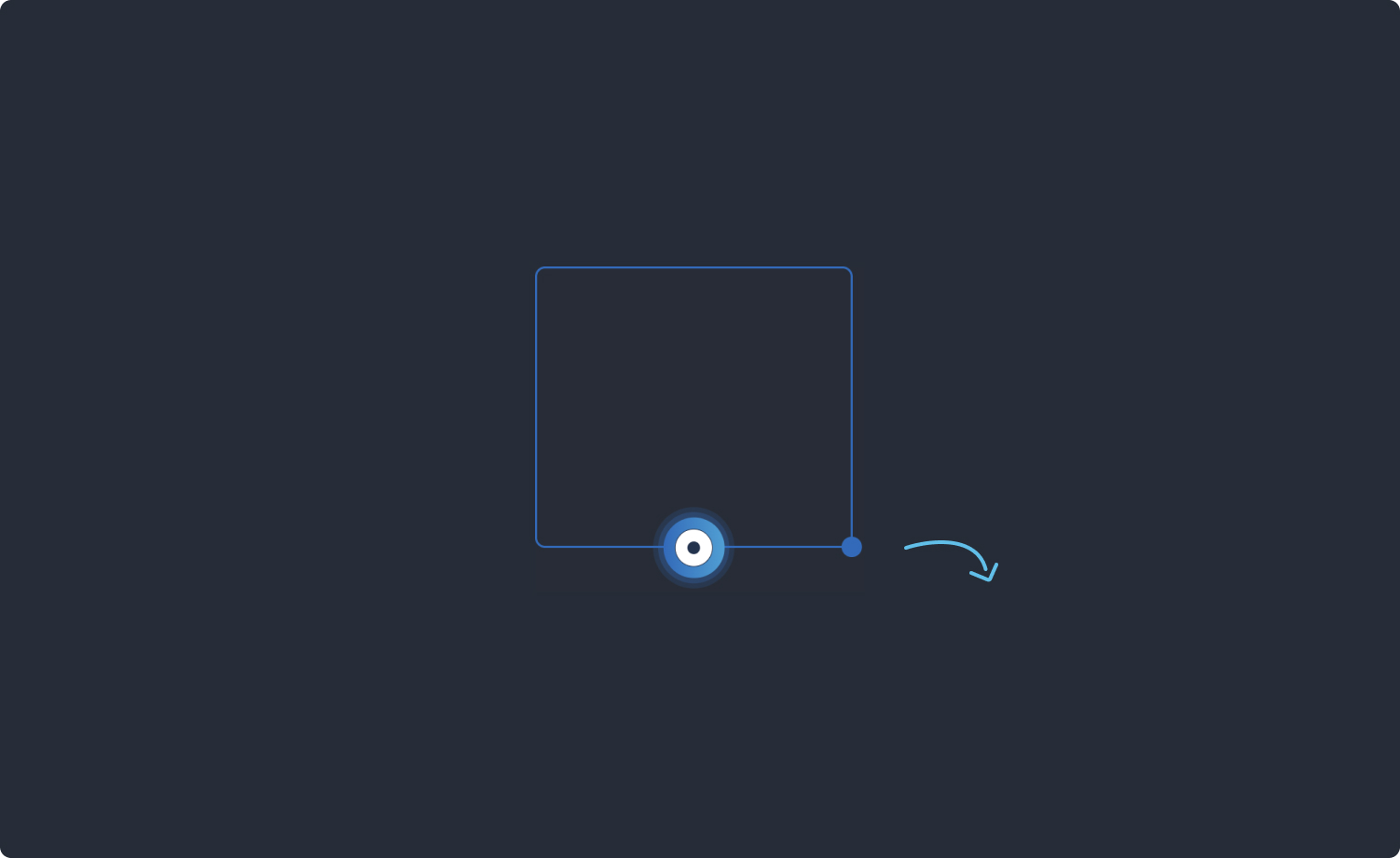
Adjust hotspot size
Whether you used a rectangle or a circle as a hotspot in your search image, you can adjust the size by dragging the circle.