Tasks
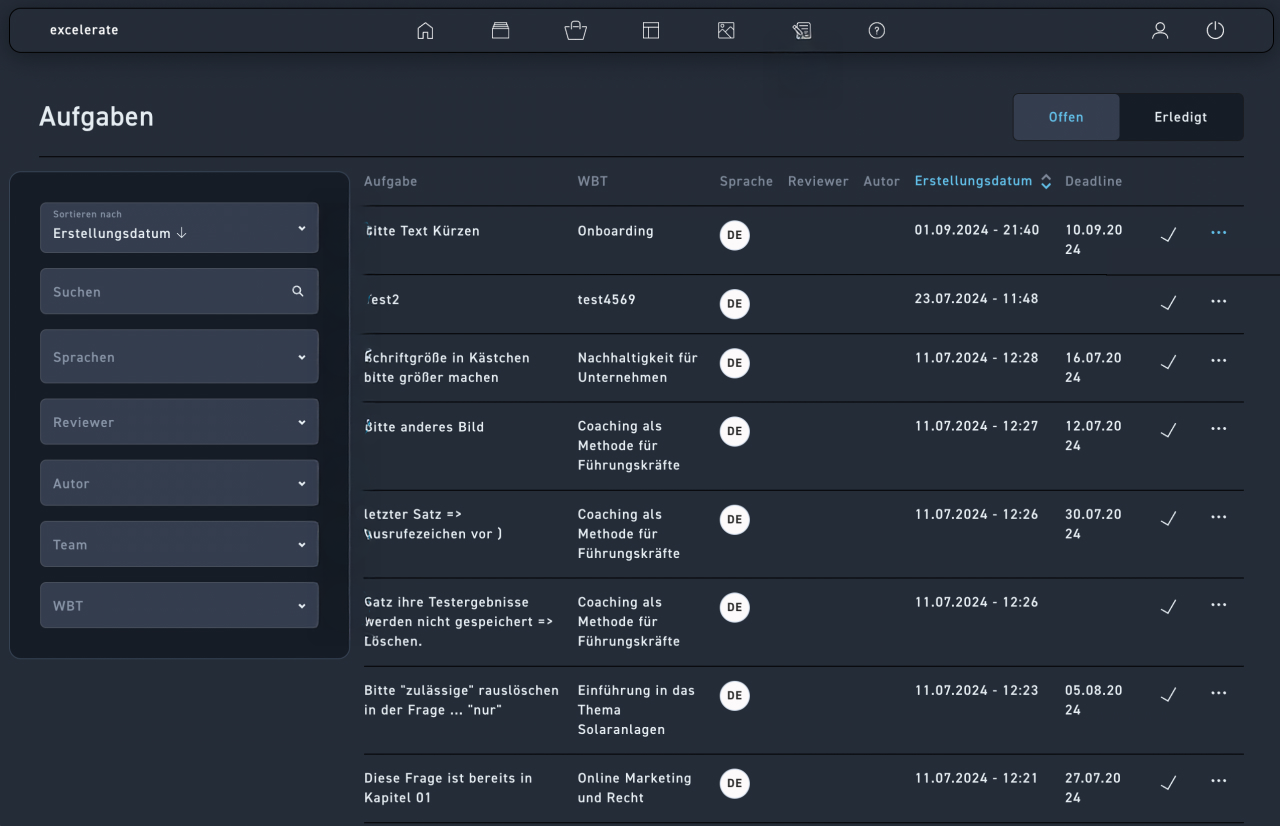
You are automatically on the open tasks tab.
Sort by creation date, ascending or descending respectively.
Search for a term in the title of the task.
Enter your first and last name. Filter your tasks by language.
Filter by reviewer. These are all the people who created a task.
Filter by author and display tasks of a specific author.
Filter by teams and you will see all tasks created within a team.
Using the WBT filter, you can see all tasks within a WBT.
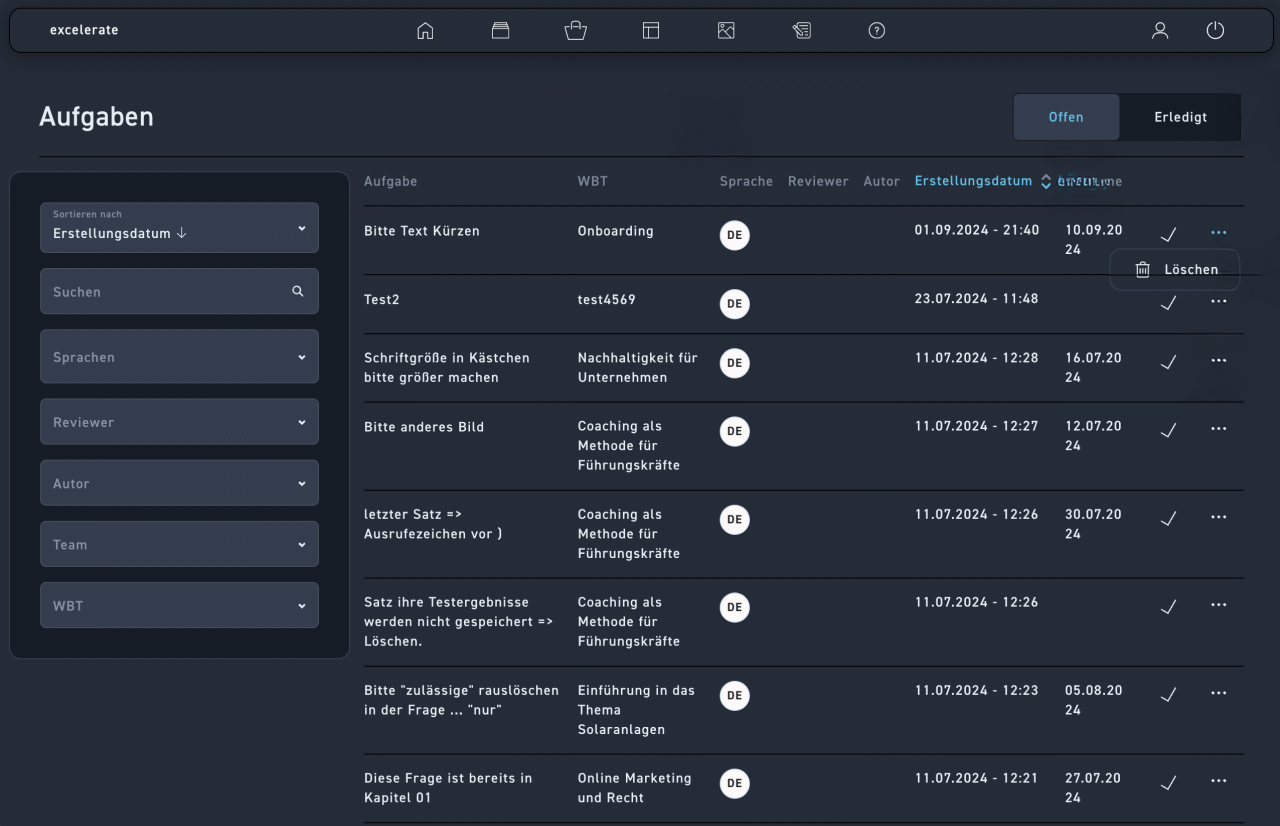
In the middle of the page, you will find the complete overview by the categories task, WBT, language, reviewer, author, publication date, and deadline.
Sort the tasks here by creation date.
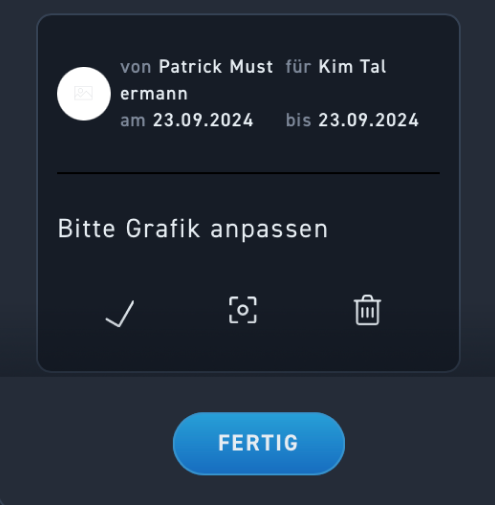
Click the checkmark at the end of the line to mark the task as done.
To delete, click on the 3 dots and then on delete.
All completed tasks can be found under the Completed tab.