Tabs
Width
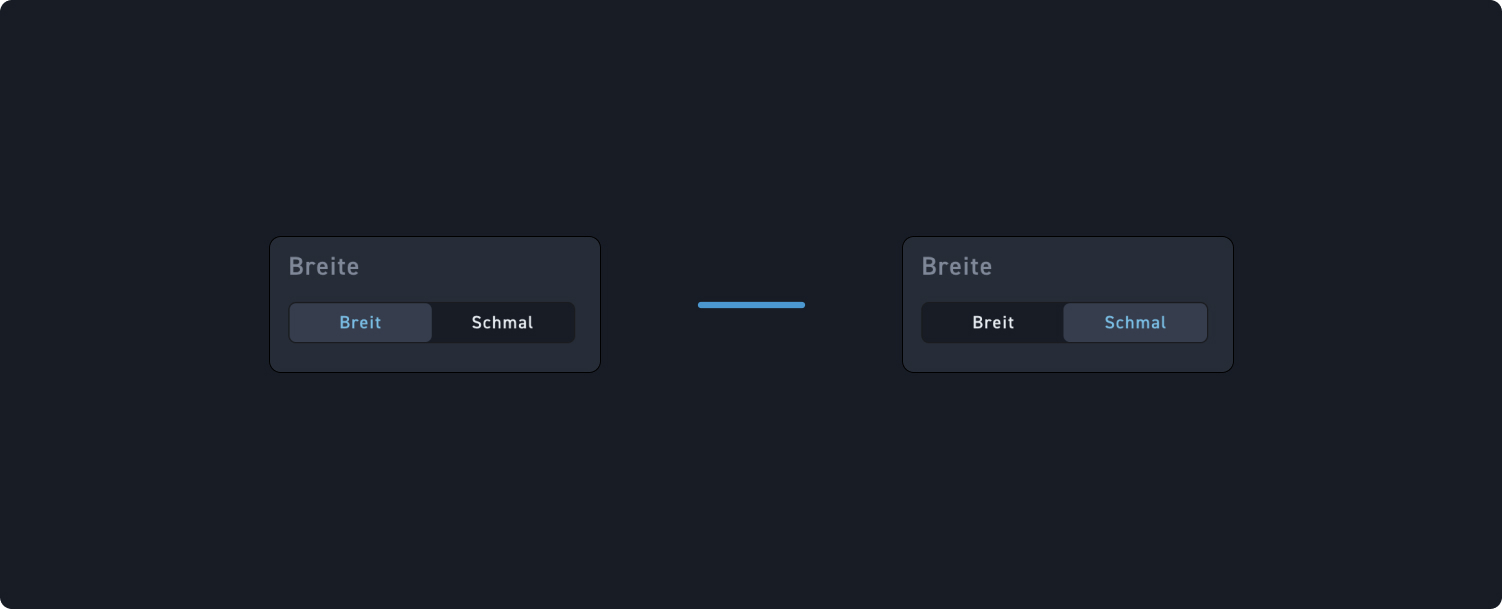
Decide whether the Tabs element should have a wide or a narrow layout.
Add tab
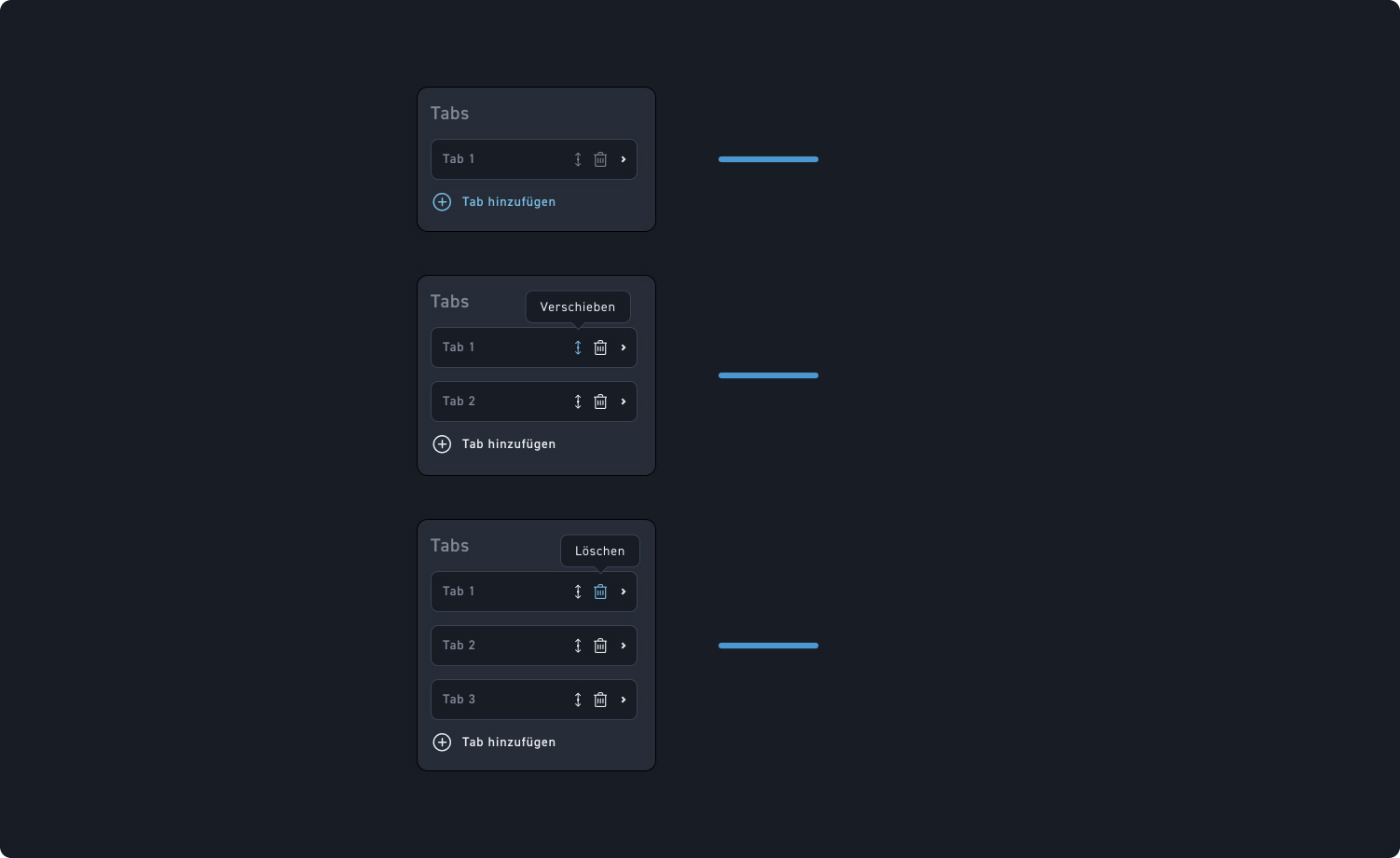
Click on „Add tabs“ to create as many tabs as you like.
Sort tabs
Change the order of the tabs by clicking the move icon and dragging it to the desired location.
Delete tabs
Delete tabs by clicking the trash can icon.
Edit title and content
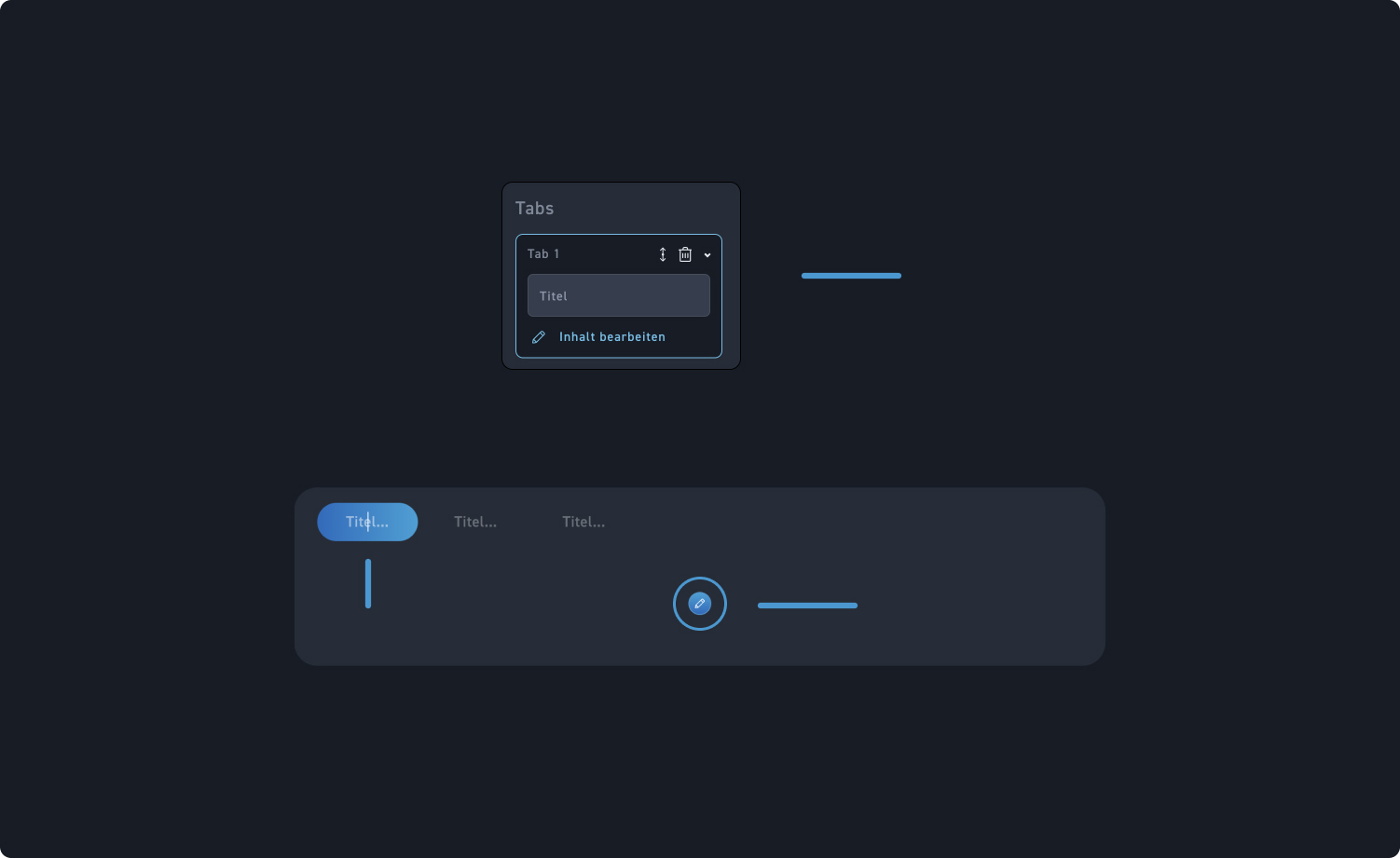
Enter your desired title either in the input field of the editing window or change it directly in the element as described in step 2.
Edit tab title
Click on a tab to edit its content. You can also edit the title of the tab directly on the tab itself.
Edit tab contents
Click the edit button to create the tab's content using the content editor. You can learn exactly how it works on the „Edit Overlay“ page.