Chapter Start
Application #
Use the chapter start element to announce the start of a new chapter to your learners and prompt them to begin it.
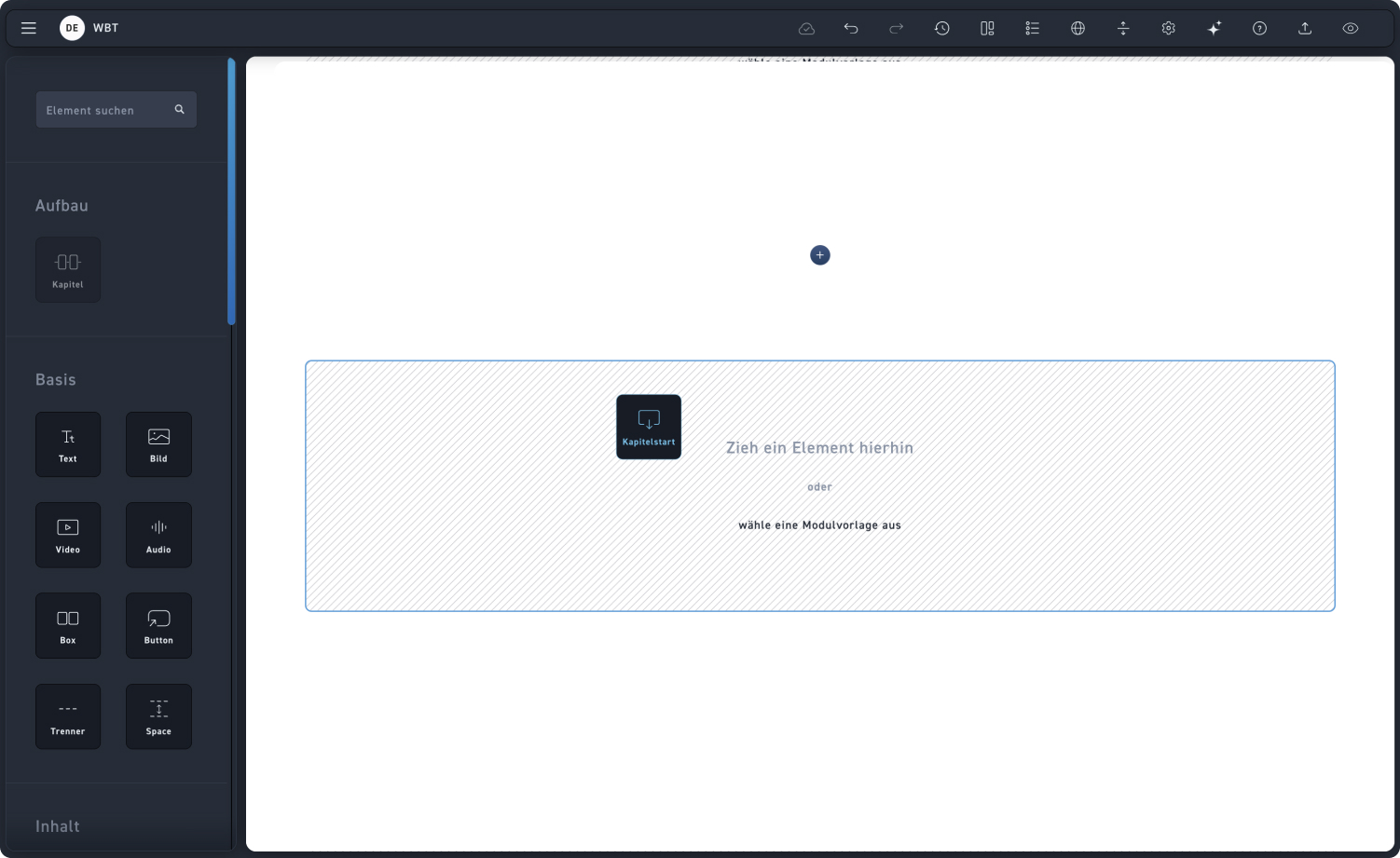
Add chapter start #
Drag the chapter start element to the position where the chapter should begin. The content and order are automatically determined by the contents within the chapter element.
Revise chapter start #
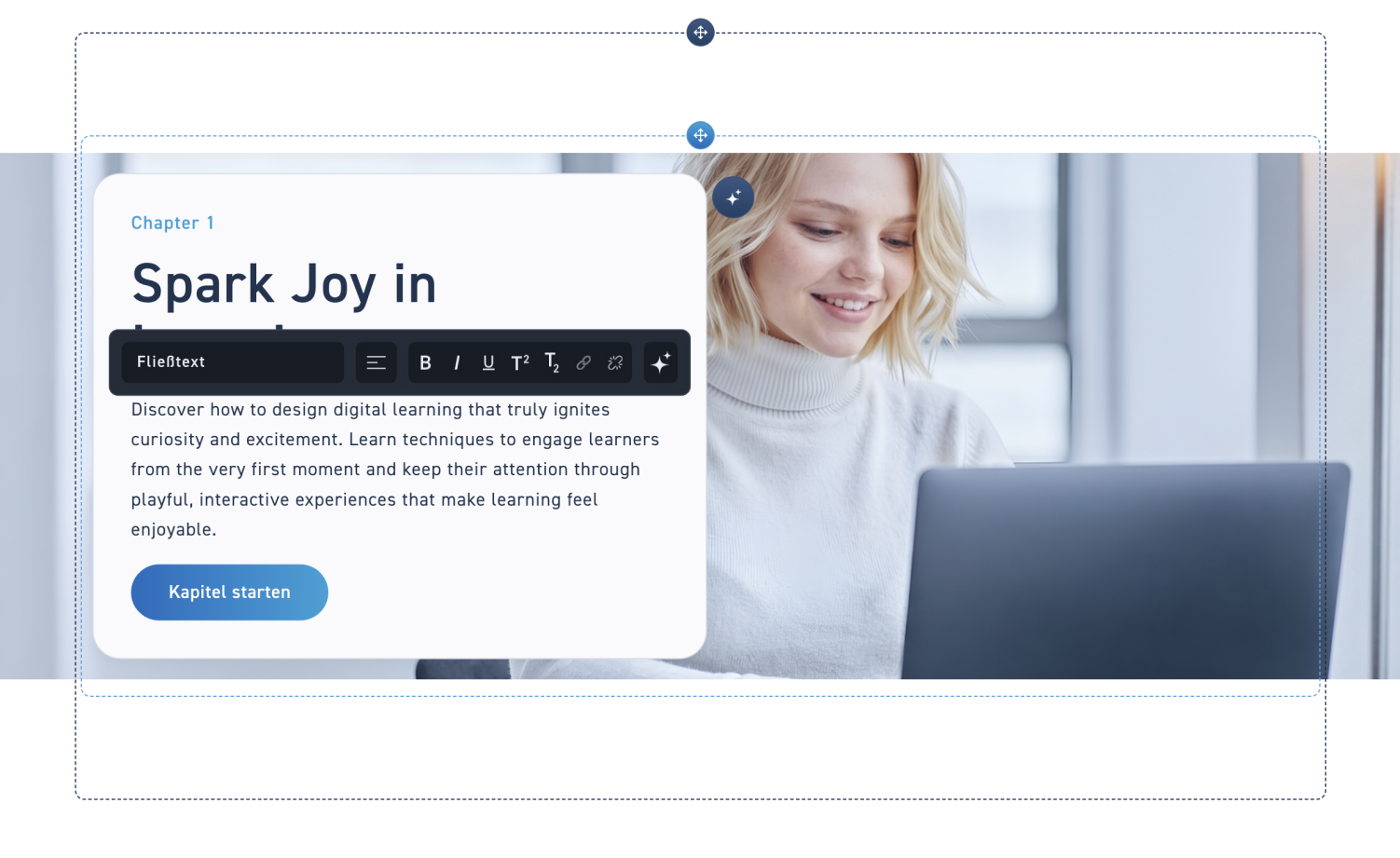
You can overwrite the chapter content directly within the element and replace the image. The changes update automatically in the chapters. To see how to change the content, take a look at the hotspots on the image.
1
Text
If you noticed anything while inserting the element that you would like to change, just click on the text and overwrite it.
2
Picture
If you want to change the image in an element afterwards, click on the AI button and enter a prompt for a new image.
Chapter start settings #
Take a look at the two setting options you have in the chapter start element.
1
Layout
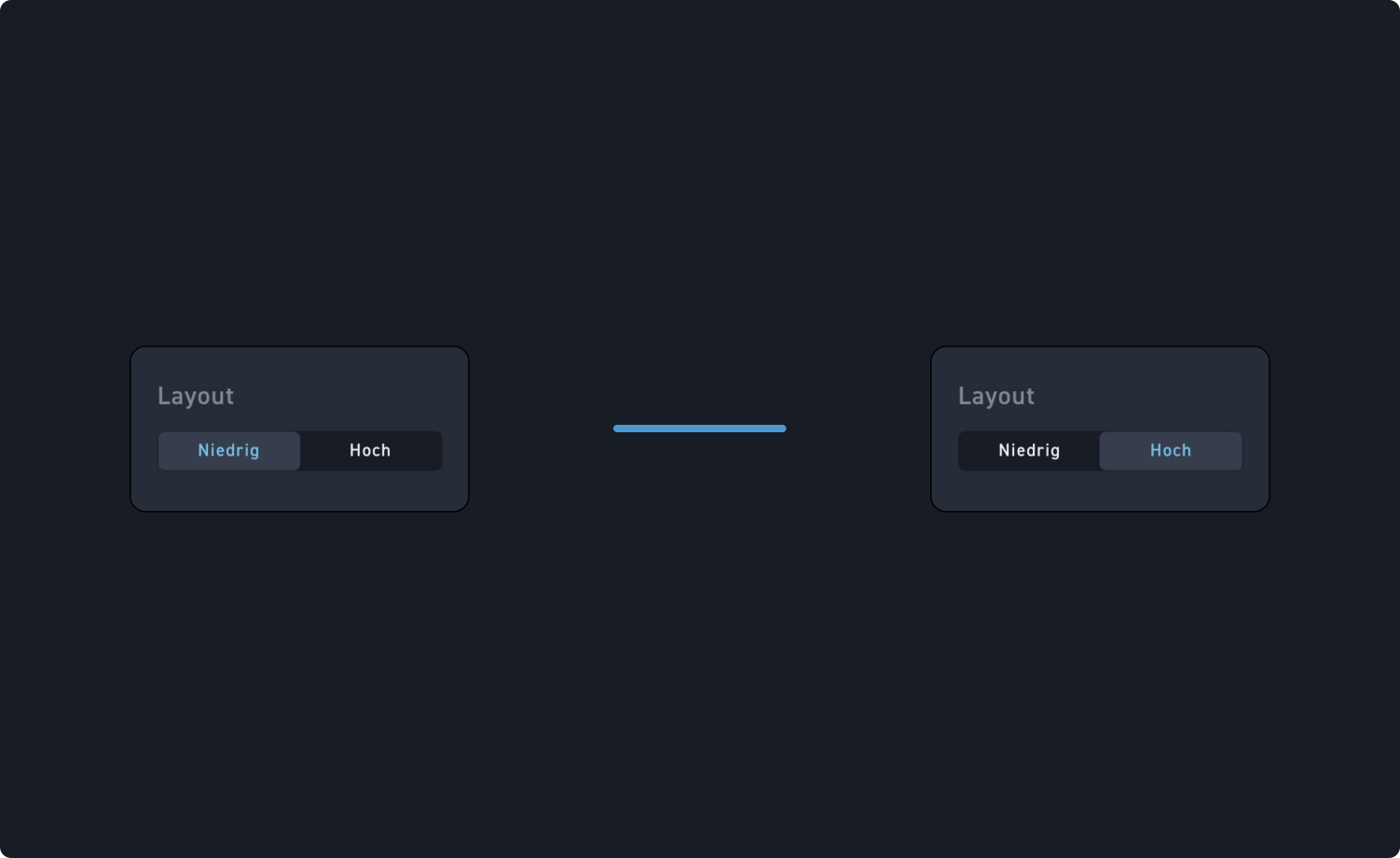
Decide whether the chapter start layout should be displayed as low or high.

Layout #
Take a look at the two layouts to make it easier for you to choose one.