Drag & Drop

Application #

With drag-and-drop quizzes, you can make learning content interactive and actively involve learners in the learning process. For example, you can have users match terms, categorize elements, or put sequences into the correct order. This allows you to test not only knowledge, but also the understanding of relationships and processes. At the same time, you provide more variety and motivation in your learning modules.


Video tutorial #

In the following video tutorial, learn how to create the Interview element.

Add heading and content  #

First, enter a title for your quiz.

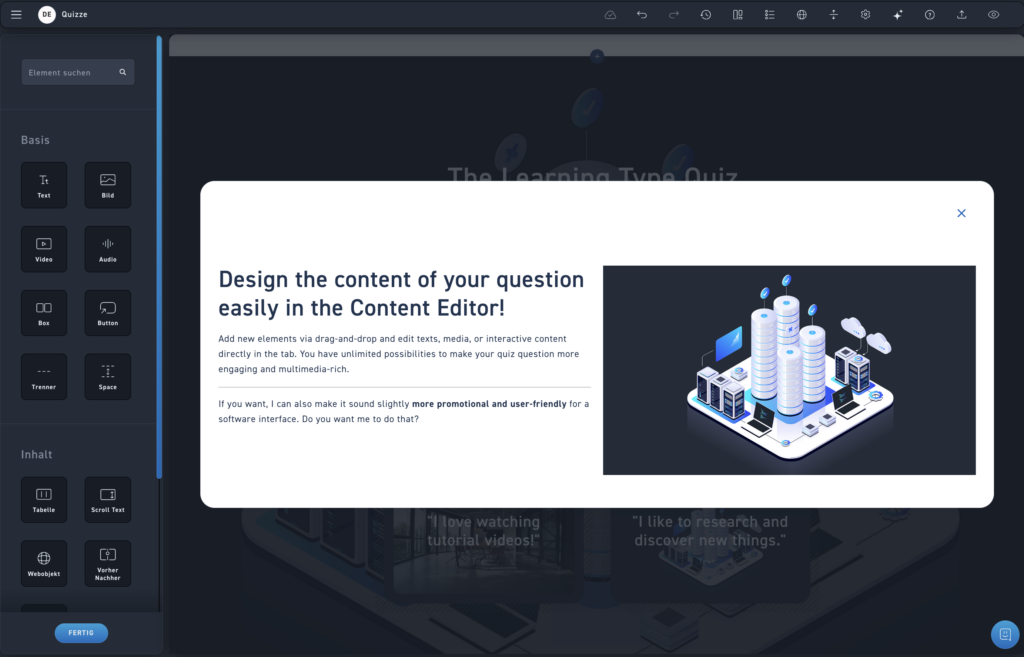
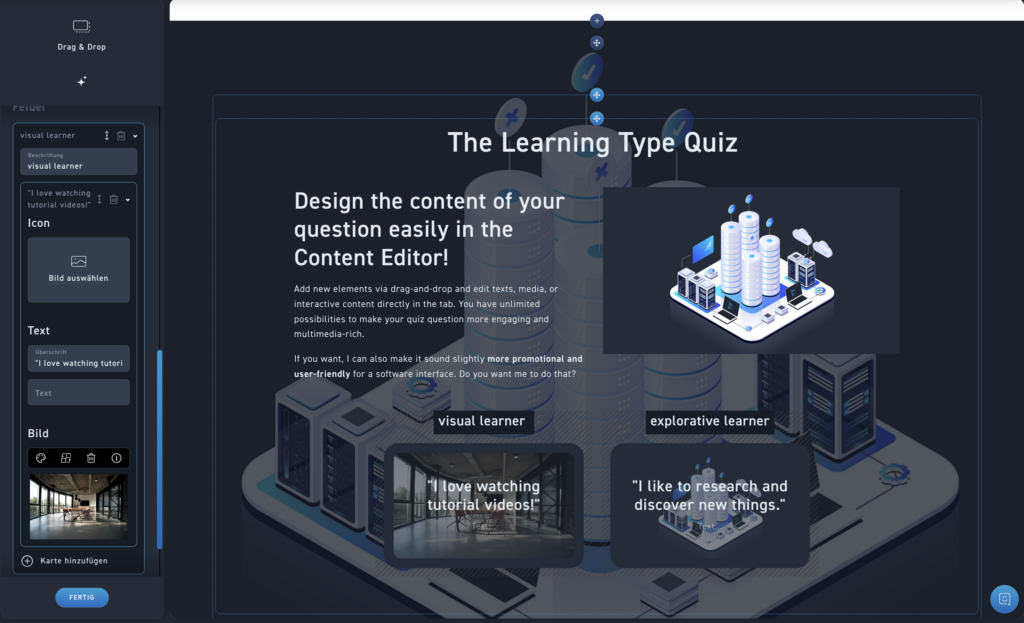
Design your question content easily in the content editor: add new elements via drag-and-drop and edit texts, media, or interactive content directly in the tab. You have endless possibilities to make your quiz question more engaging and multimedia-rich. 

Quiz Settings #

Select quiz settings #

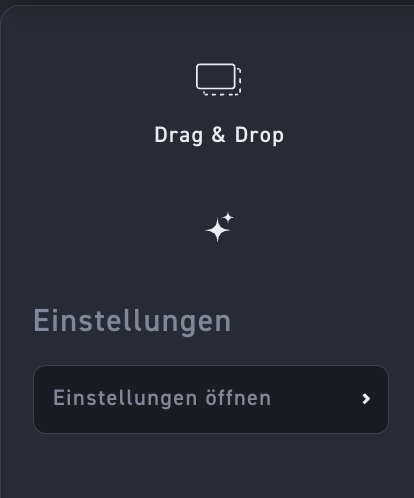
Make with a click on Open settings the quiz settings, such as question pool, repetitions, number of repetitions, show result, and show solution. 

You can find more information about the quiz settings in the chapter Multiquiz. 

Choose a background  #

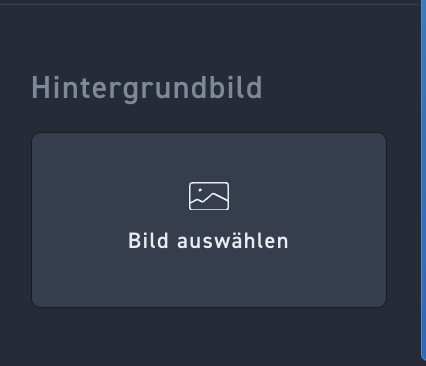
Choose a background for your quiz from the media library. The image will be displayed softly in the background.

Either the background is softened to light or dark, depending on what you have selected in the module settings. 

Create feedback  #

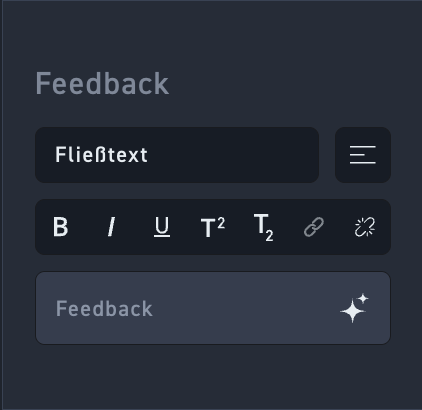
If you wish, you can provide feedback to your learner. The learner will see the feedback text once they have answered the question – regardless of whether it was right or wrong. 

Create fields and cards  #

First, create your fields. A maximum of 6 fields are possible. To do this, click on Add field. 

Then add your cards that your learners should correctly assign to the fields. To do this, click on Add card. 

Choose a title for your card and optionally add text. 

Add to the card upon request Picture or a Icon Added.

Delete and sort via drag & drop your fields—and the cards within the fields—in the edit box.