Theme Editor
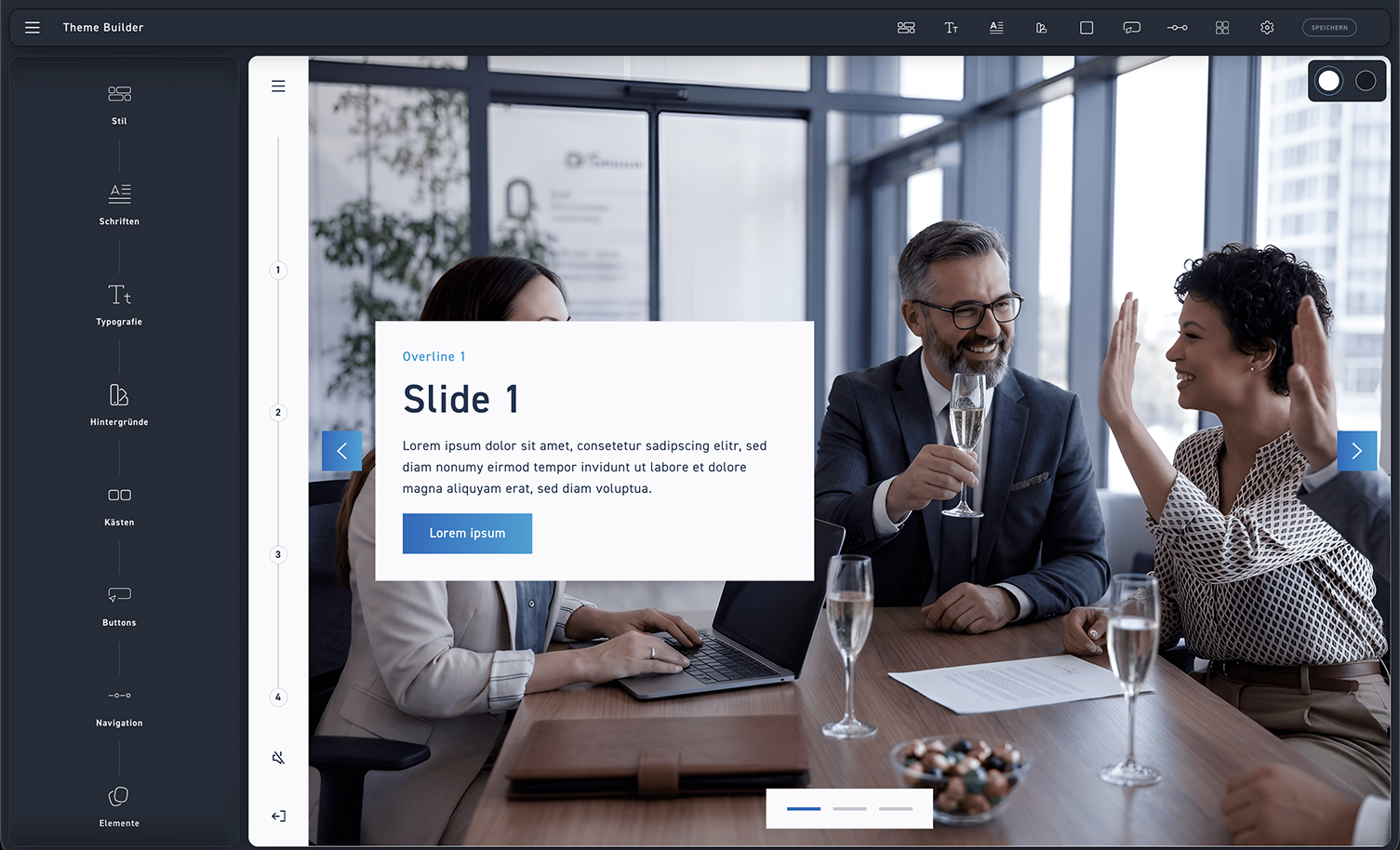
Set the style of your theme
Upload your own fonts to customize the typography of your design
Assign individual settings for all typographical elements
Set background colors for light and dark areas
Design the boxes and containers of your WBT
Customize primary and secondary buttons
Customize learners' navigation bar
Additionally, customize individual elements individually.
Change background view
By default, you will see two backgrounds here: a light one and a dark one. If you add more backgrounds later in step 4, they will also automatically become available for selection here.

Menu bar
In the menu bar, you will find the same items as on the Theme Builder home screen. They allow you to quickly switch between the different settings.

Theme Settings
Click the settings icon to customize your theme name and logo.
Save
Click the „Save“ button to save your theme customizations