Audio
Application #
The Audio Element offers you the ability to enhance your WBTs with audio tracks. Additionally, you have the option to add a suitable image and a heading. Take a look at the step-by-step guide to understand how the Audio Element works and what options are available to you. The Audio Element is freely placeable as a basic element. You can place a maximum of 4 audio players in a column or combine it with other basic elements.
Add Audio Element #
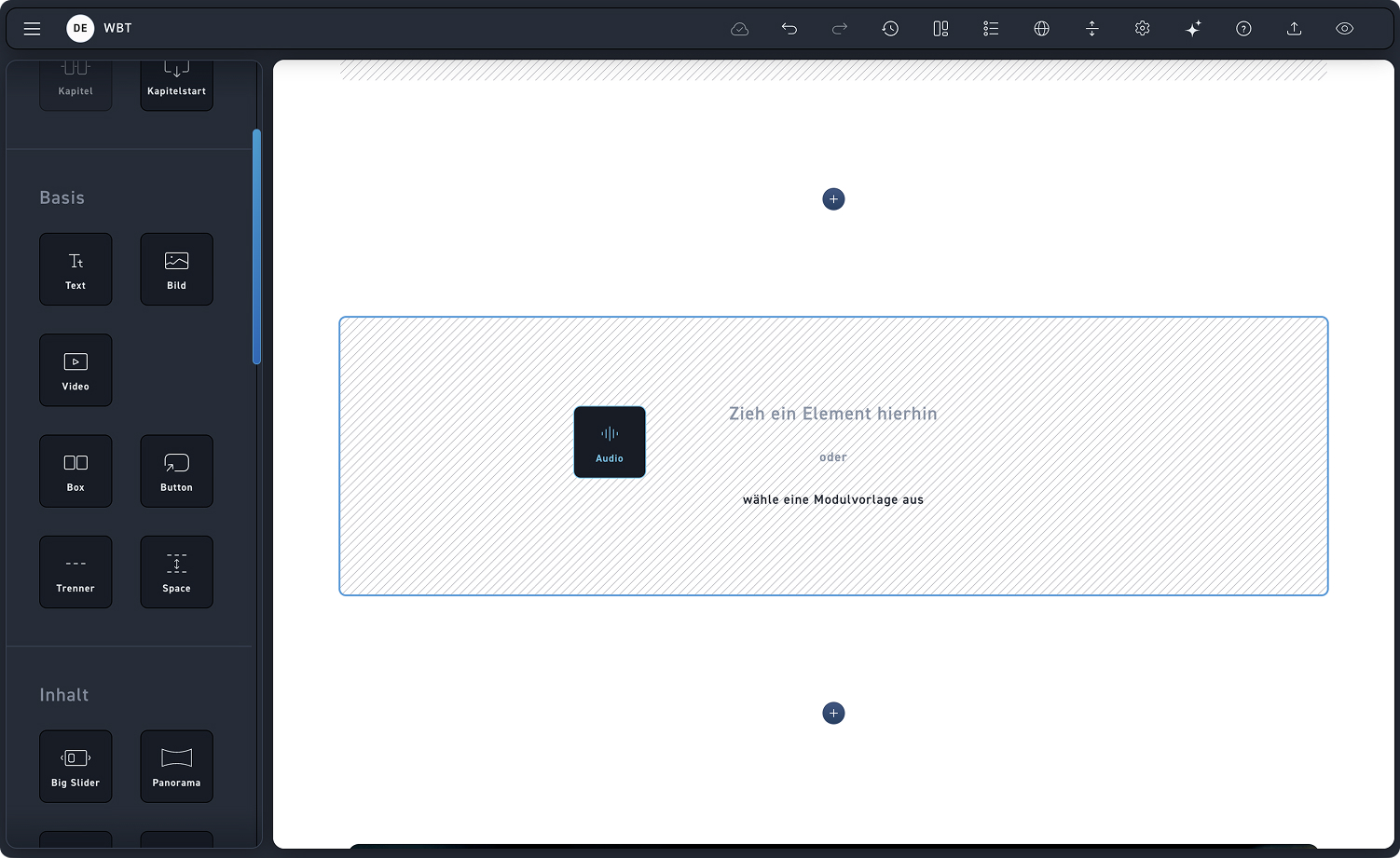
Drag the audio element into a module.
Step 2 – Audio Player #
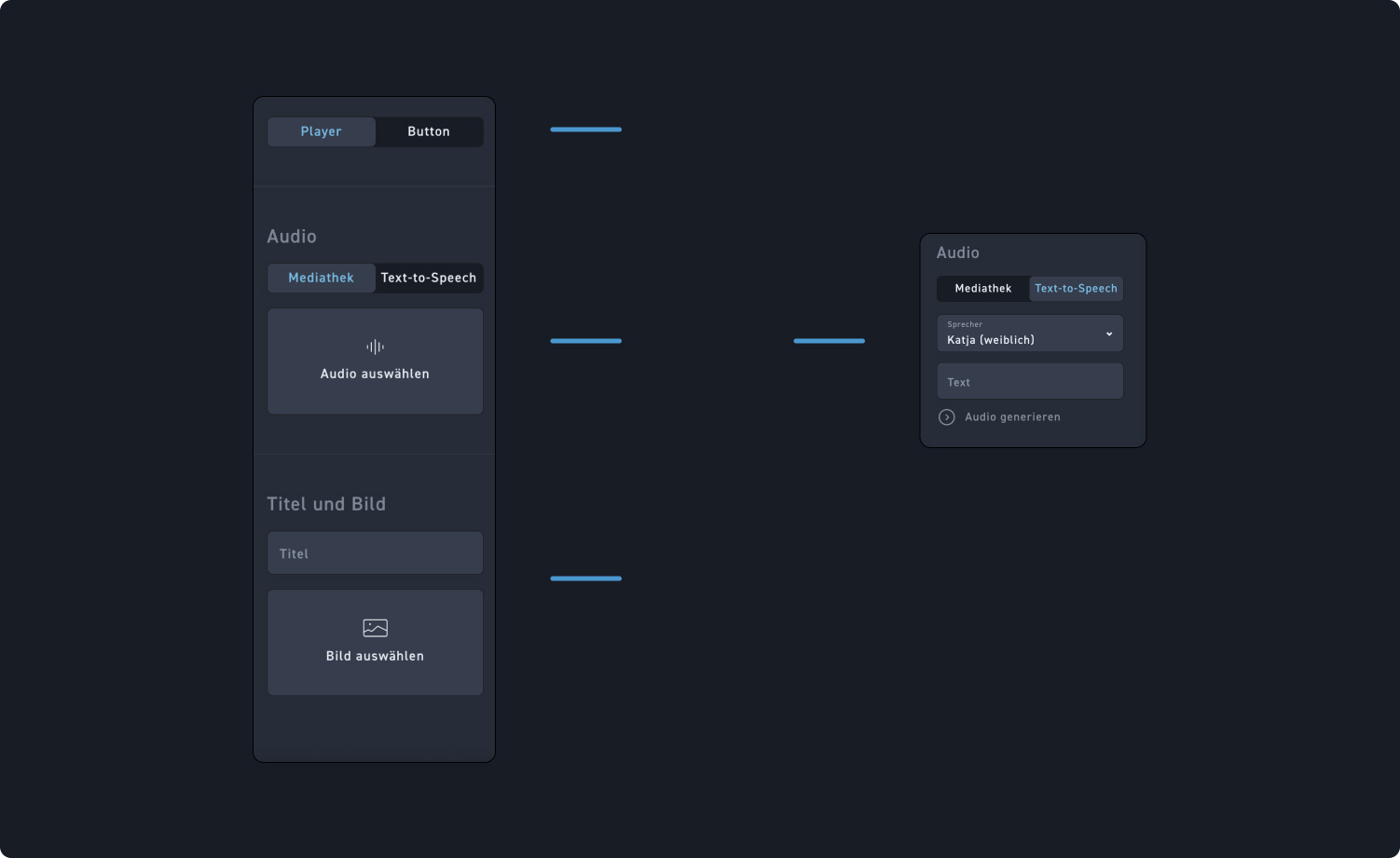
Check out the hotspots to see what settings you have available in the player.
1
Player Art
Decide whether your audio files will have a player or be presented as a button. We will look at the setting options available for the button in step 3.
2
Audio
Decide whether you want to upload an audio from the media library or use the text-to-speech function.
3
Title and Image
If you choose the player, you have the option to add a title and an image to your audio element.
Step 3 – Audio Button #
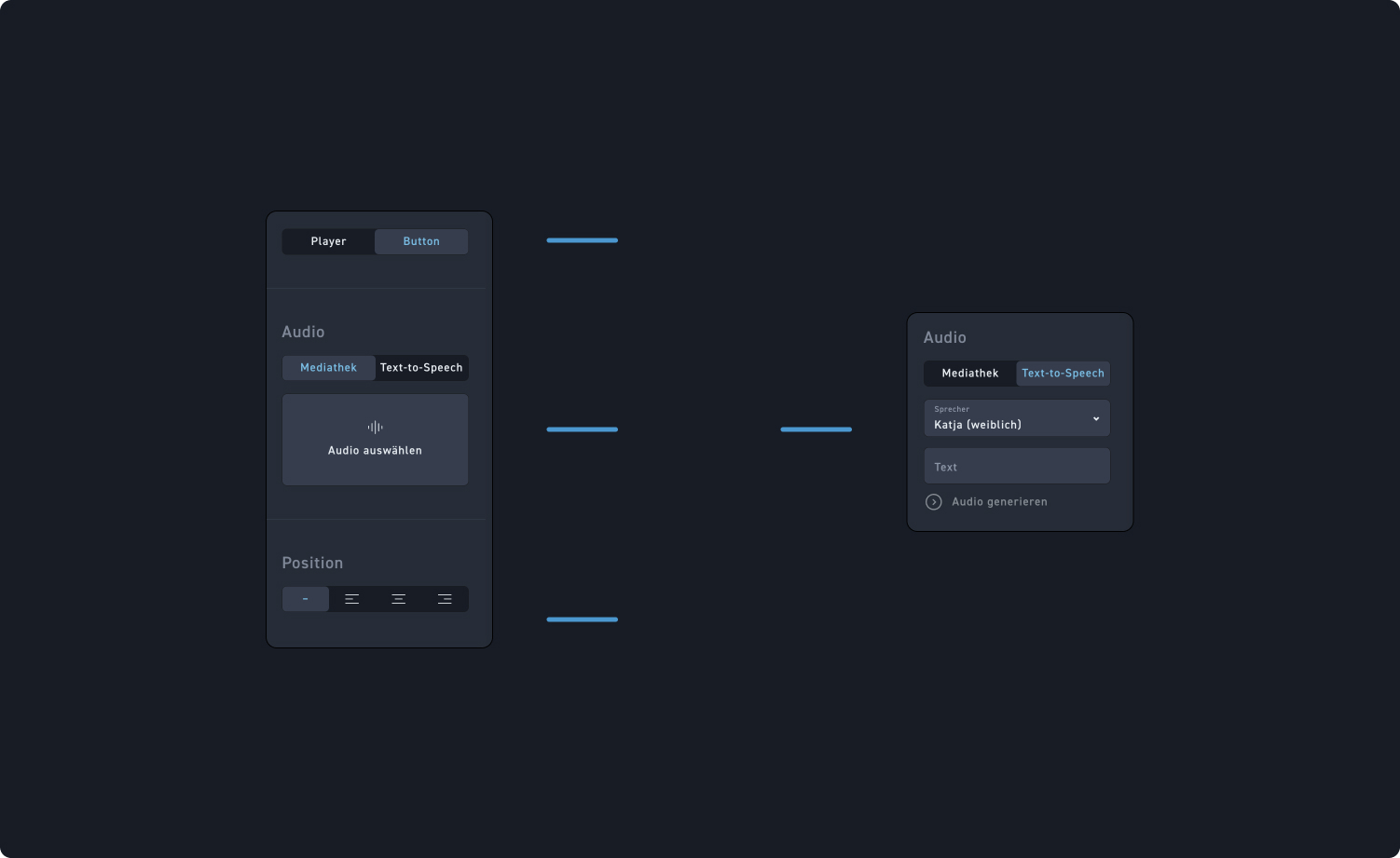
Take a look at the hotspots to see what settings you have available for the audio button.
1
Audio Button
Click the button if your audio player should have the simple audio button. Users can listen to the content as soon as they click it.
2
Audio
Decide whether you want to upload an audio from the media library or use the text-to-speech function.
3
Position
Since the audio button functions as a normal button, you have the option to position it left, center, or right.
Appearance Audio Element #
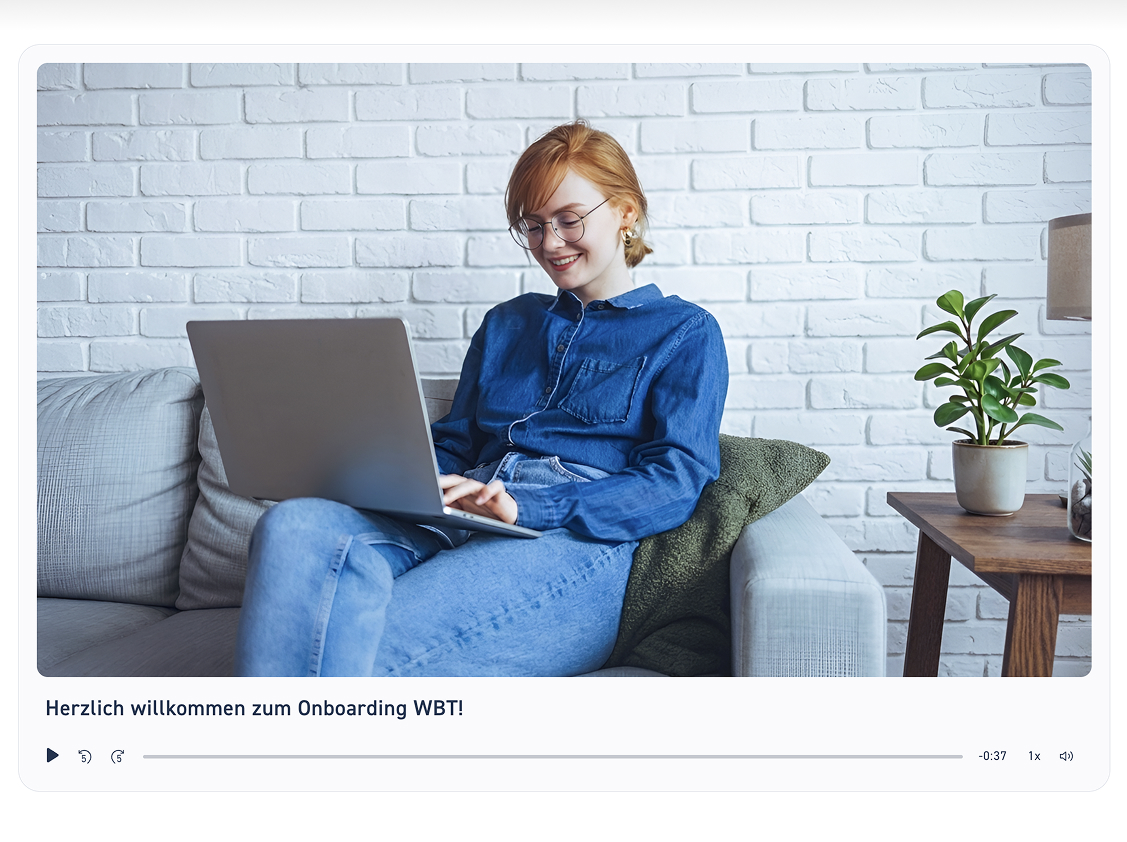
Click on the arrows to see what the audio element looks like in each setting.