Teaser

General Adjustments
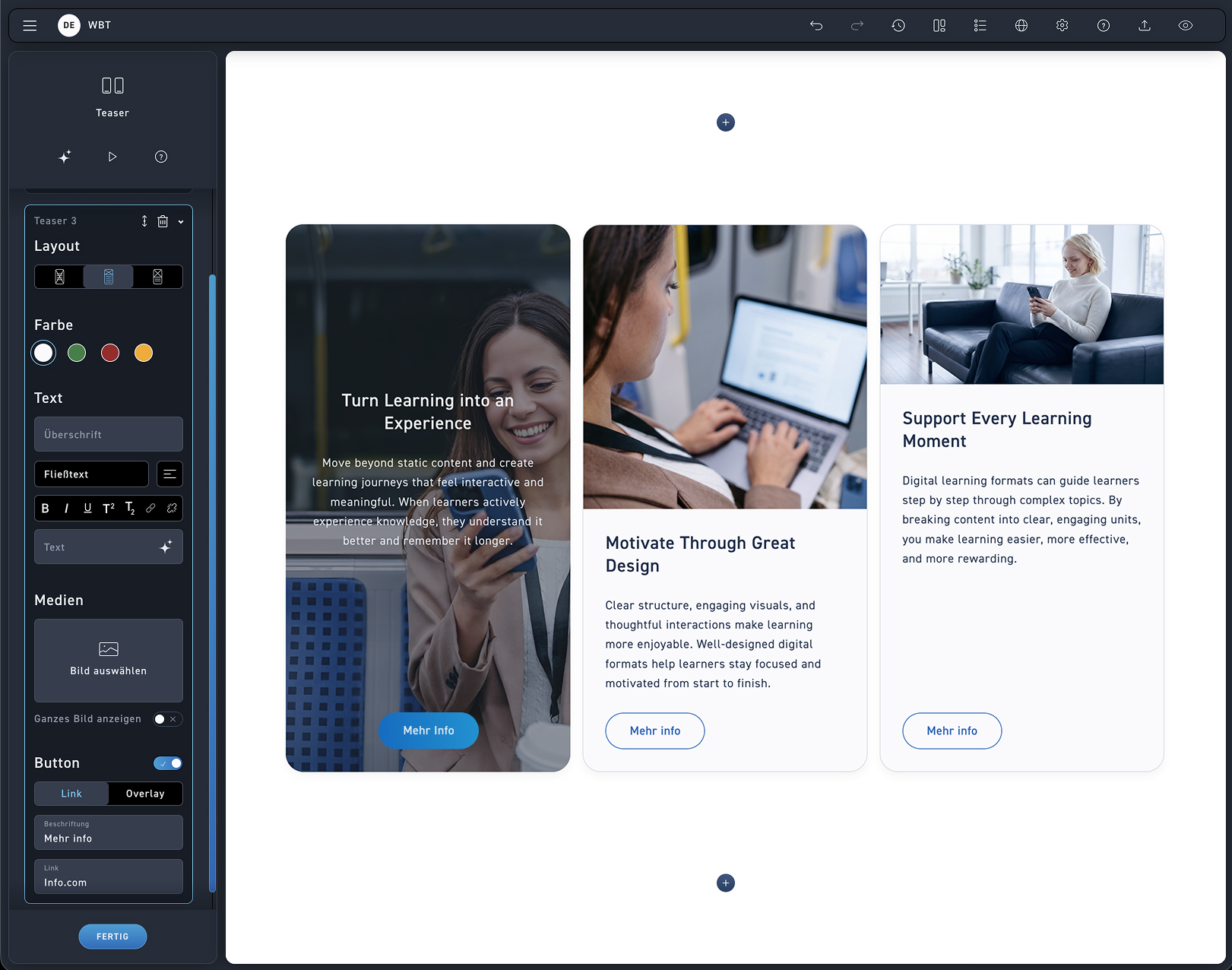
A maximum of three teasers are displayed side by side in a single row. Change the number or the order of the teasers.
Processing
Edit the teaser either directly in the element or in the editing box.
Text
Insert a heading and body text and format it optionally.
Media
Optionally add an image.
Button
Create a button with a label that leads to a link, a section, or an overlay. Add an overlay, edit it, and then click „Done“. If you want to edit it further, click „Edit Overlay“. Delete it as usual using the trash can icon.