Edit elements with AI
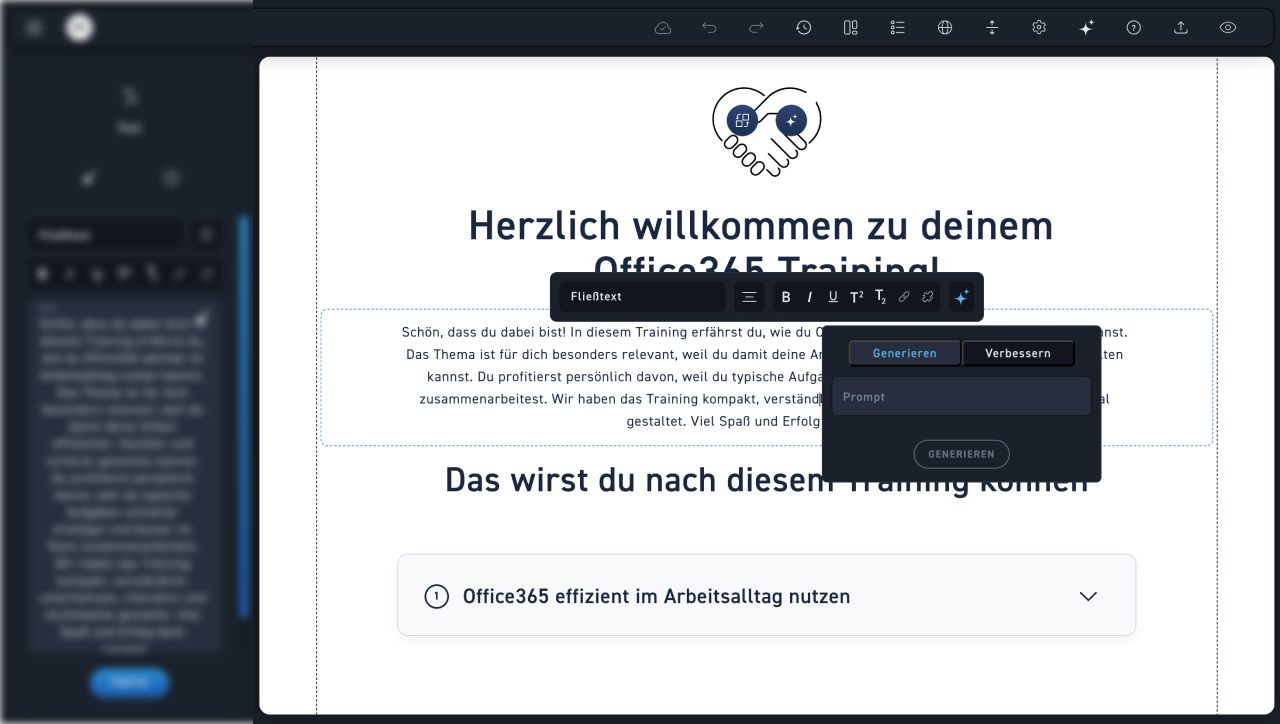
Directly in the text field
Texts can be edited directly in the text field with AI. You can either generate a completely new text or improve an existing one.
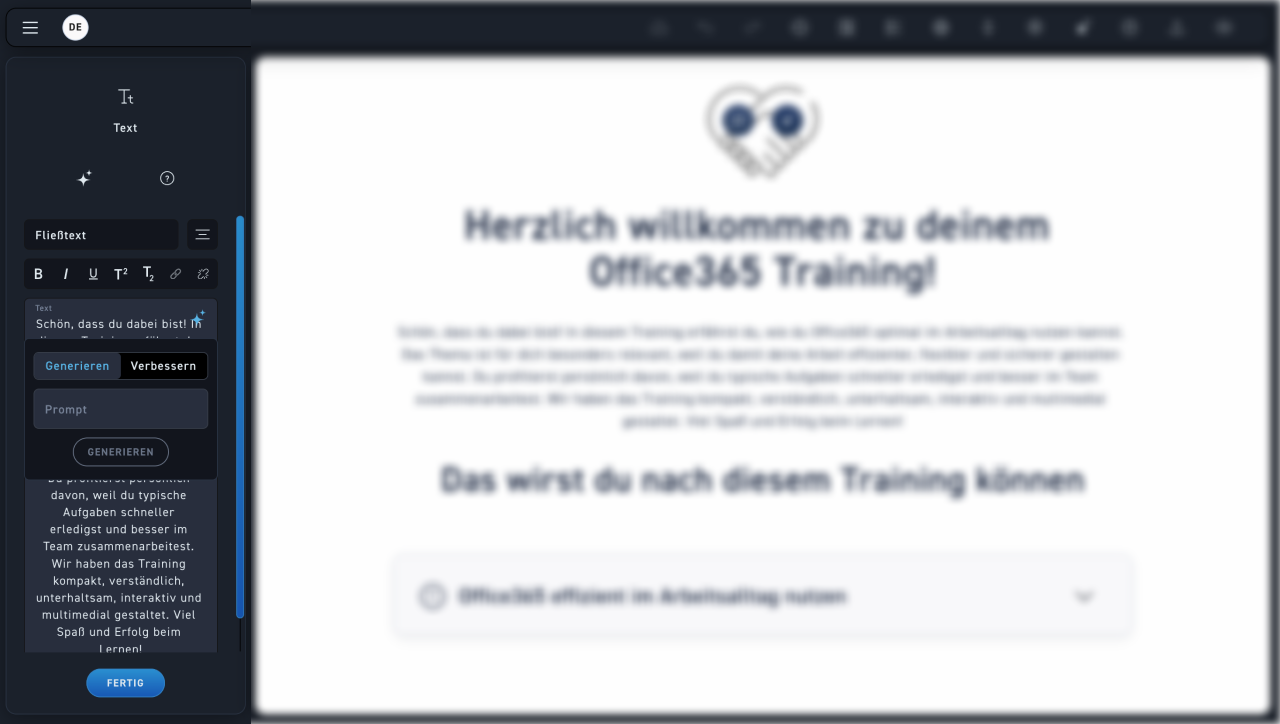
Text editing window
Edit texts in the text editing window
Generate or improve
Decide whether the AI should recreate your existing text or simply improve it.
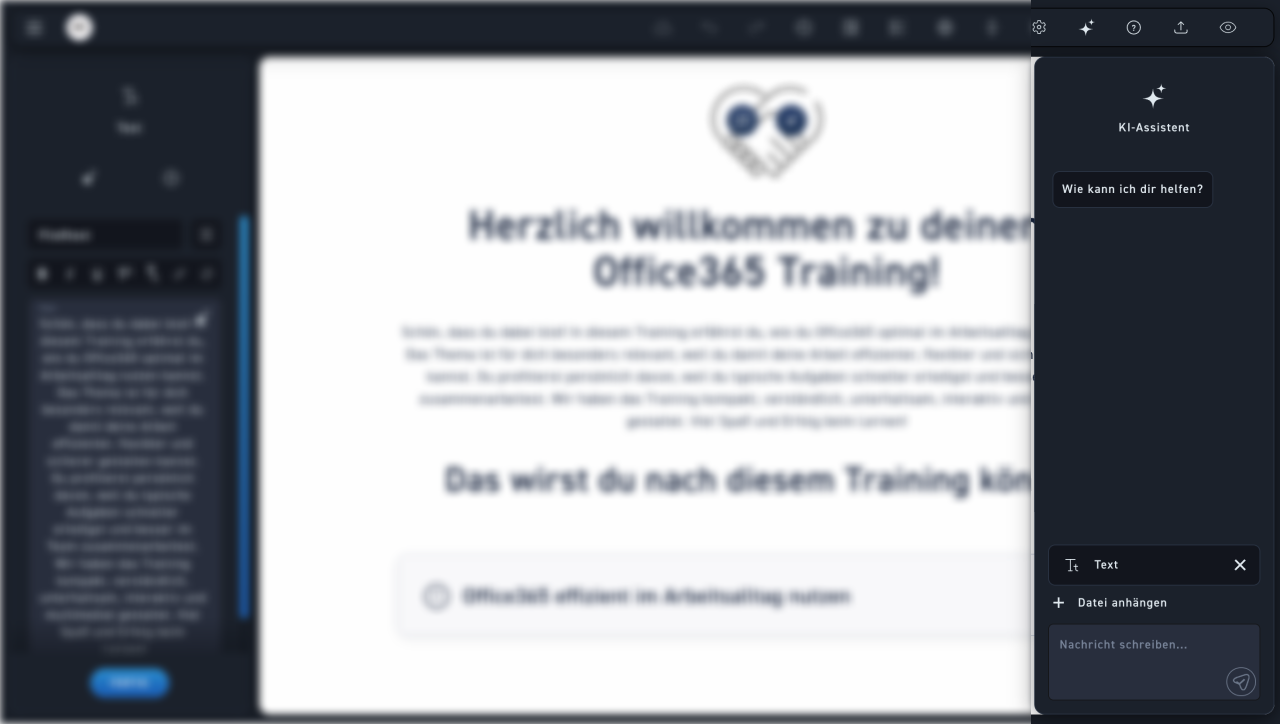
AI Assistant
Open the AI assistant and select the desired module. Now you can tell the AI assistant what should be changed in the module.
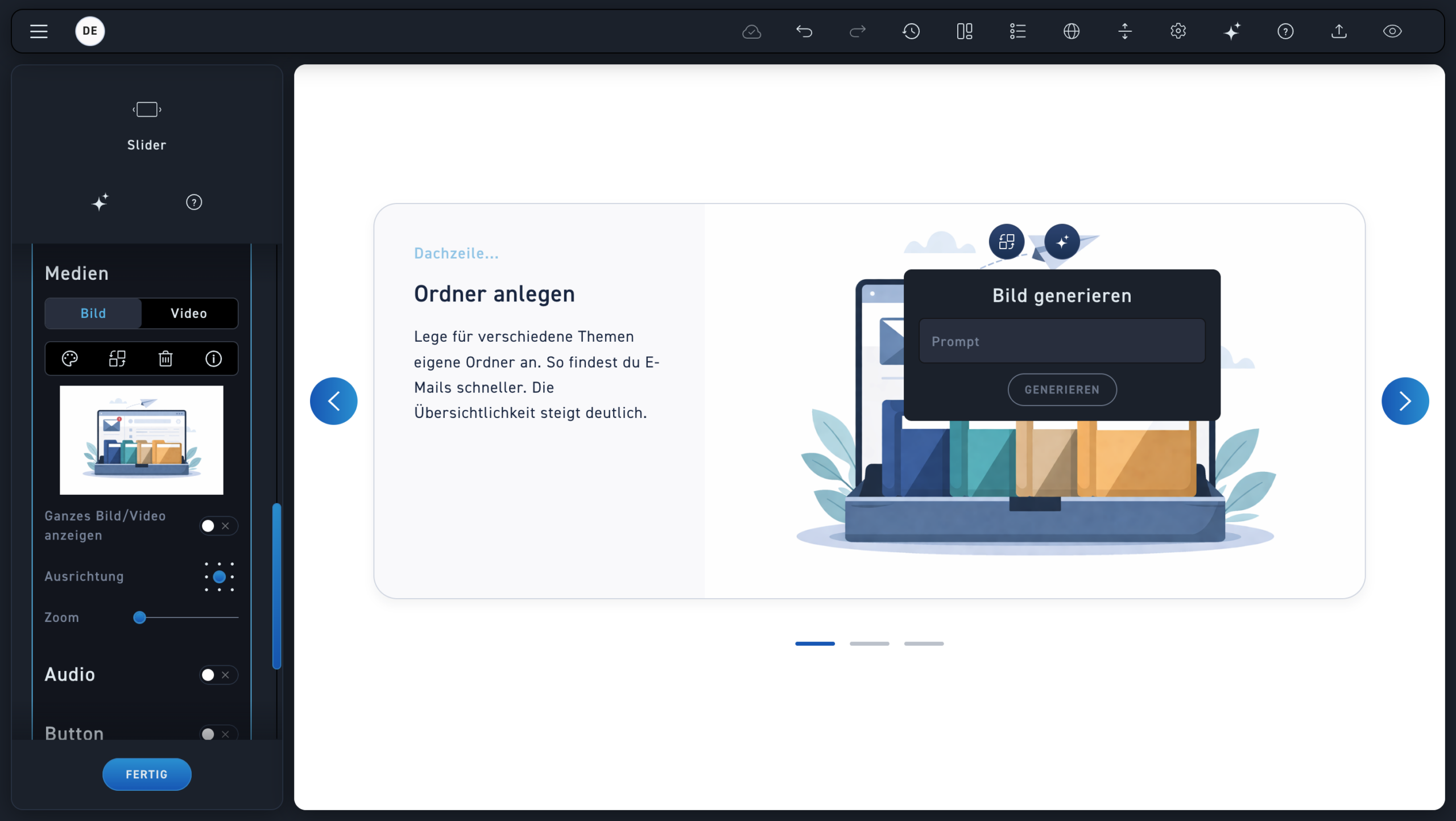
Image generation window
To modify an image, click the AI icon and describe to the AI what changes you want made to the image.
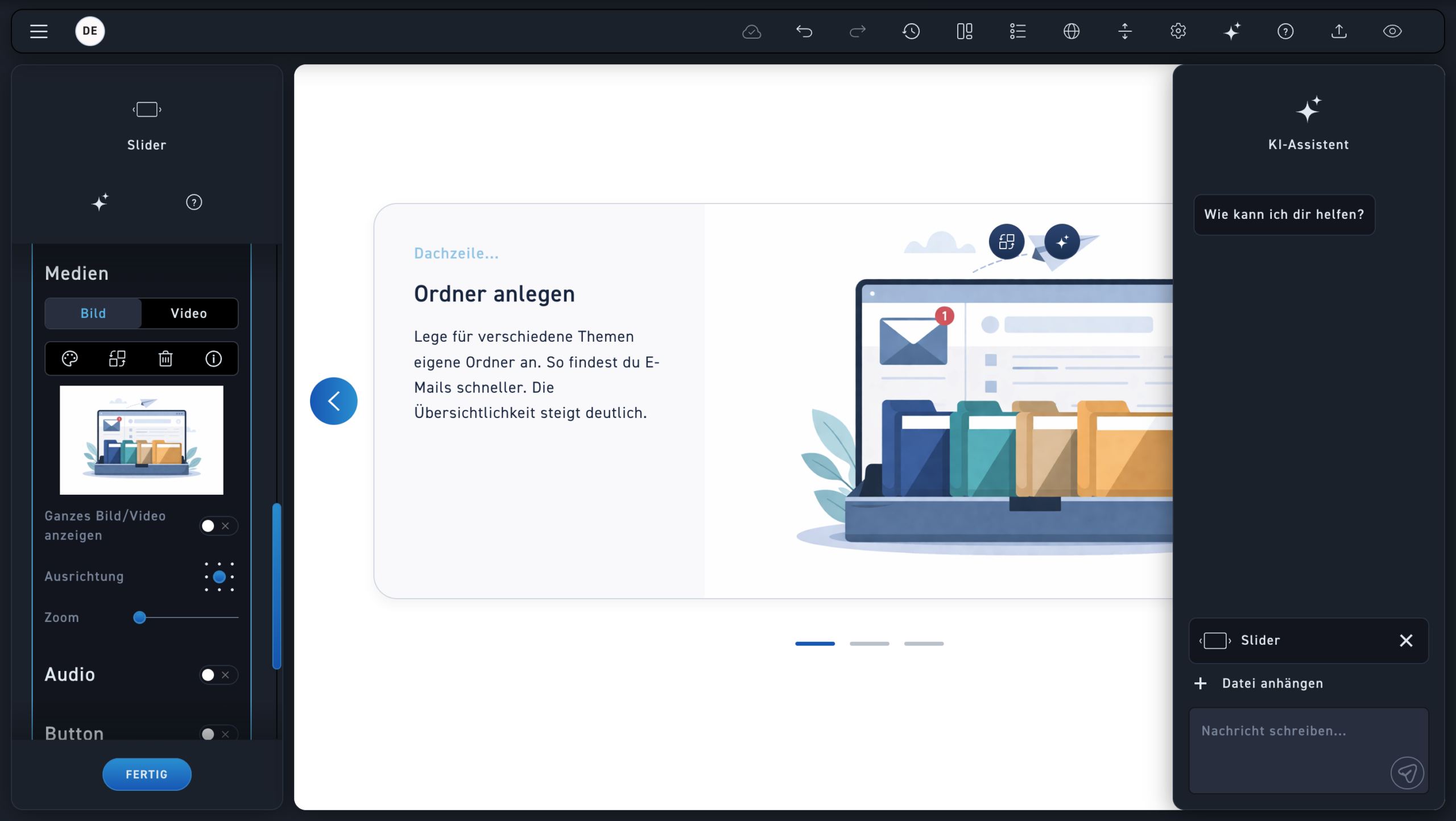
AI Assistant
You can also change the image via the AI Assistant. To do this, open the AI Assistant, select the module where the image is located, and describe to the AI what changes you want to make.