Media library
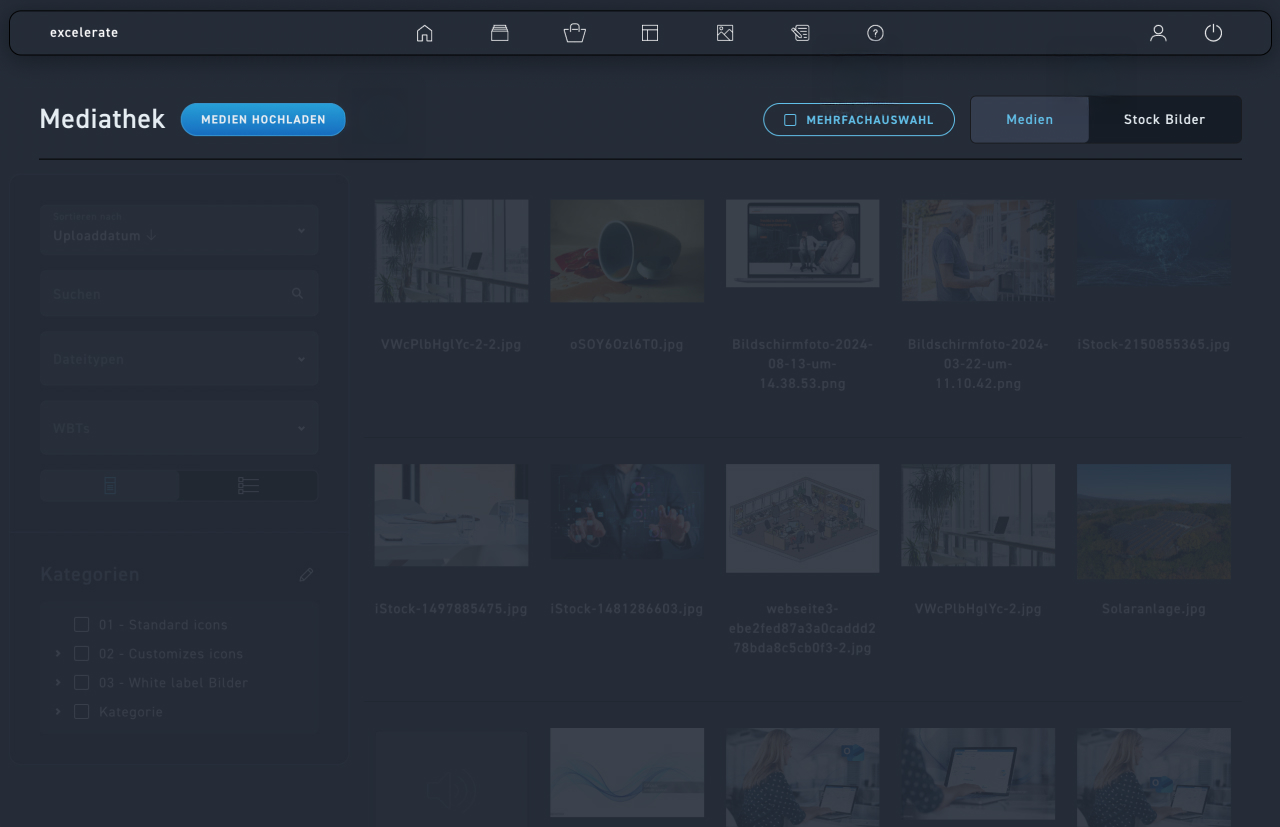
Media can be uploaded directly to the media library. Click on „Upload Media“ in the top left corner and select the desired file, or simply drag and drop it into the upload field. Uploading multiple files at the same time is also possible. Please observe the file format and file size requirements mentioned above.
Do you want to copy, categorize, or delete multiple media files at once? Then use the practical multi-select feature. You can now easily select multiple media files by clicking and dragging your mouse over the desired files.
Top right, you can distinguish between your own media and stock images. In the stock media library, you will find the perfect picture in a free database with millions of images.
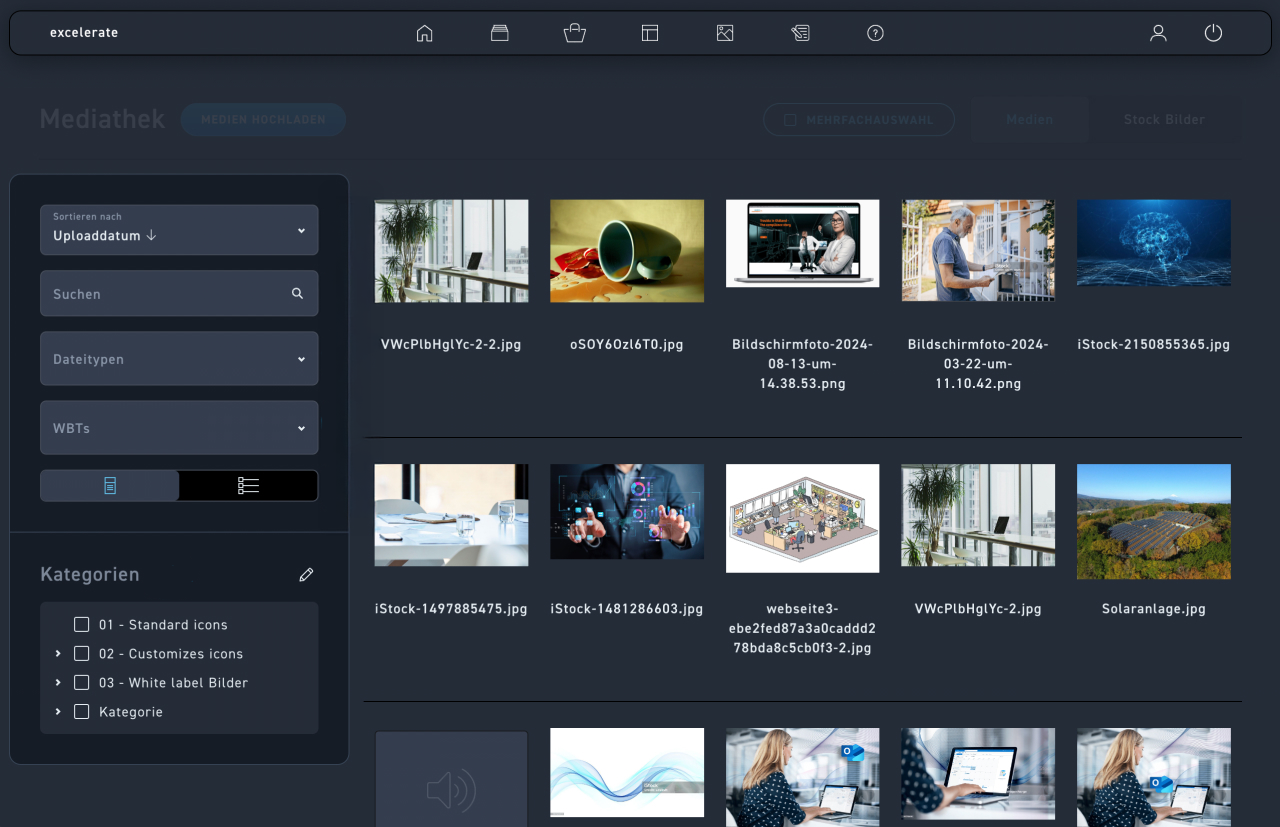
Here you can sort by name and date.
Search the titles of your media.
Filter by numerous file types: image, SVG, audio, video, document, and archive files.
Enter the name of your WBT and get an overview of your media from this WBT.
Choose whether you want to display the media as tiles or in a more detailed list view.
Choose your desired category or create categories up to three levels deep to keep things organized.
Your filter settings are being saved
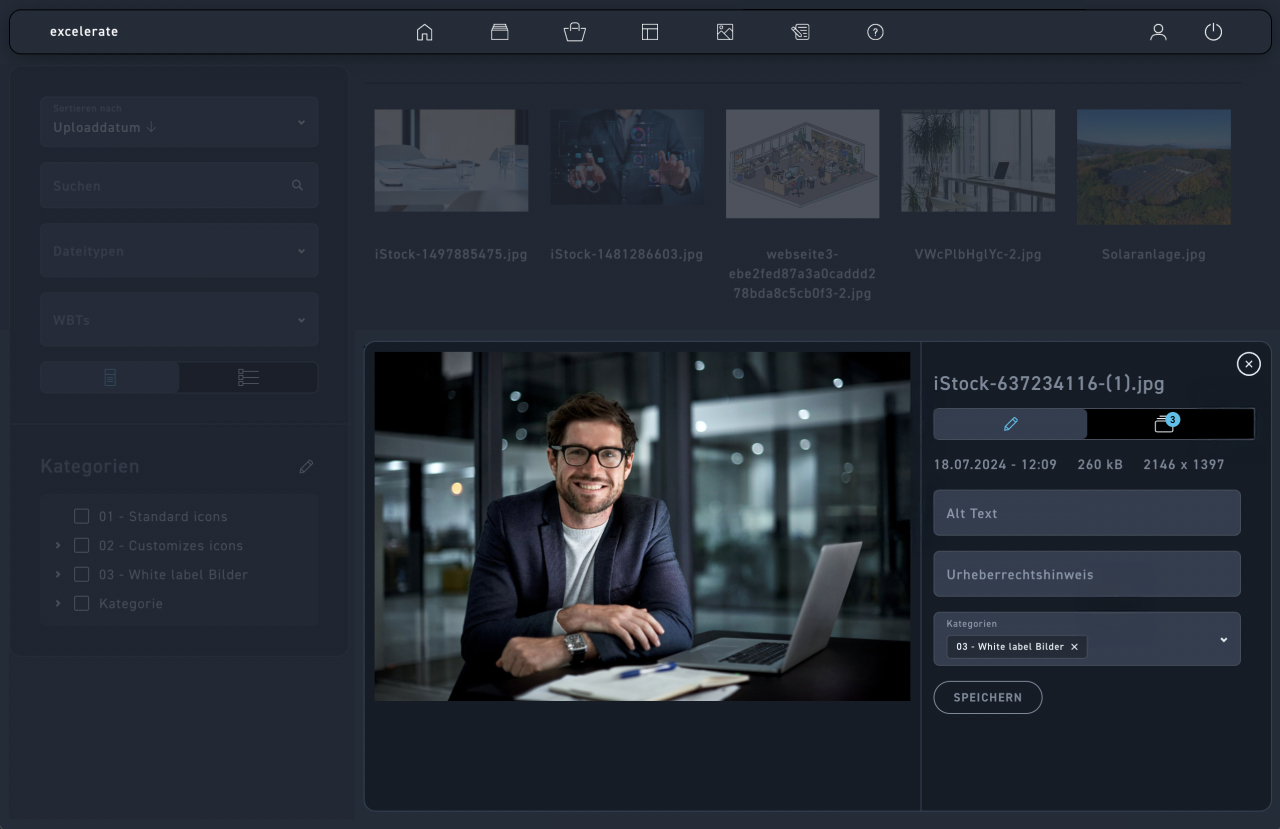
Click on the pencil to get more options.
Click here to find out in which WBTs the medium is used.
For example, enter alternative text, which improves the accessibility of your WBT.
Add a copyright notice and select the appropriate category.
When you are done, click Save.
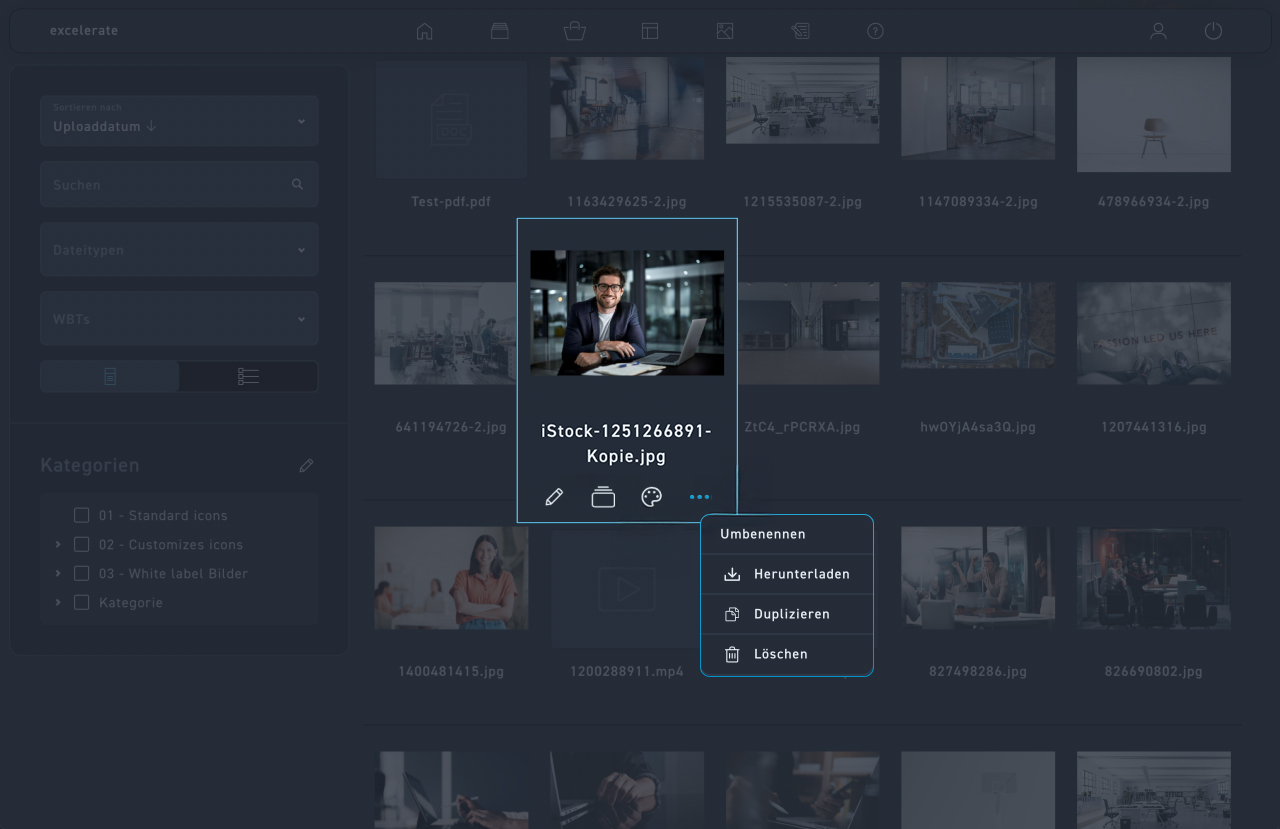
Click on the WBT icon to get a list of all WBTs in which this image is used.
The palette opens an image editing program for you.
The three dots open up further options: Rename, Download, Duplicate, or Delete.