Create varied quizzes with different question types. The multi-quiz is ideal as a final quiz and combines different quiz types such as single choice, multiple choice, drag and drop, or matching quiz in just one quiz.
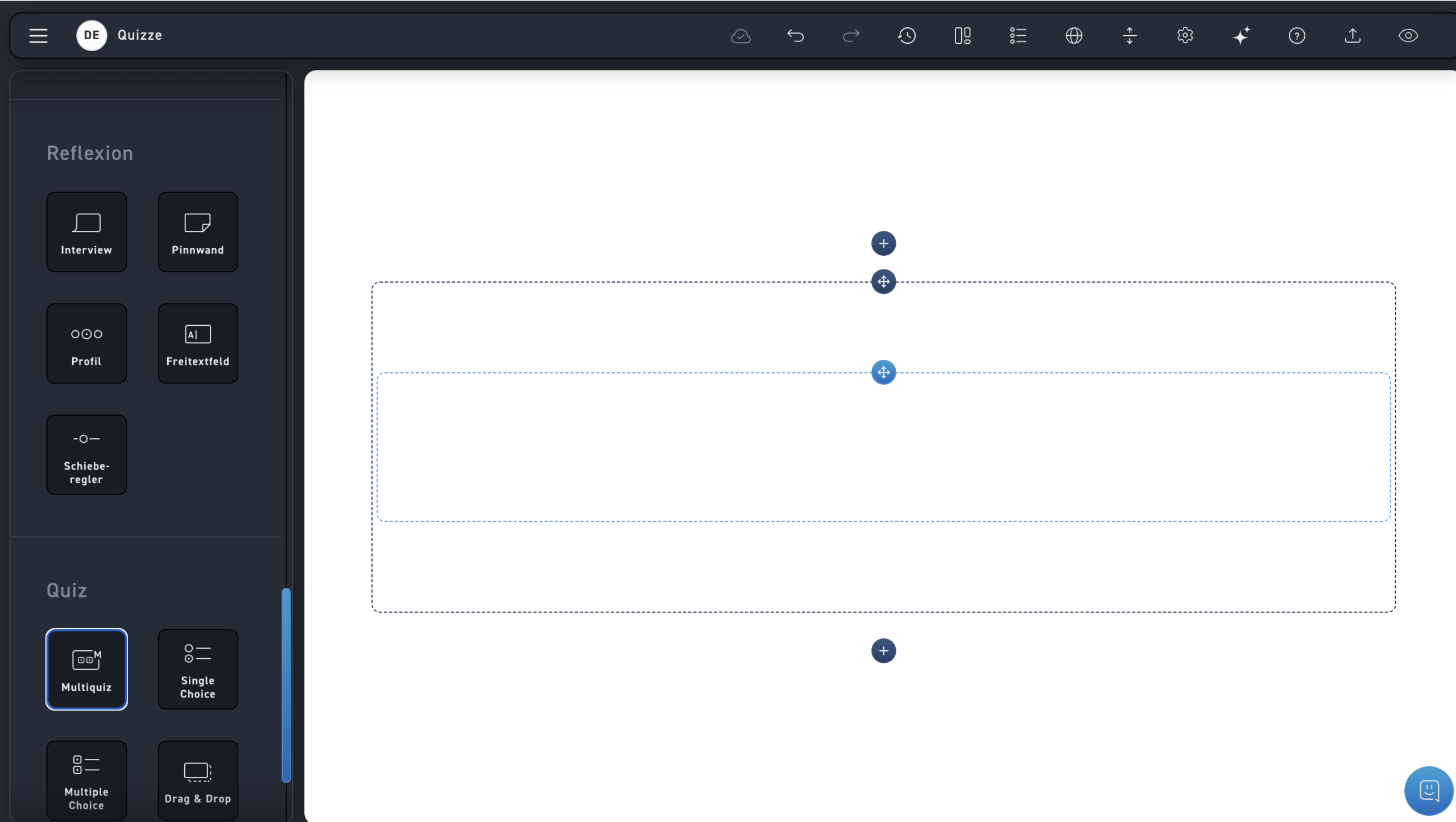
Drag the multiquiz element from the element toolbox into a module. The multiquiz is the blue inner frame. Drag and drop quizzes from the element toolbox into this frame as desired.
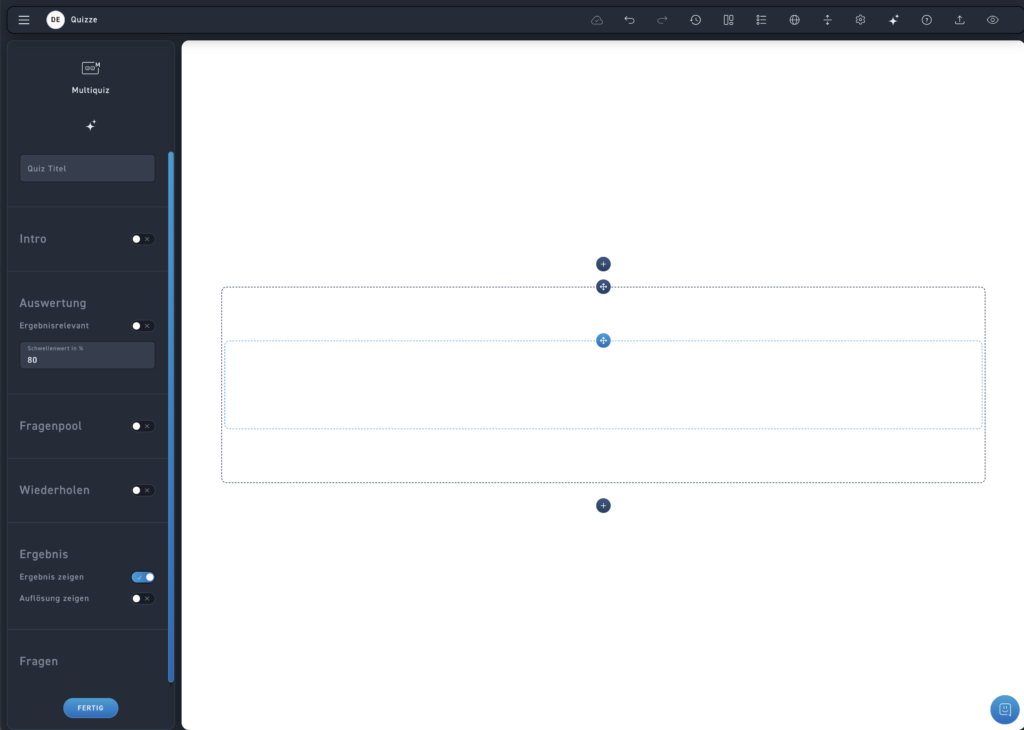
Choose a title for your quiz. This title will be displayed in the header throughout the entire quiz. The quiz title will also be displayed in the WBT's results screen.
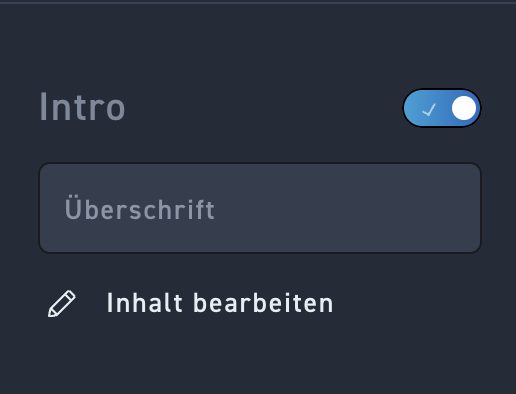
Optionally choose whether you want to display an intro before the quiz starts. In the intro, you can motivate your learners and explain the quiz. Create the content for the intro as usual in the content editor. To do this, click Edit content. You are completely free in the design.
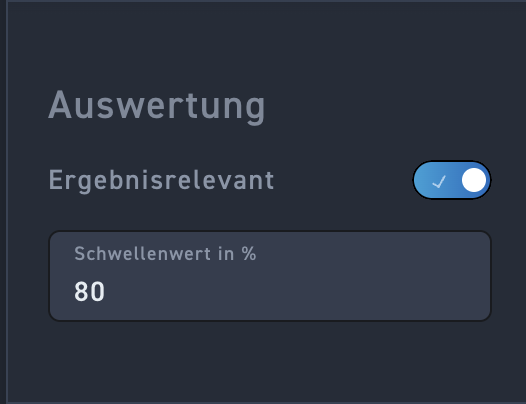
Select „Counts toward grade“ and set a passing score for the quiz. Each question answered will then be included in the overall grade. For example, if you set the score to 80 %, the learner must answer 8 out of 10 questions correctly to pass the quiz.
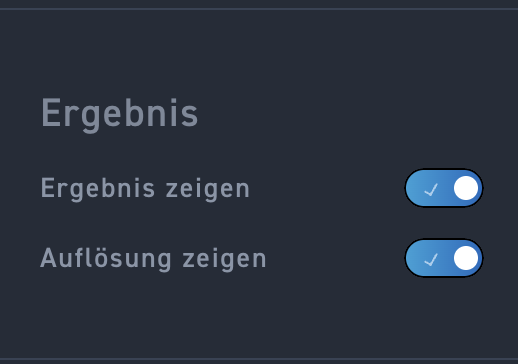
Determine whether the result should be displayed to the learner. This lets them know immediately whether a question was answered correctly or incorrectly. To do this, turn on the „Show result“ switch.
Additionally, you can determine whether the solution should be displayed. In this case, the learner sees which answer would have been correct. To do this, activate the „Show solution“ switch.
When both options are enabled, it is easier for the learner to successfully complete the quiz on a retake.
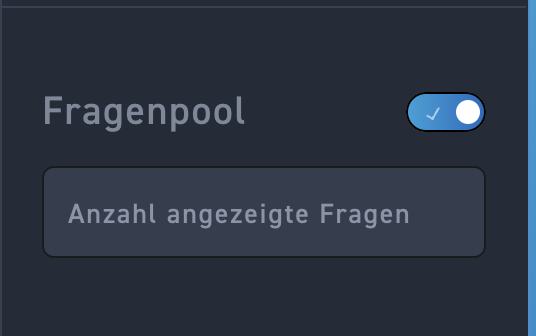
Optionally activate the question pool. The quiz questions will then be randomly selected from the existing question pool. Next, determine how many of these questions should be displayed to the learner.
For example, you can set it so that out of 12 created questions, only 4 randomly selected questions are displayed in the quiz.