Create WBT with AI
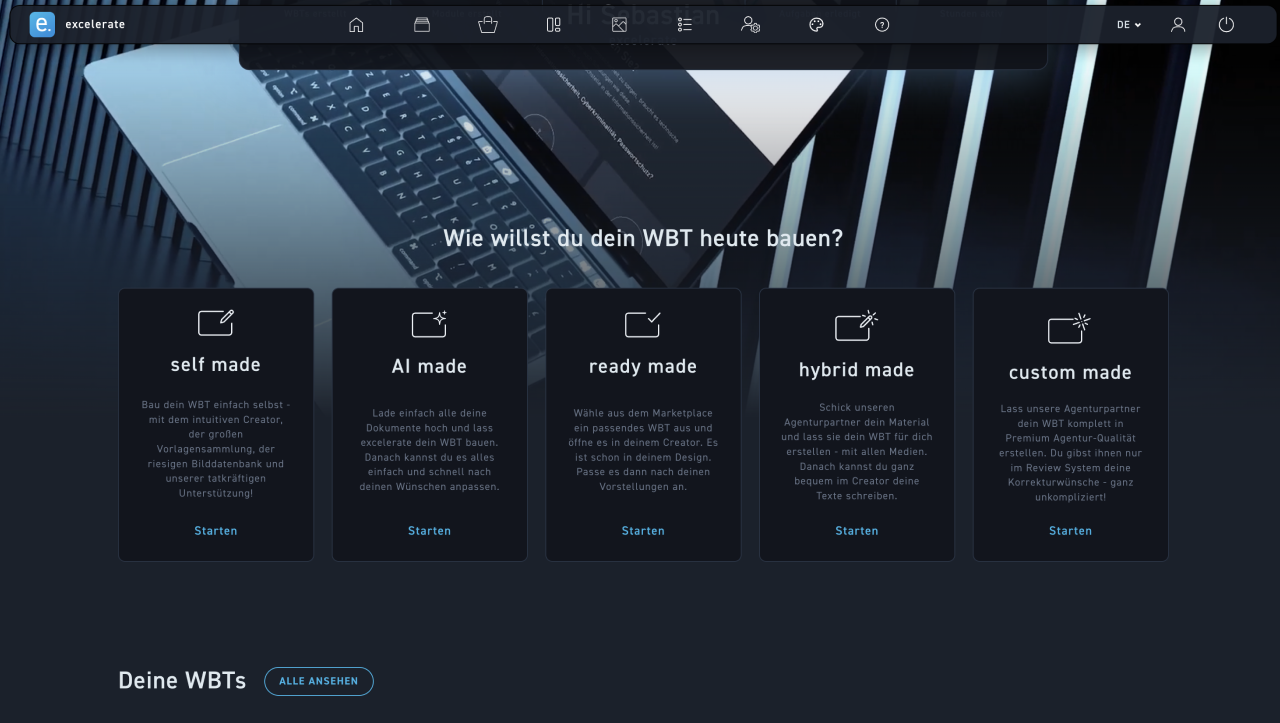
Dashboard
From the dashboard, you can have AI create a WBT directly.
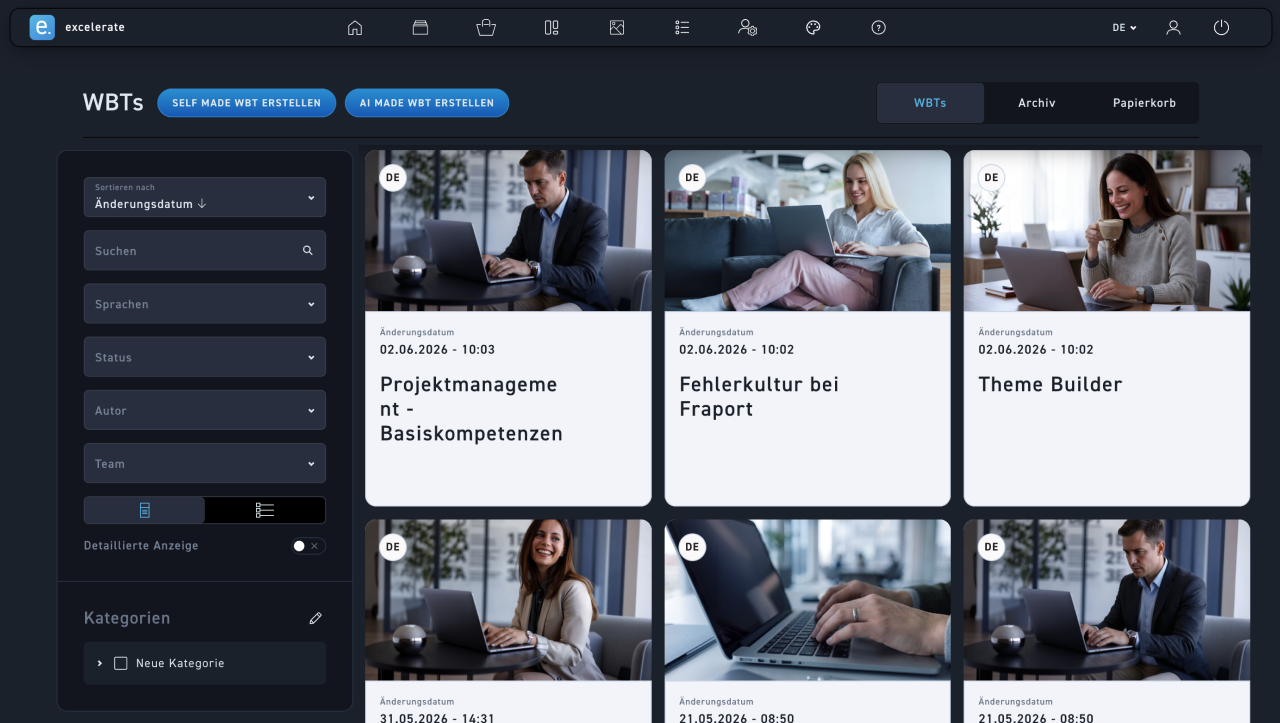
WBTs
or in the menu item "WBTs", you can also have WBTs created using AI.
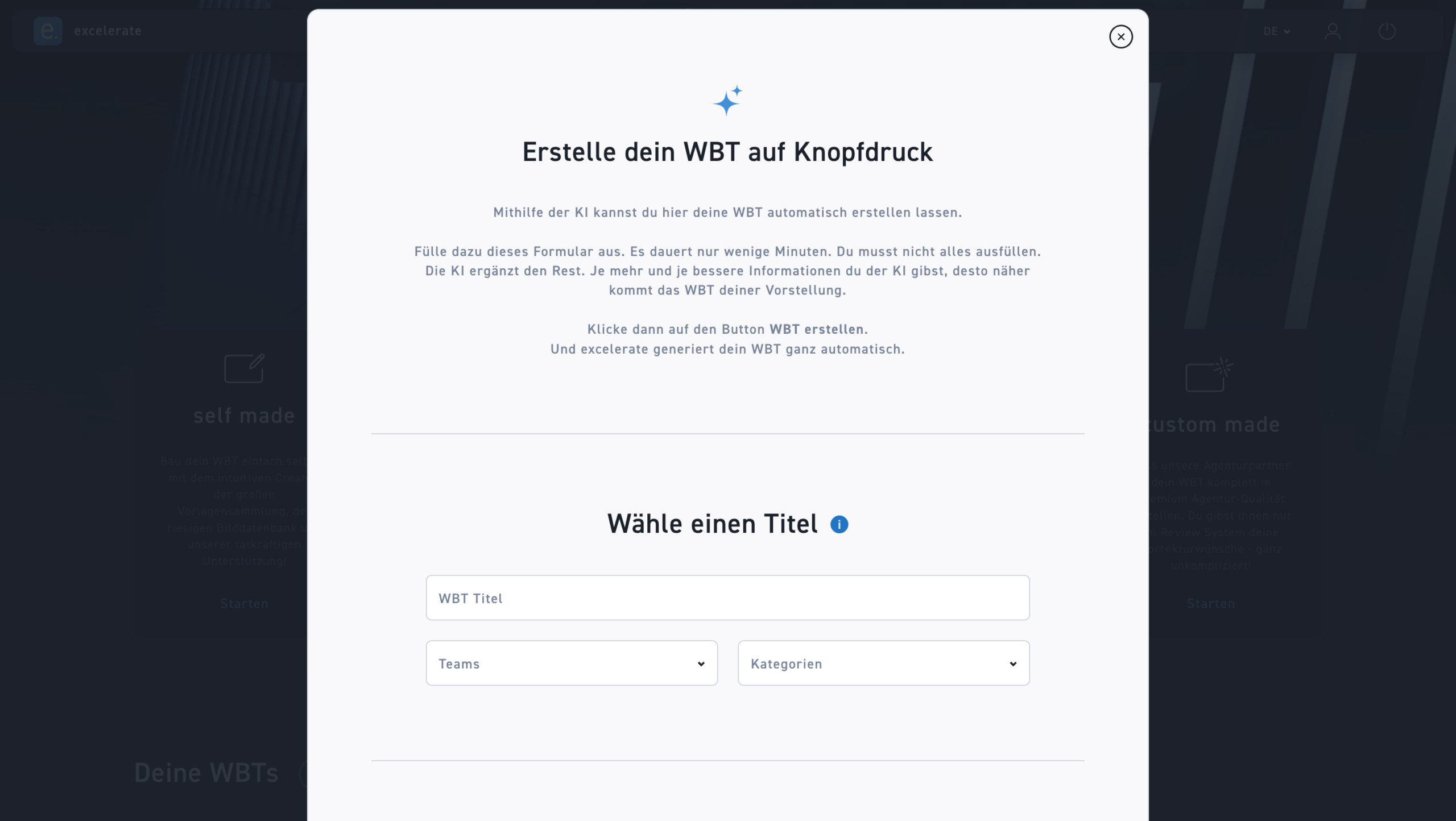
create WBT
You can tell you're in the AI-generated WBTS mask by the AI icon.
Title
Choose an attractive title for your WBT that sparks your learners' interest and promises a benefit. An attractive title includes not only the topic but also an adjective and a verb.
Teams
Assign your WBT teams if applicable
Categories
Assign categories to the WBT
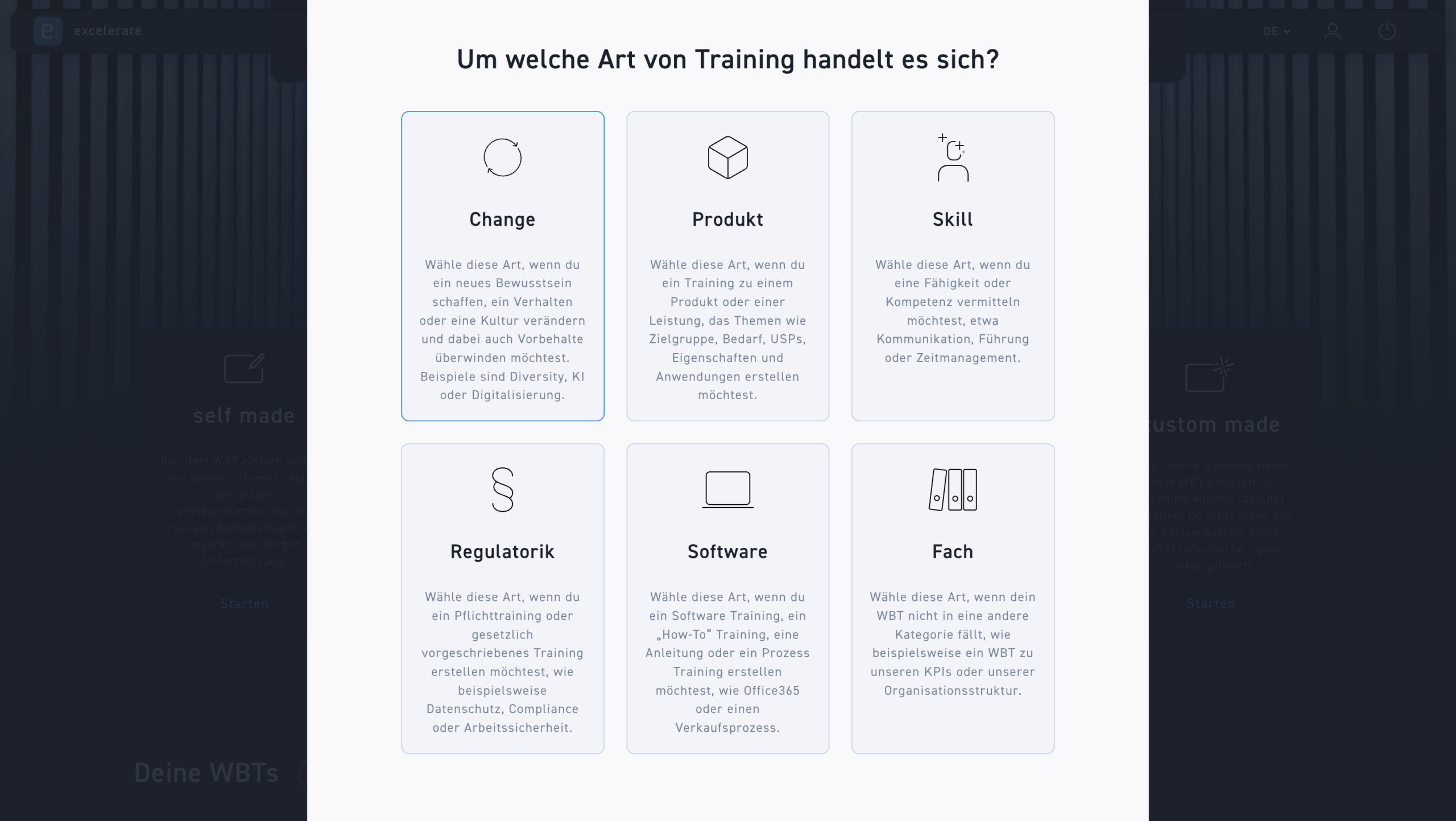
WBT Species
Determine what type your WBT should be. You can read more about this in Help - Tutorials - WBT Types.
Alter
Choose this type if you want to create new awareness, change behavior or culture, and also overcome reservations. Examples include diversity, AI, or digitalization.
Product
Choose this type if you want to create training for a product or service that covers topics such as target audience, needs, USPs, features, and applications.
Skill
Choose this type if you want to teach a skill or competence, such as communication, leadership, or time management.
Regulation
Choose this type if you want to create a mandatory training or legally required training, such as data privacy, compliance, or workplace safety.
Software
Choose this type if you want to create software training, a „how-to" training, a guide, or a process training, such as for Office 365 or a sales process.
Field
Select this type if your WBT does not fit into another category, such as a WBT about our KPIs or our organizational structure.
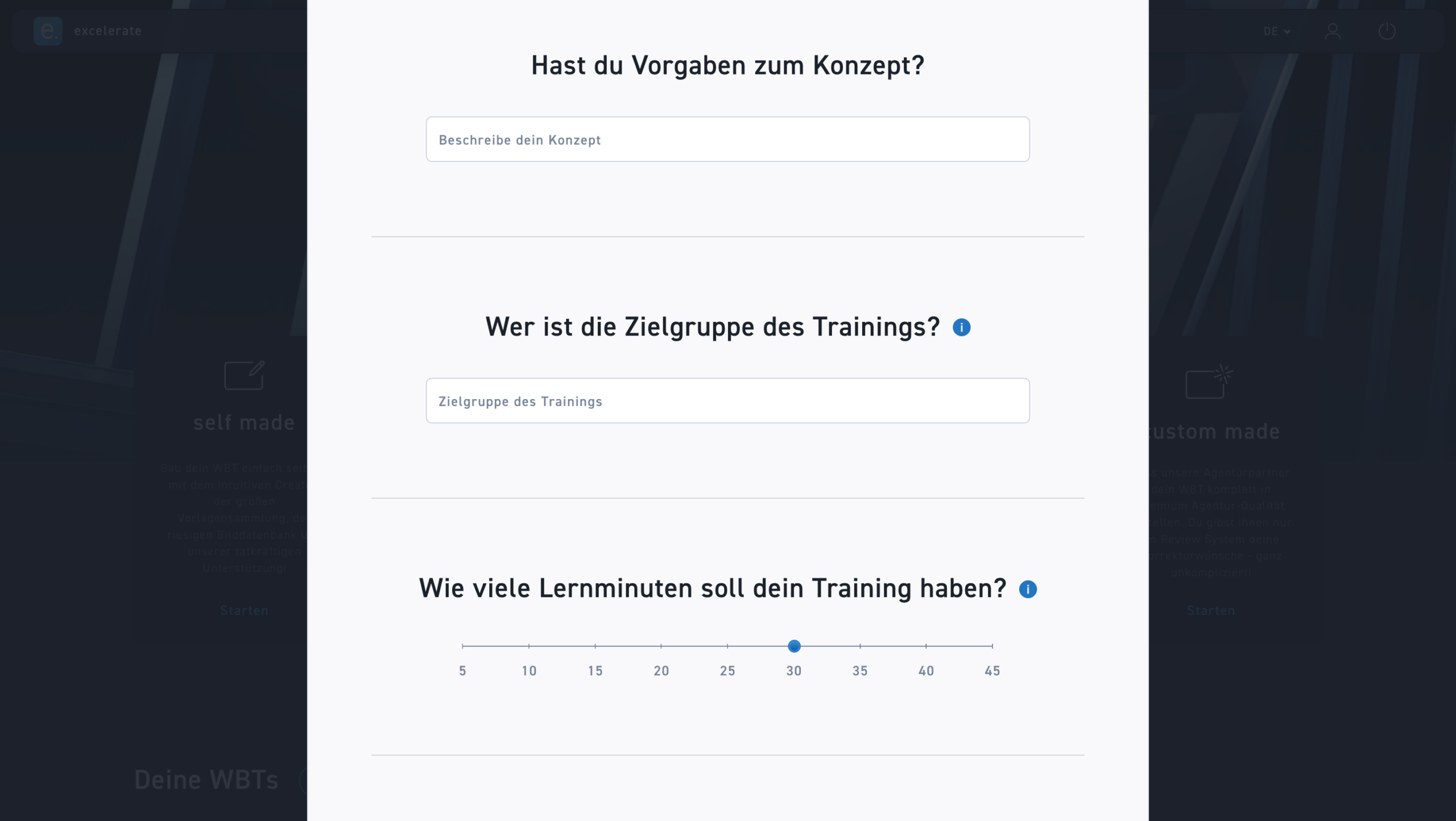
Specifications
Describe your concept
Target audience
Describe your target audience as precisely as possible. The better you describe your target audience, the more targeted your training will be for your learner, and the more effective it will be. You can also describe a primary target audience and secondary target audiences.
Learning Minutes
The length of your WBT is given in learning minutes. This is the time an average learner needs to complete your WBT. Your learning material determines the length of your WBT.
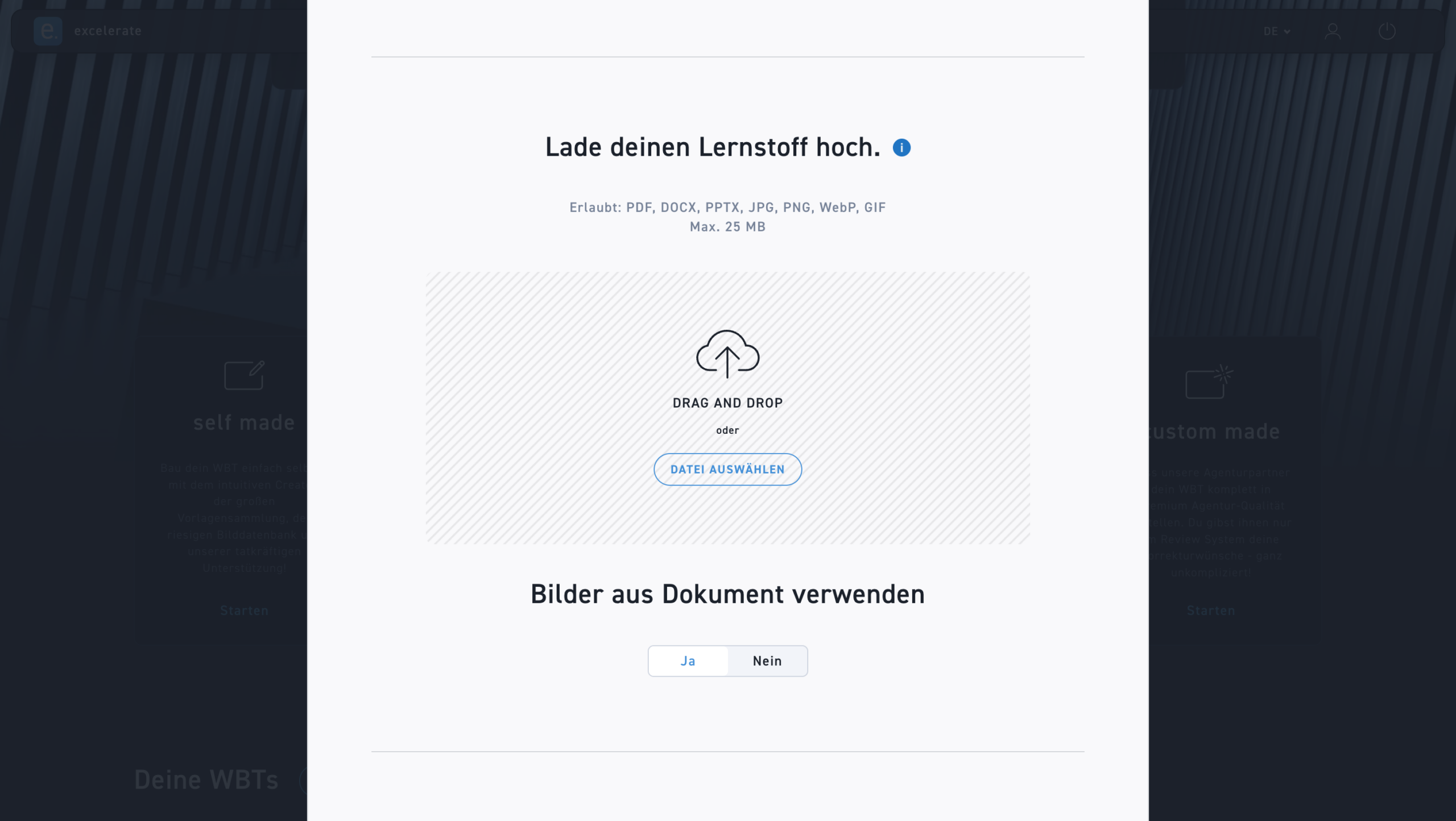
Learning material
You can upload files in the following formats (max. 25 MB): PDF, DOCX, PPTX, JPG, PNG, WebP, GIF
Upload
The .pptx file should include descriptive text for graphics. Please insert graphics as images with meaningful captions, as the AI cannot read PowerPoint charts. In .docx and .pdf files, images should also be described.
Use images
Decide whether or not to use images from the documents.
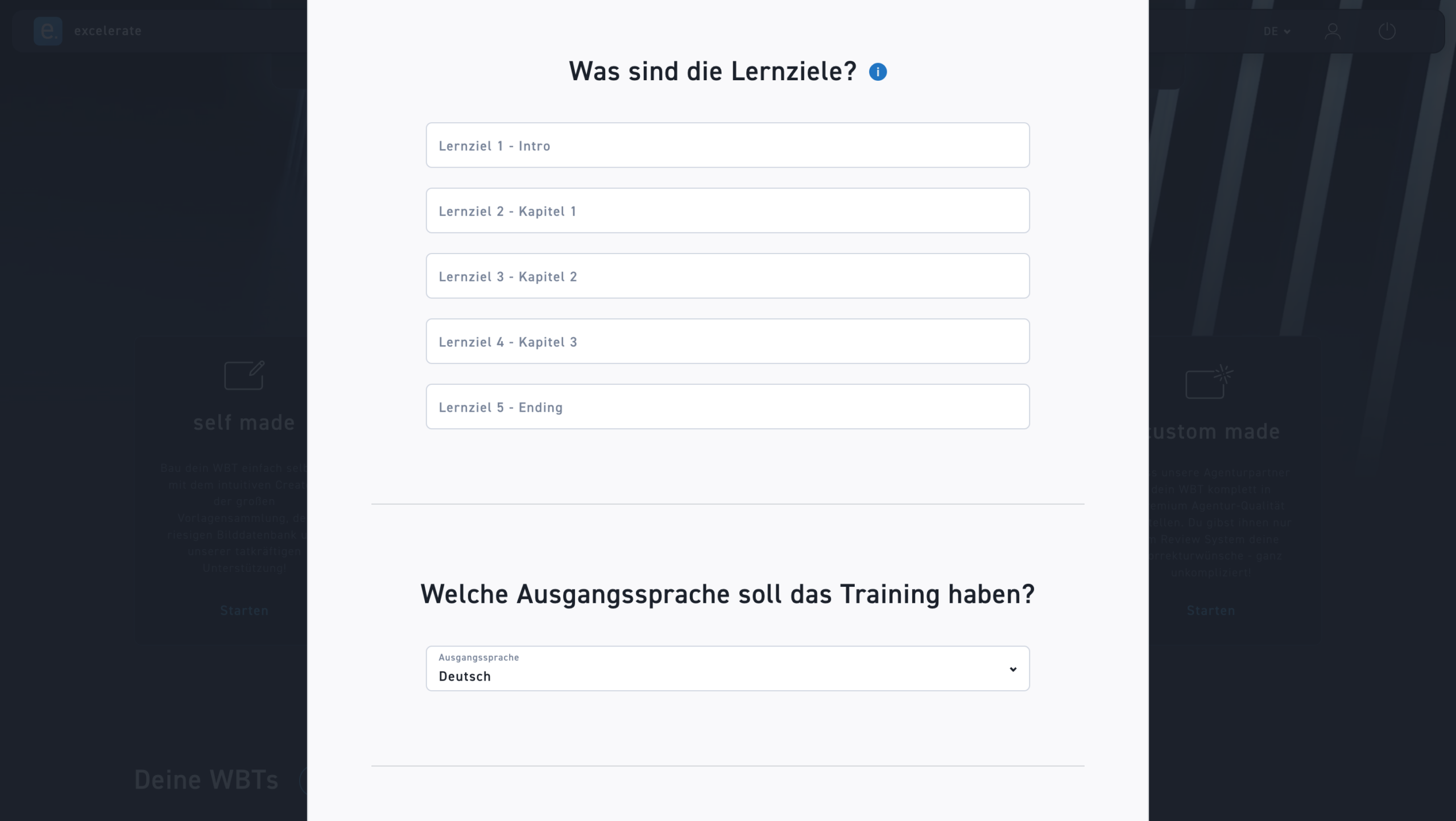
Learning objectives
The number of learning objectives depends on the length of your WBT. You can enter one learning objective per chapter.
Learning objectives
For example, 30 minutes of learning result in 1 intro, 3 chapters, and 1 ending, which means 5 learning objectives.
Speech impediment
Set the language for your WBT. You can have the WBT translated into additional languages later.
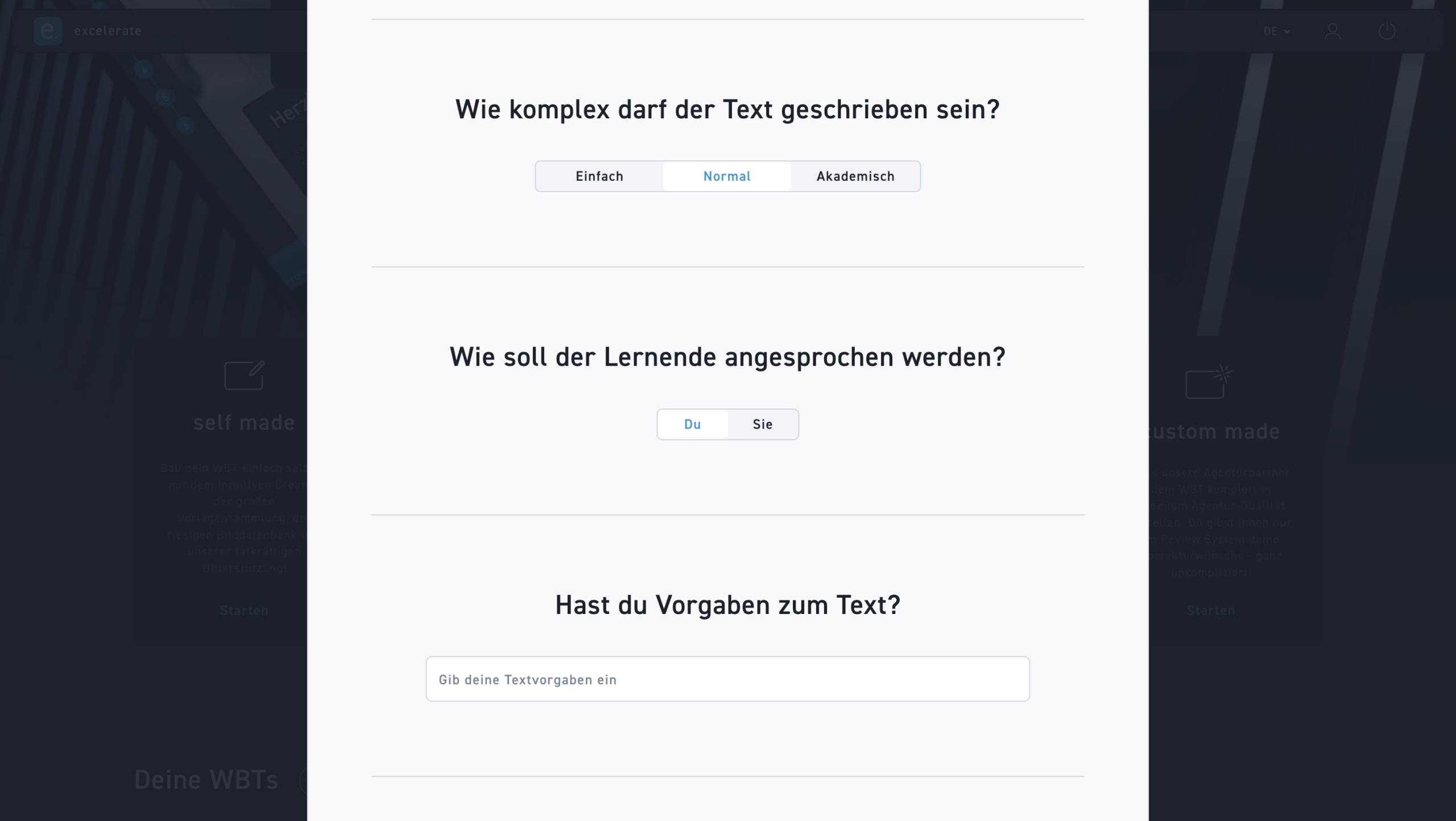
Text complexity
Set the complexity of the texts in your WBT. Choose between easy, normal, and academic.
Address
Decide how the learner should be addressed
Text specifications
If you have any specifications for the text, you can enter them here.
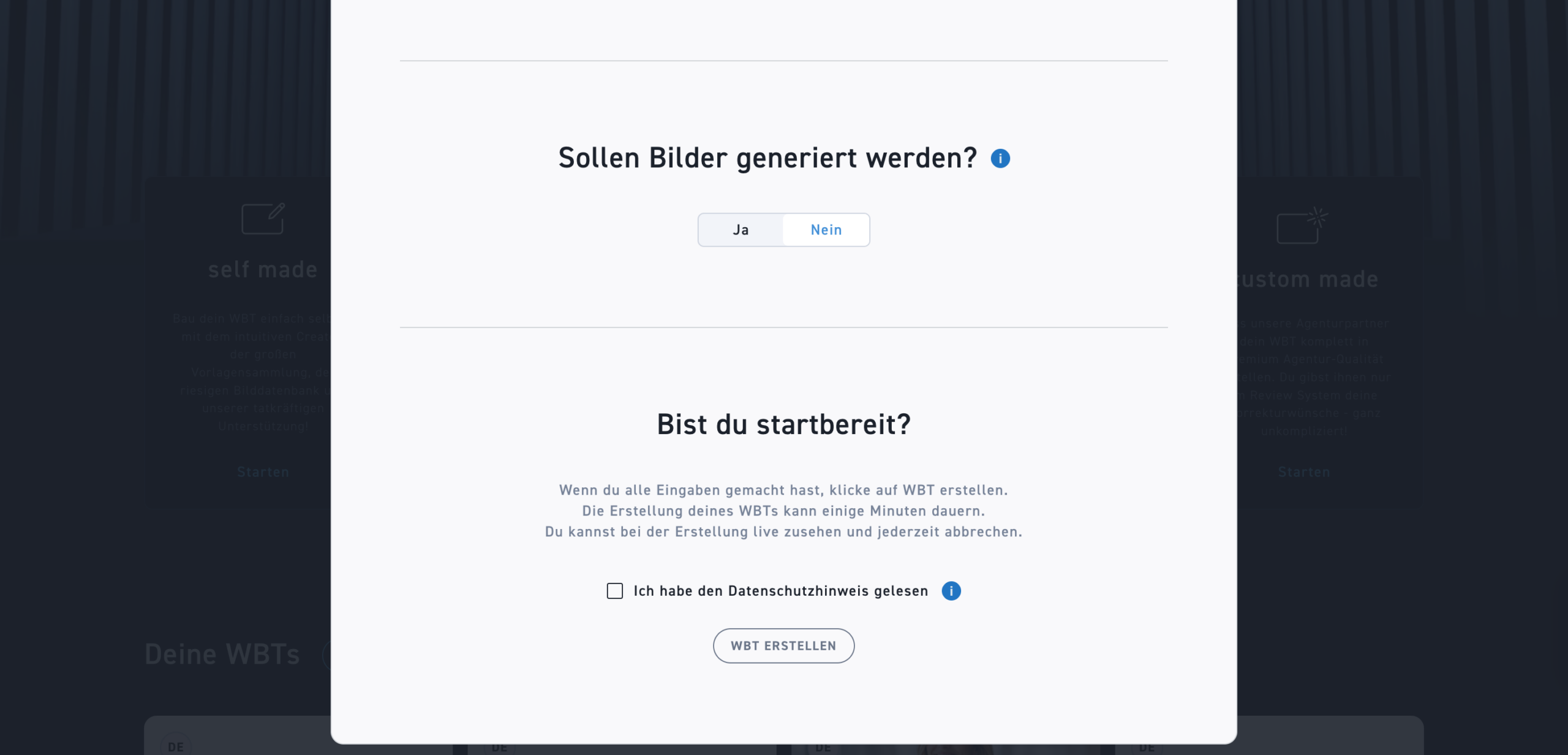
Images
Determine if images should be generated. Choose between Photorealistic, Vector graphic, and Comic.
Begin
Agree to the privacy policy to create the WBT