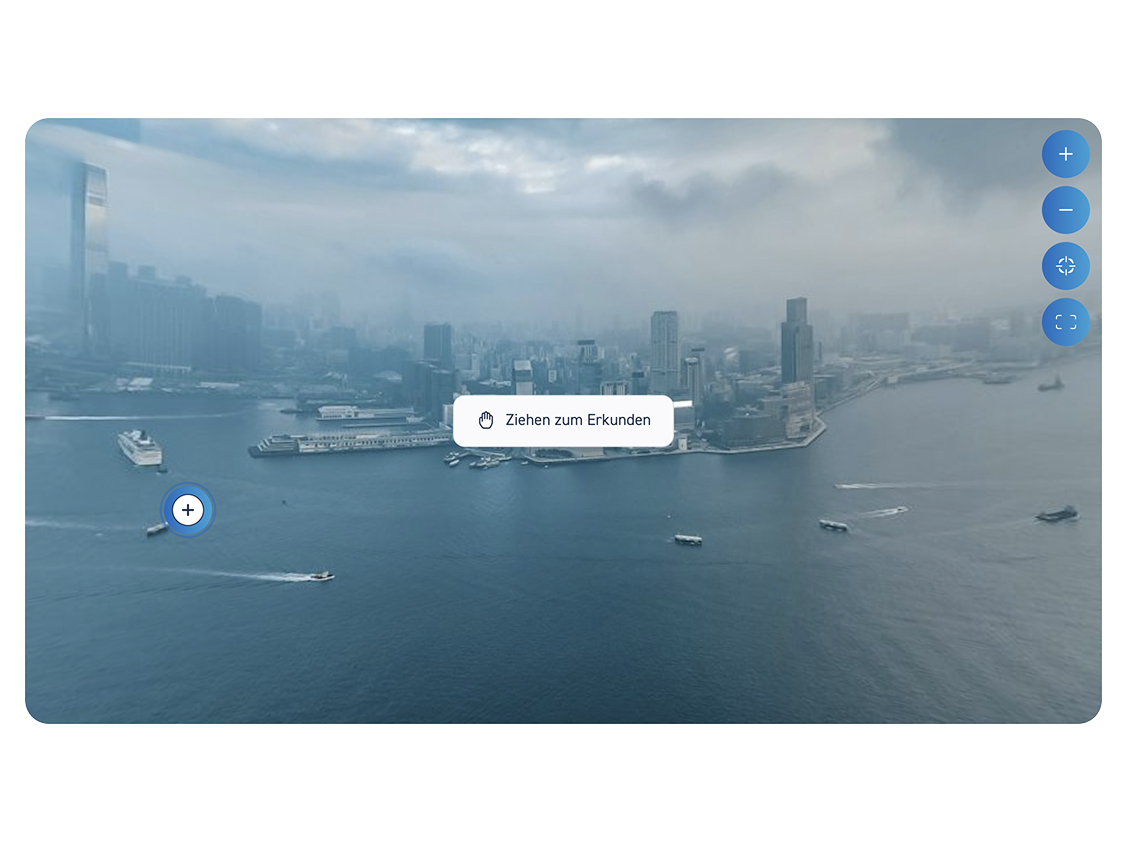
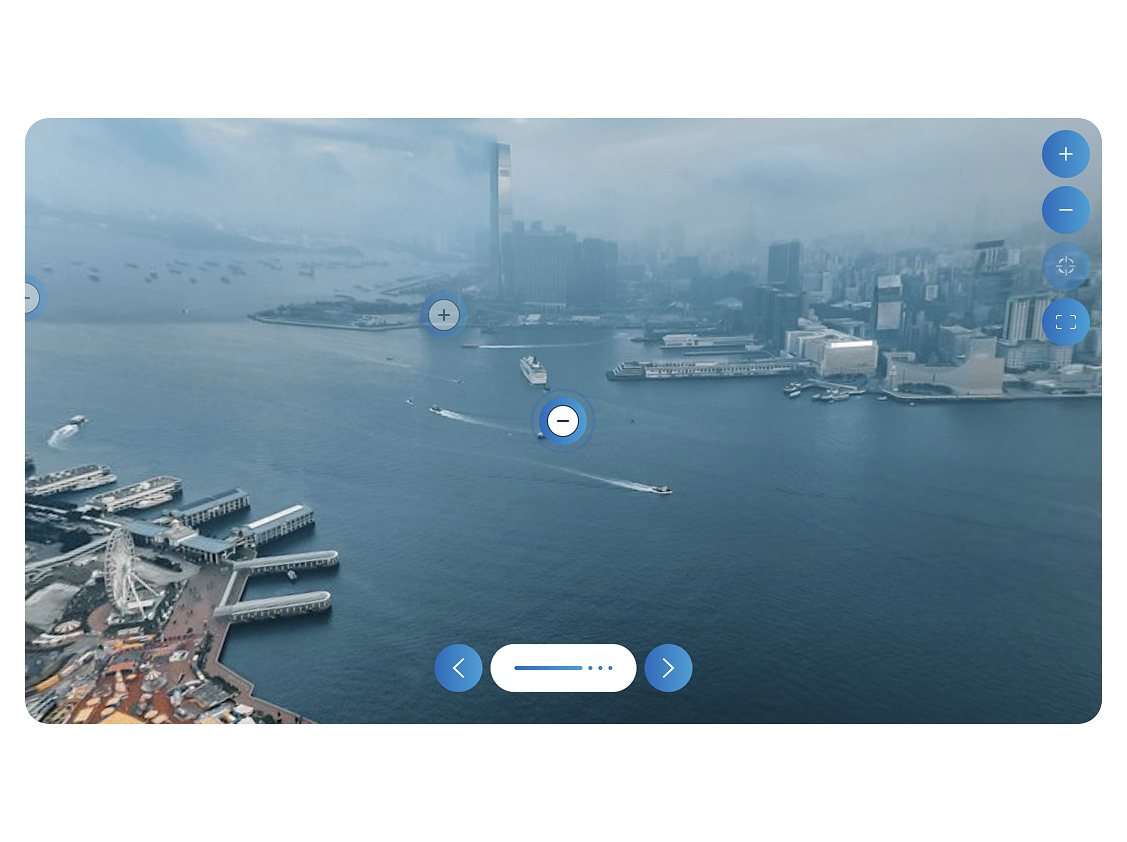
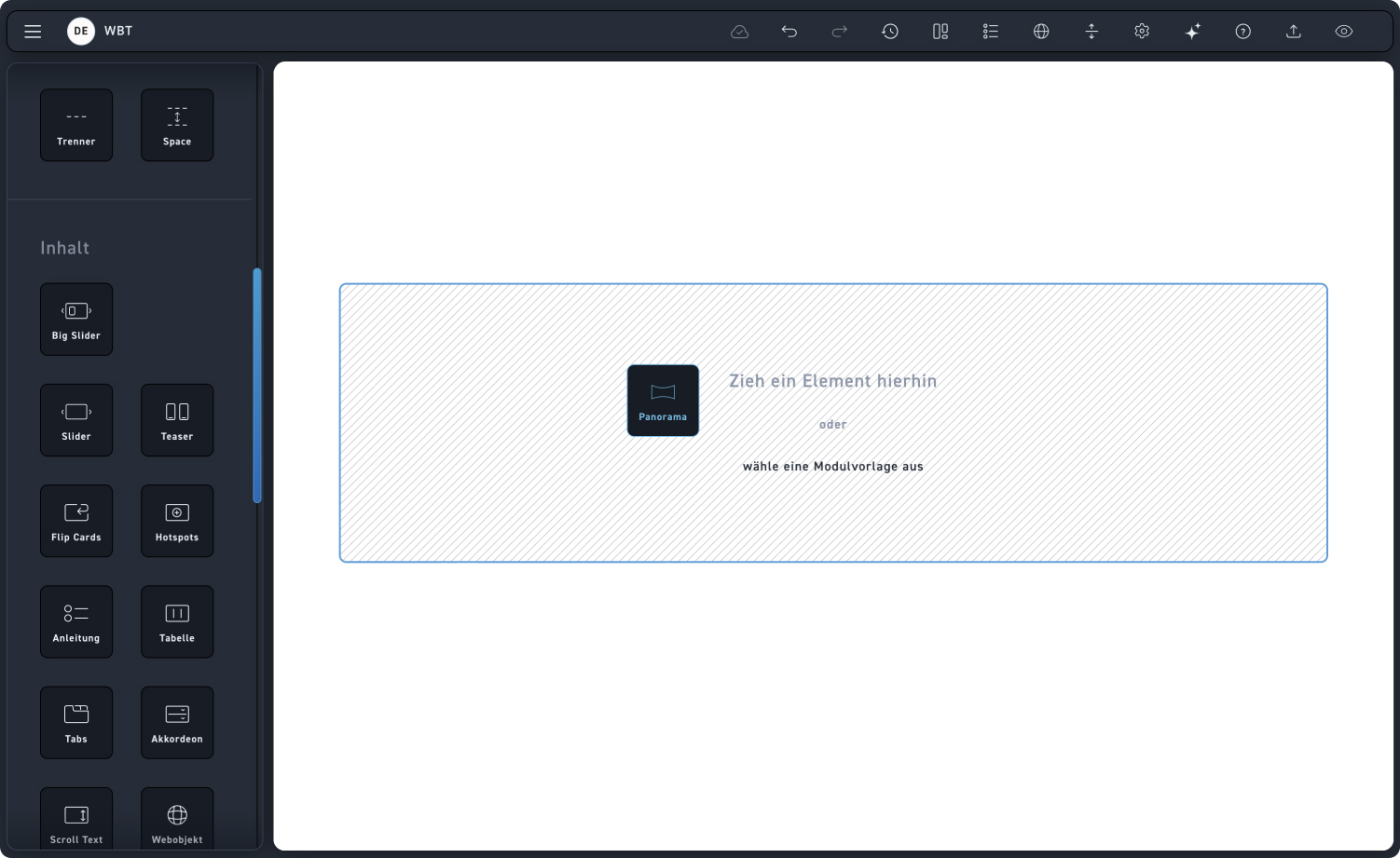
Panorama
Navigation
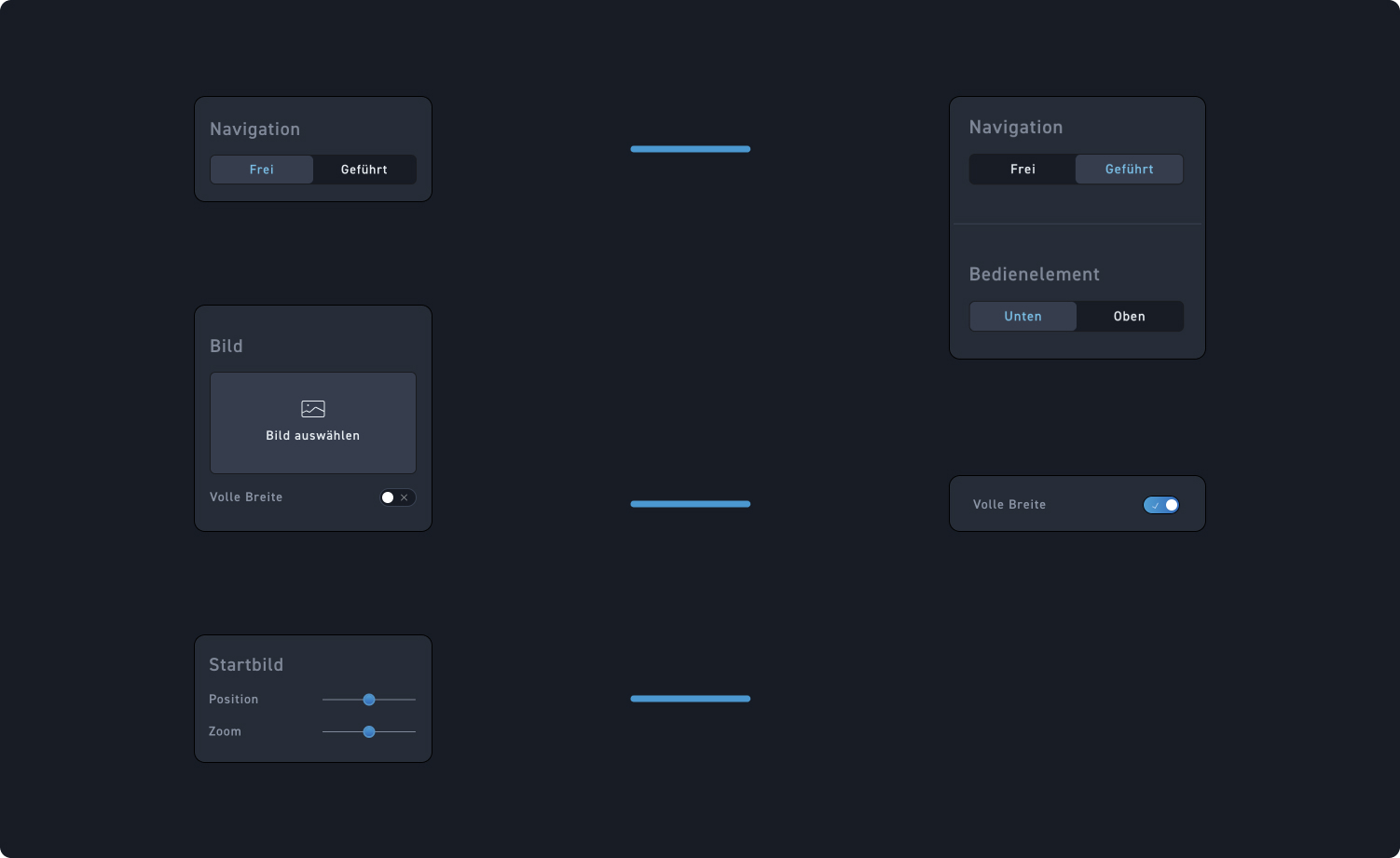
Decide whether the navigation of your element is free or guided. In the guided version, you can also decide whether your controls should be at the bottom or top.
Picture
Upload an image from the Media Library. A panoramic image would be best so your learners can explore the hotspots interactively.
Starting screen
Move the sliders to select the starting position in the image, which is the view your learners will see first.
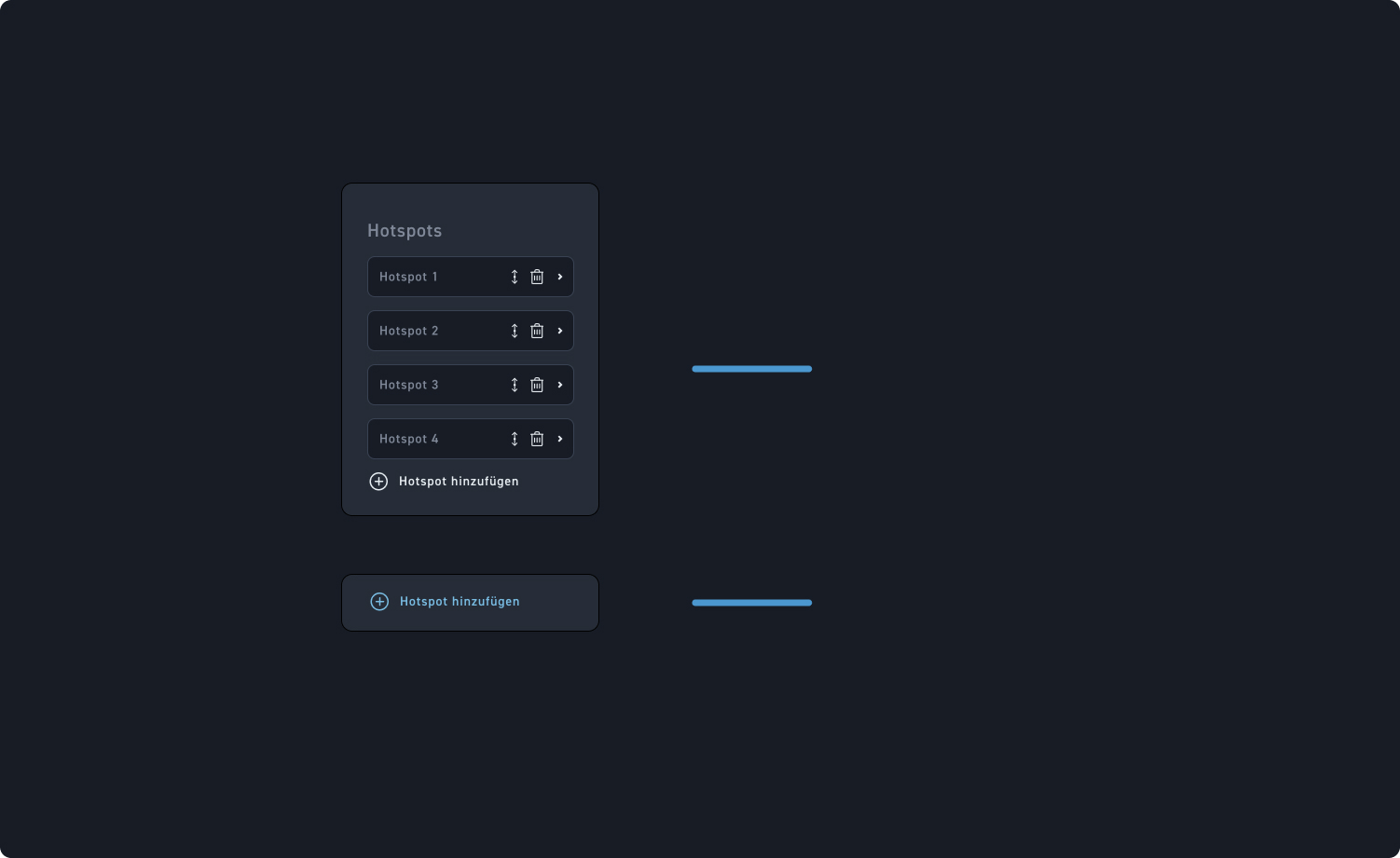
Hotspots
Move, delete a hotspot, or click a hotspot field to edit it.
Add hotspot
Click „Add Hotspot“ to add another hotspot to your panorama.
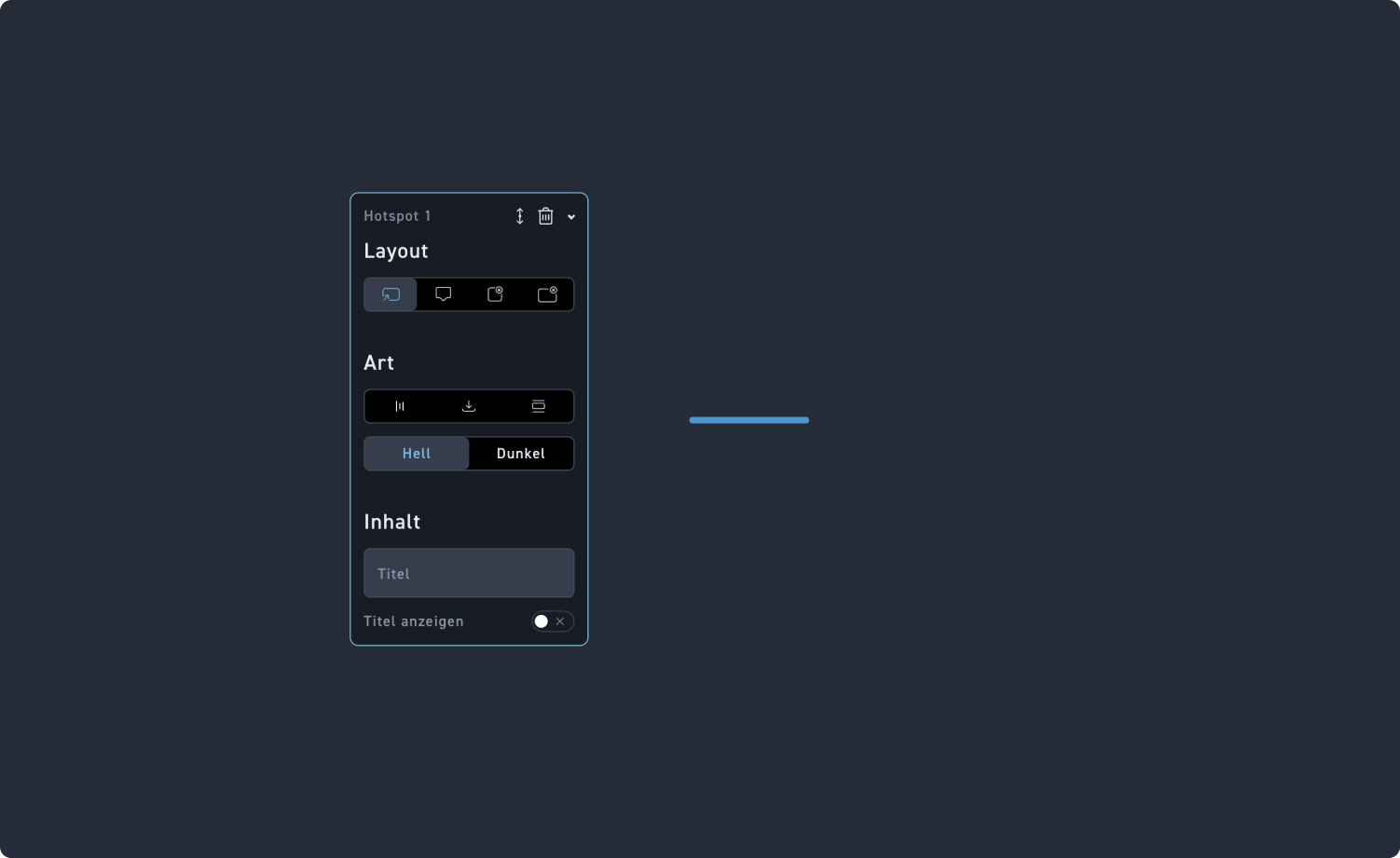
Hotspot Settings
Click the link in the text to see how you can customize the hotspots.