Single Choice
Application #
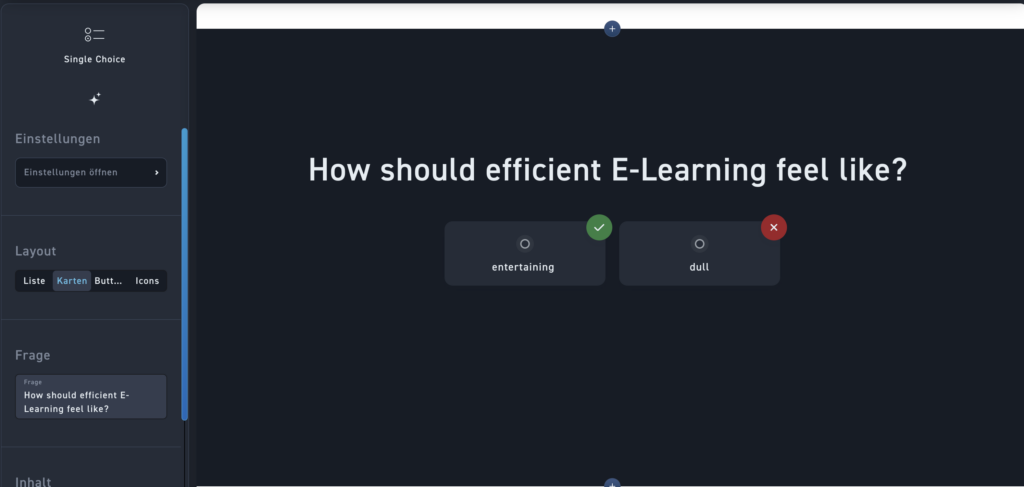
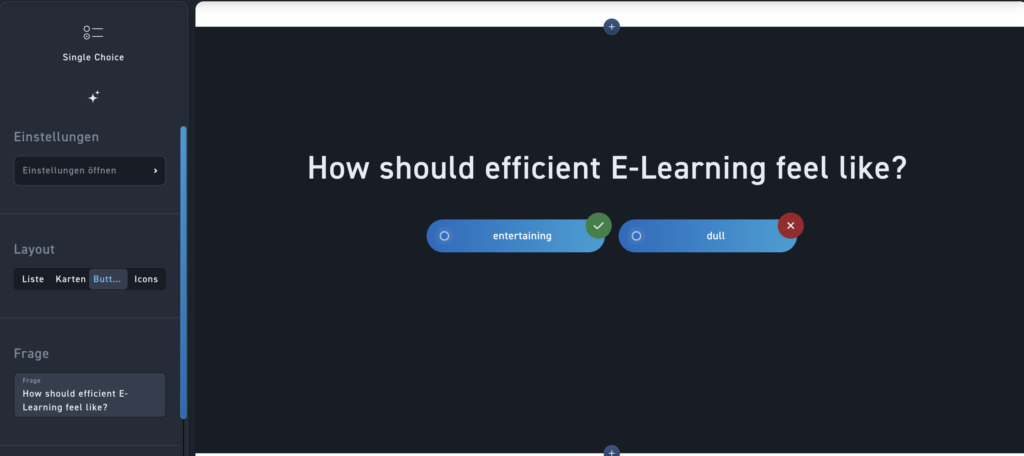
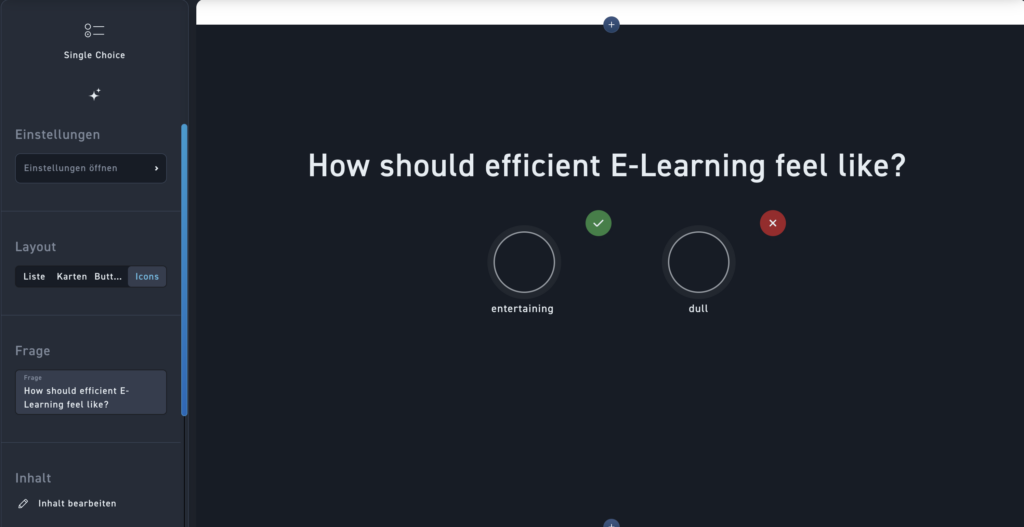
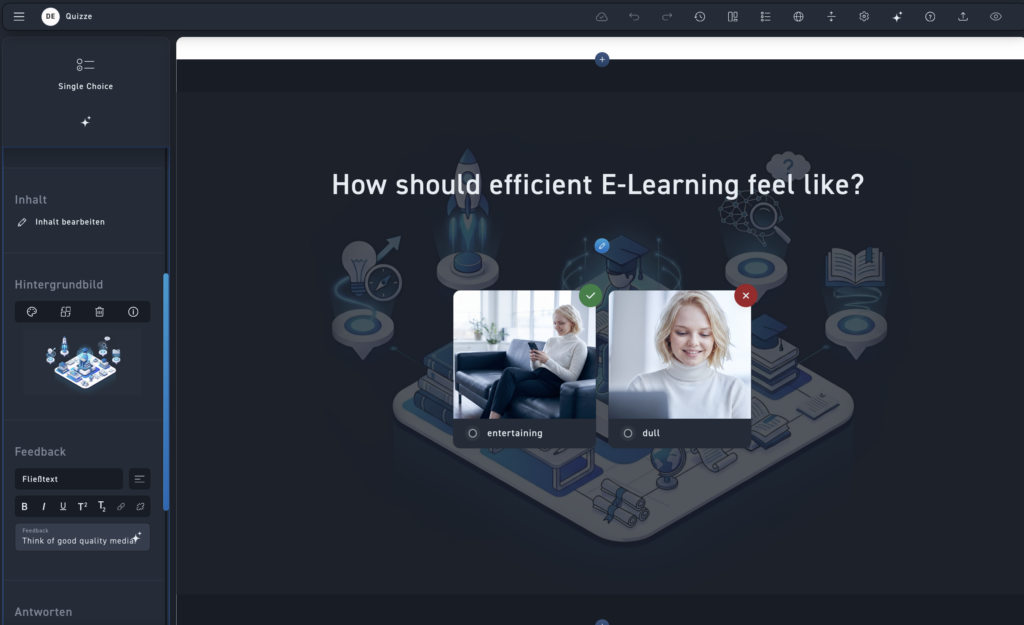
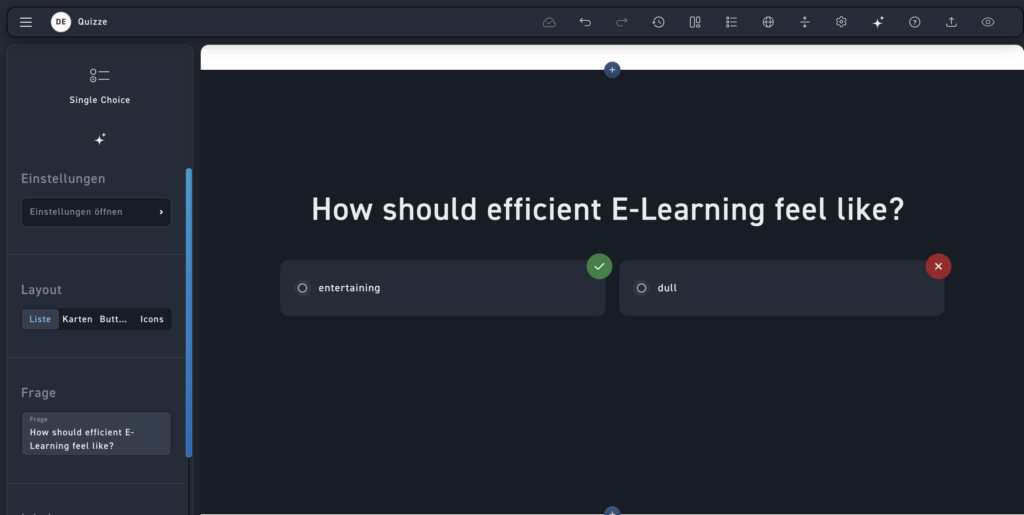
Bring variety to your quizzes and choose the design of your single-choice quiz from various attractive layout options.
You have the choice between: List, Cards, Buttons and Icons.
Add question and content #
First, enter your quiz question into the question free-text field.
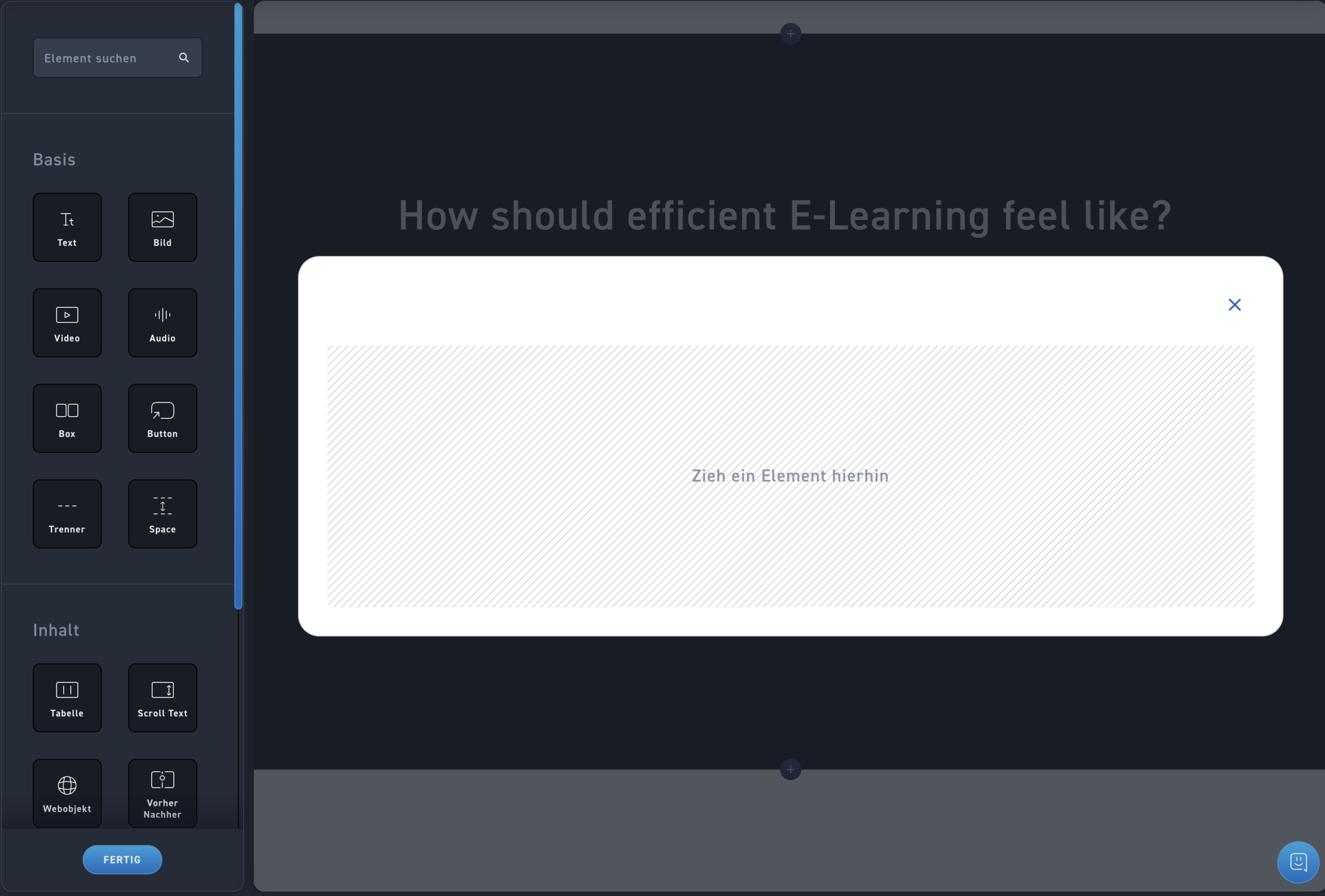
Then optionally design the content of your question comfortably and freely in the Content Editor. Add new elements via drag-and-drop and edit texts, media, or interactive content directly in the tab. You have endless possibilities to make your quiz question more engaging and multimedia-rich.
Quiz Settings #
Select quiz settings #
Make with a click on Open settings the quiz settings, such as question pool, repetitions, number of repetitions, show result, and show solution.
You can find more information about the quiz settings in the chapter Multiquiz.
Choose a background #
Choose a background for your quiz from the media library. The image will be displayed softly in the background.
Either the background is softened to light or dark, depending on what you have selected in the module settings.
Create feedback #
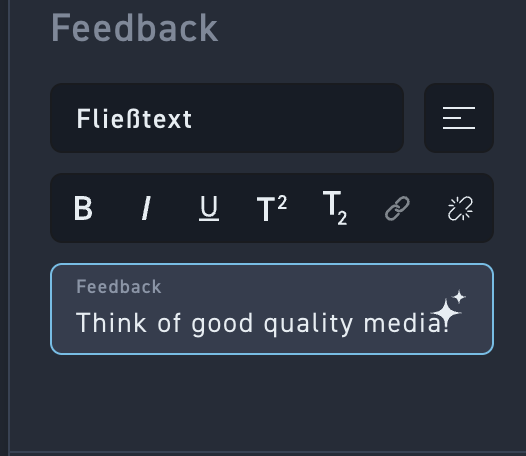
If you wish, you can provide feedback to your learner. The learner will see the feedback text after answering the question – regardless of whether it is correct or incorrect.
Create answer #
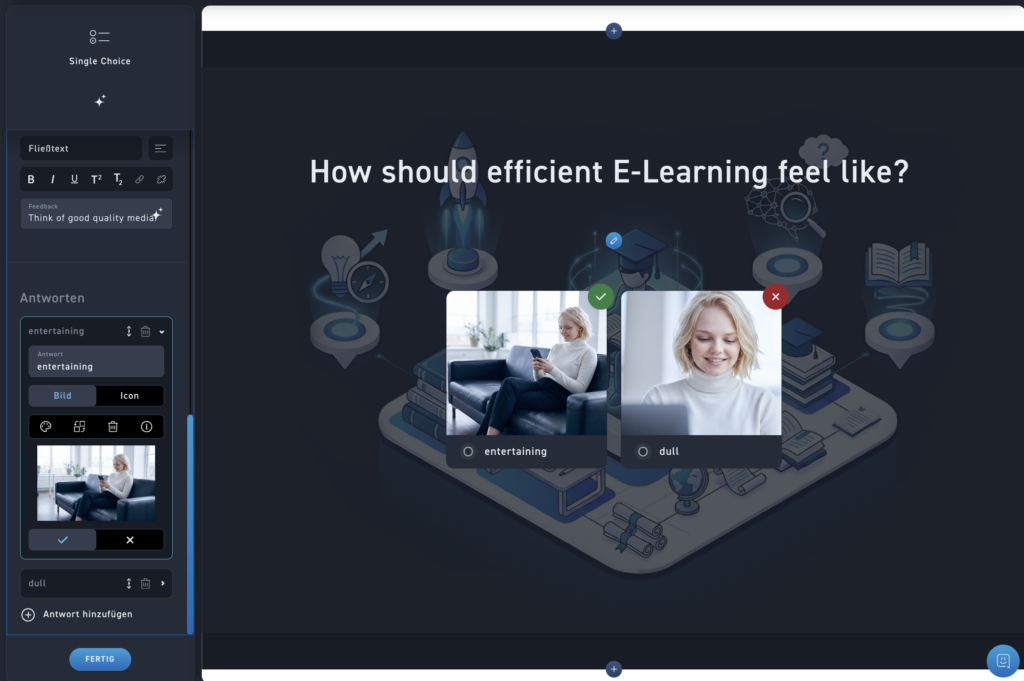
Create as many answers as you like. Add an answer with Add answer. Create a response and optionally insert Picture or a Icon Added.
Then choose whether the answer correct or false is.
Delete and sort your answers via drag-and-drop.