Edit overlay
Application #
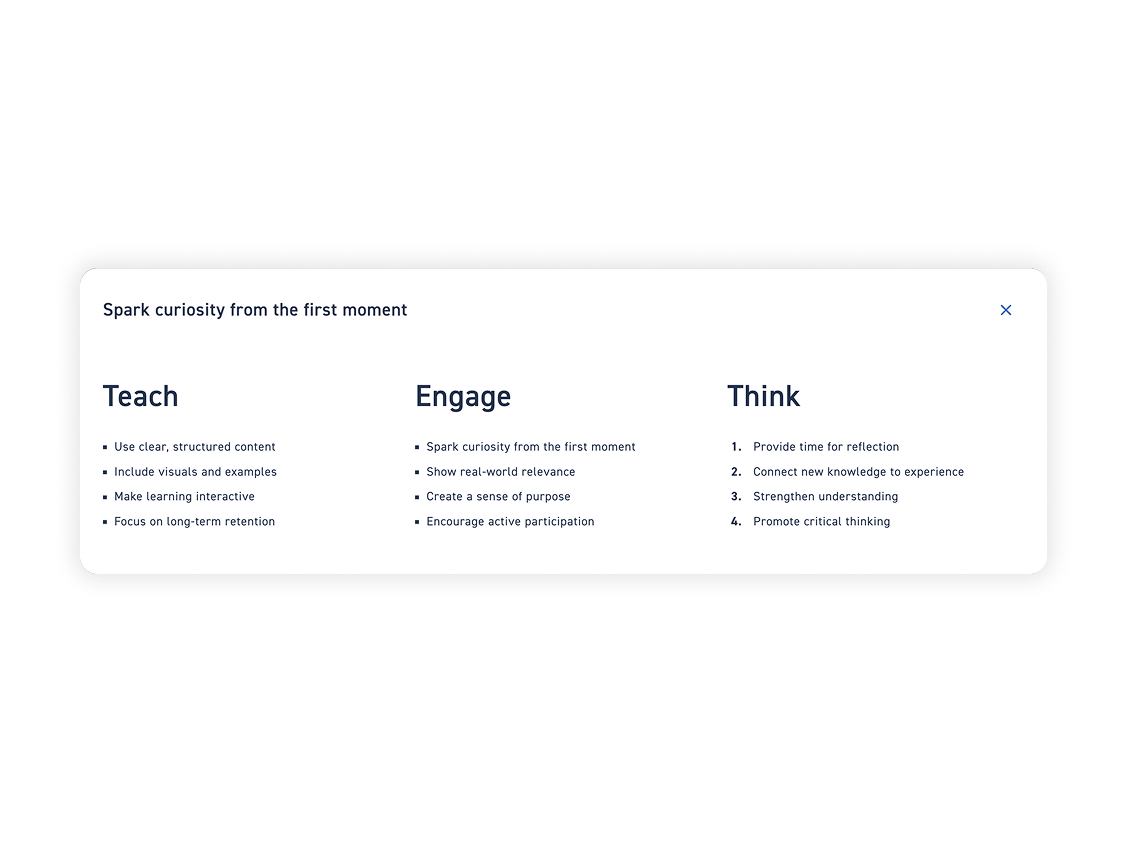
Learn how to edit an overlay. This allows you to add content to accordions or tabs, for example, or to display an overlay after clicking on a hotspot or button.
Overlay Overview #
Check the step-by-step guide to see what settings are available for the overlay.
Step 1 – Edit overlay #
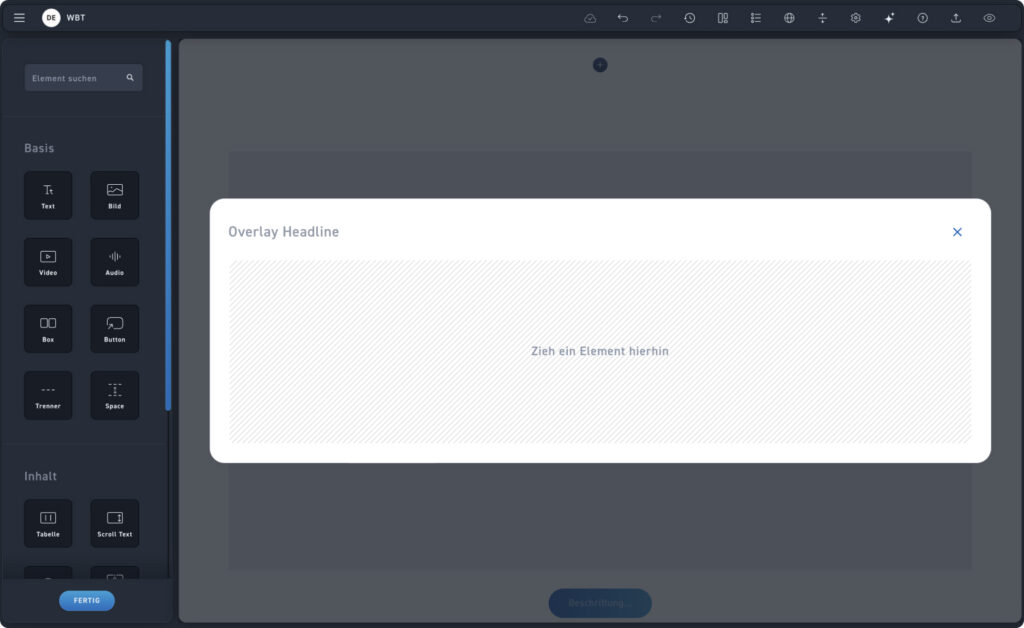
Click the „Edit overlay“ pencil icon anywhere in the Creator to see the overlay with the respective elements.
Step 2 – Insert Overlay Headline #
1
Header
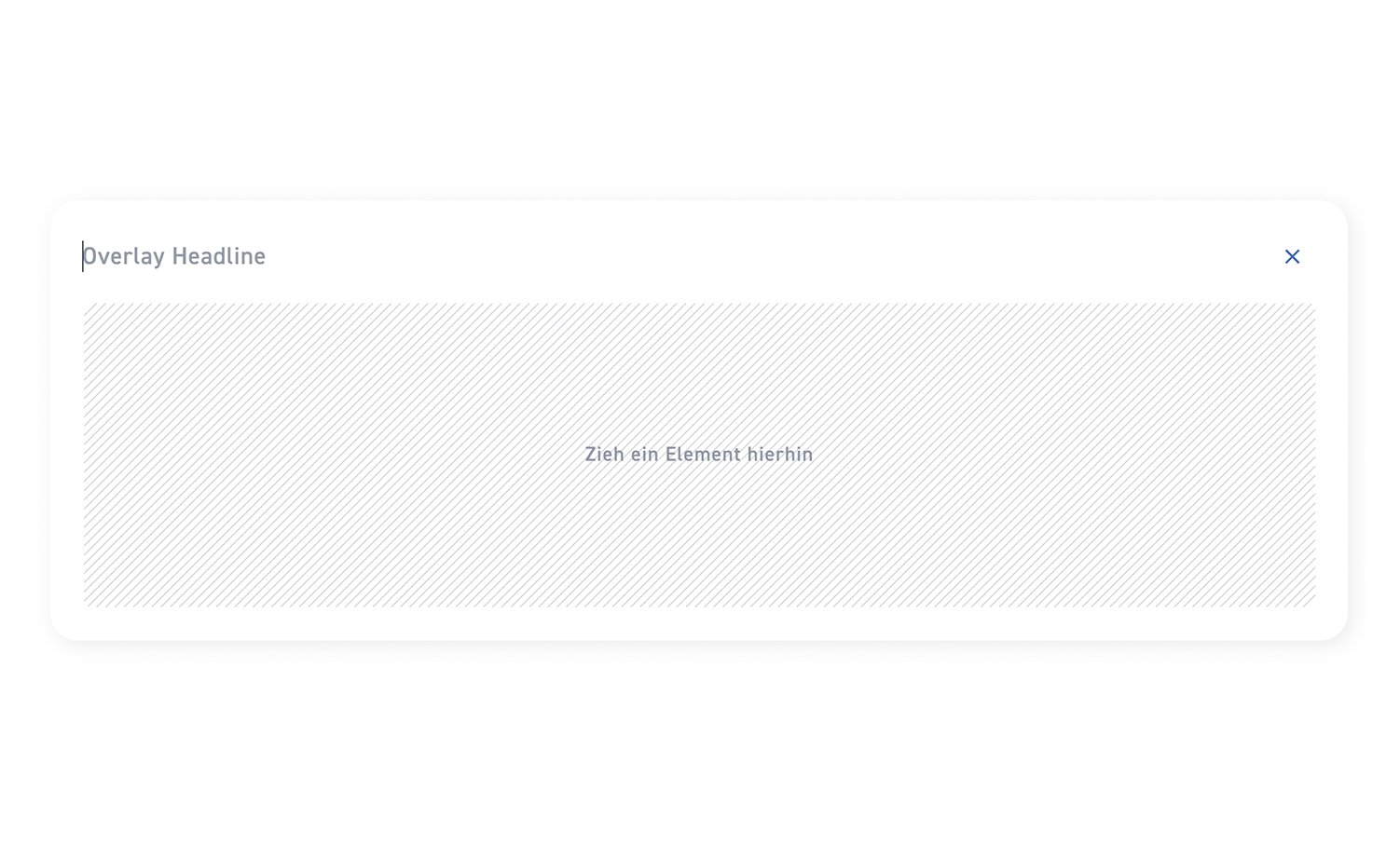
Tap directly on the overlay headline to overwrite the placeholder text and give your overlay a title.
Available basic elements #
Check out the hotspot to find out which elements are available and how you can add them.
1
Basic Elements
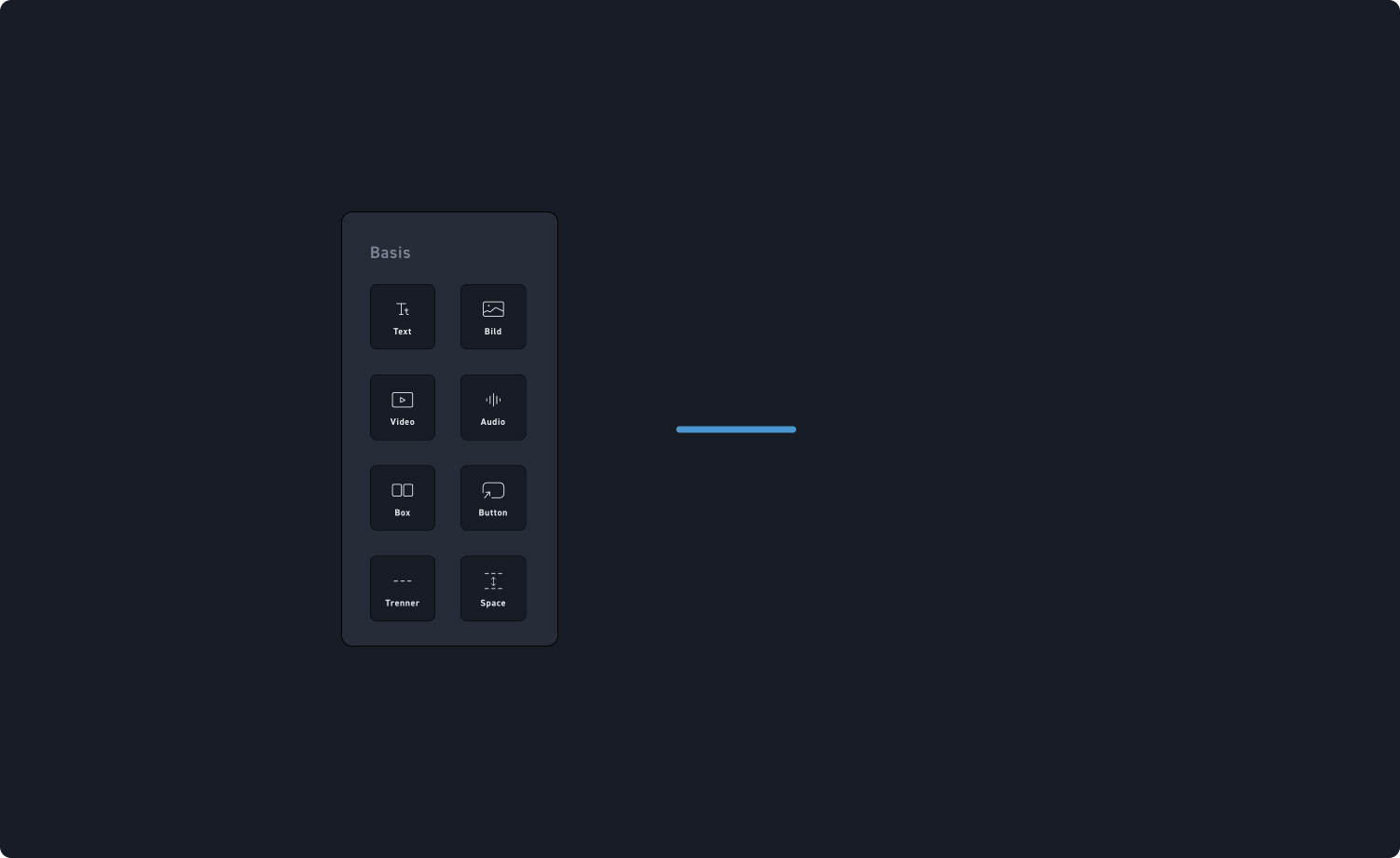
You can choose from 8 elements in the Basic Elements category. You can place them freely, for example, arrange them in columns or position them one below the other.
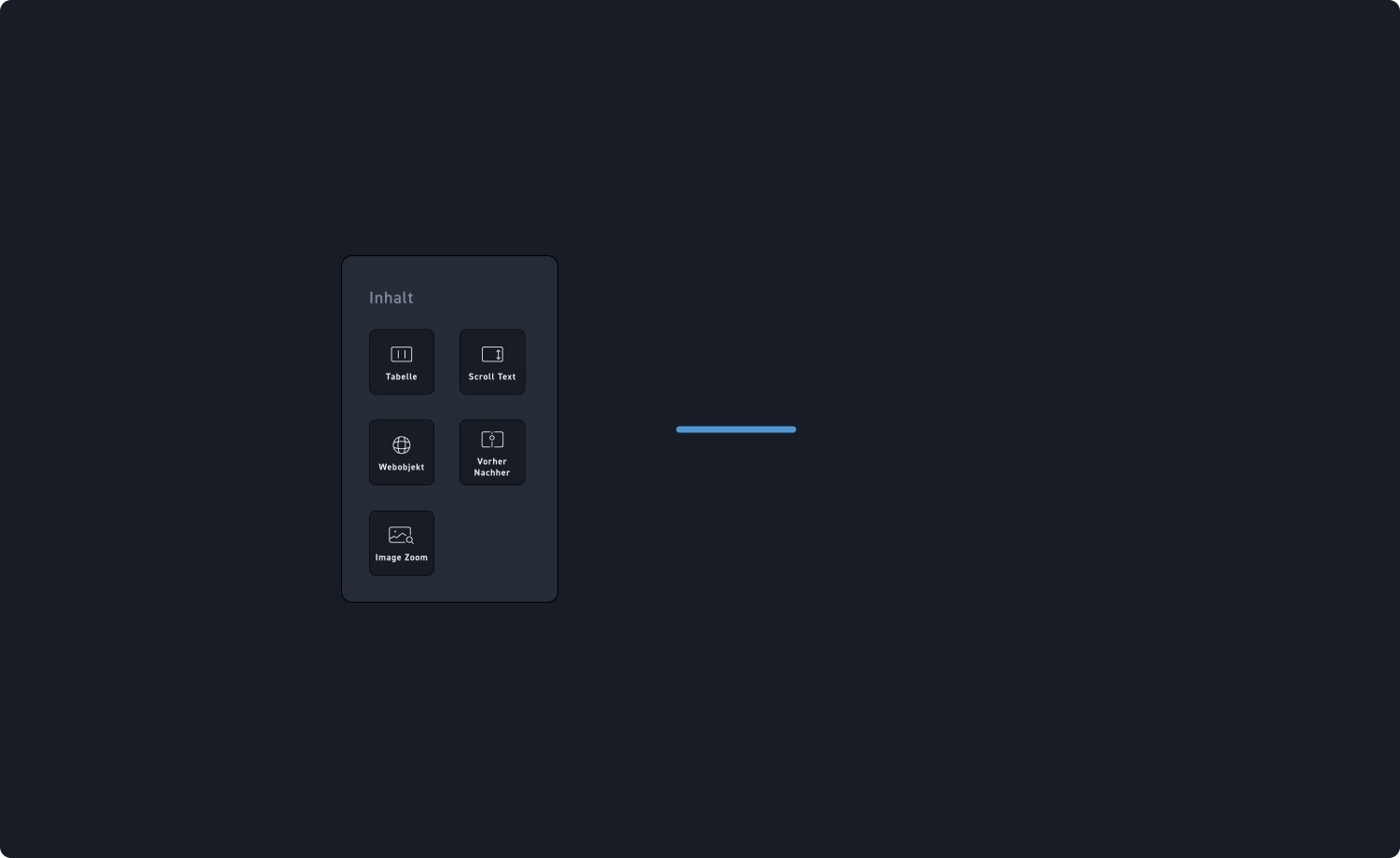
Available content elements #
Check out the hotspot to find out which elements are available and how you can add them.
1
Content Elements
You have 5 elements from the content elements category to choose from. You can only place the content elements one below the other here.
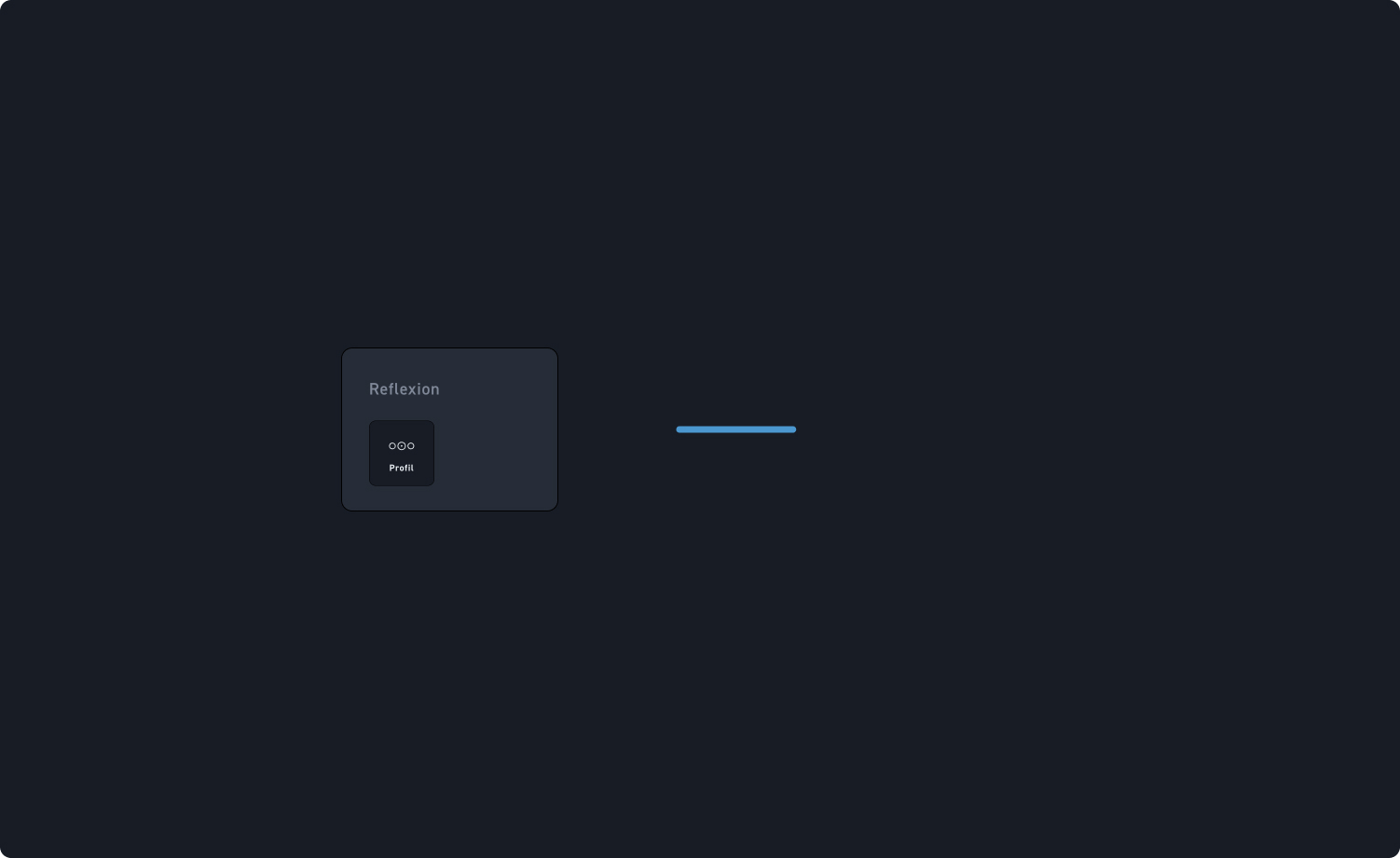
Available reflection elements #
Check out the hotspot to find out which elements are available and how you can add them.
1
Reflection Elements
You have 1 element from the Content Reflection category to choose from. You can only place this element below or on top of each other here.
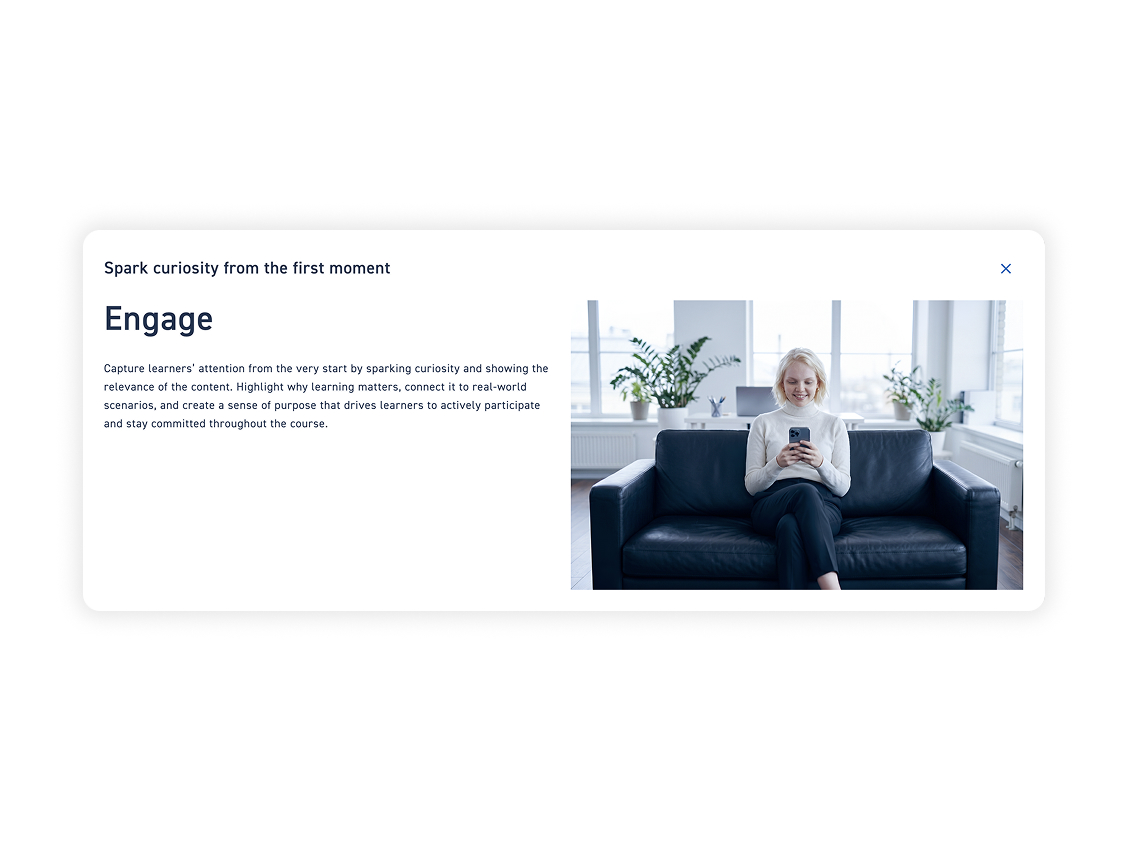
Possible basic element layouts #
Check the examples to see how you can create the basic elements.