Infographic
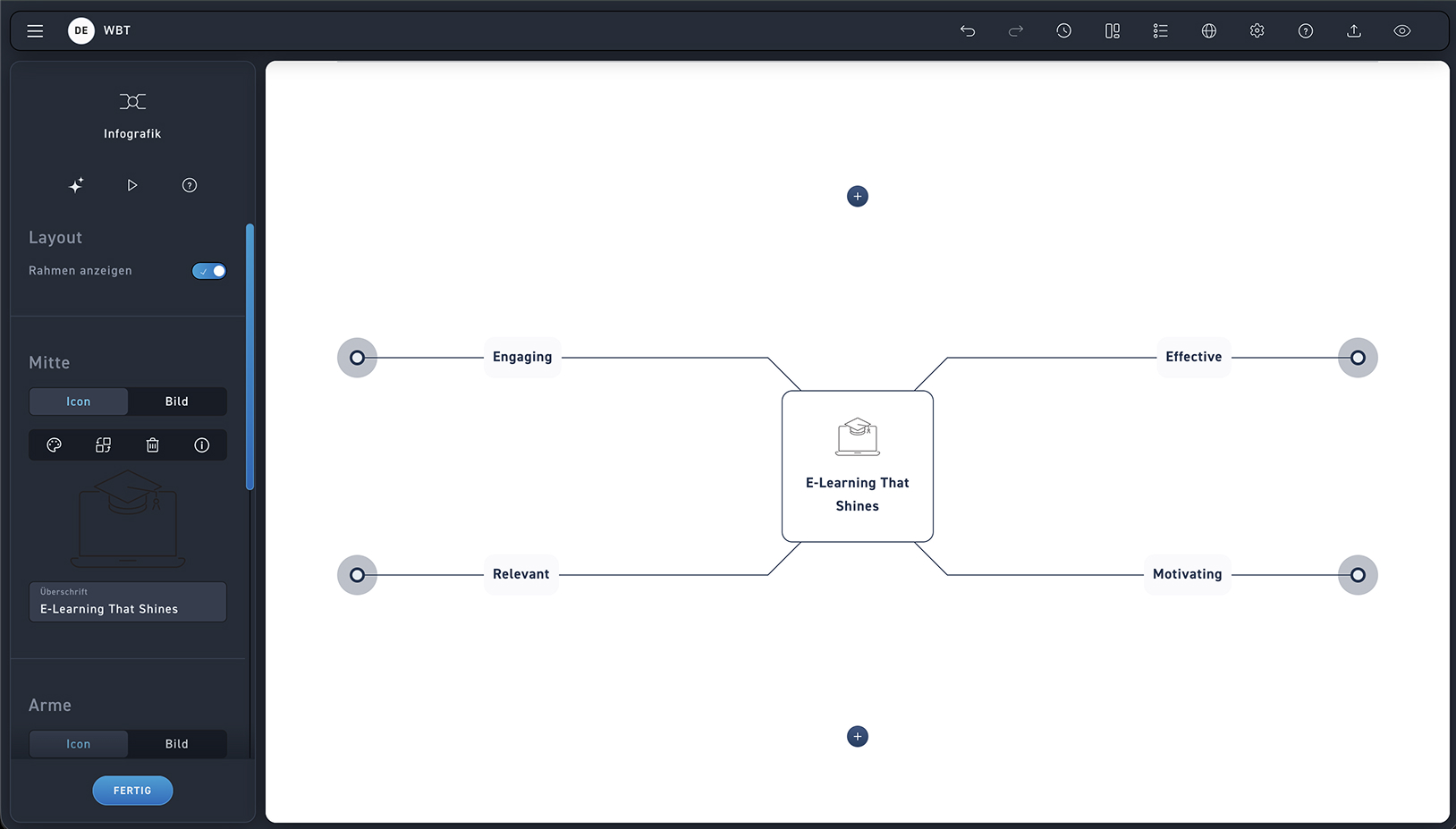
Frame
Decide whether your infographic should have a border or not.
Infographic center
Label the center of the infographic and insert an icon or image.
Poor
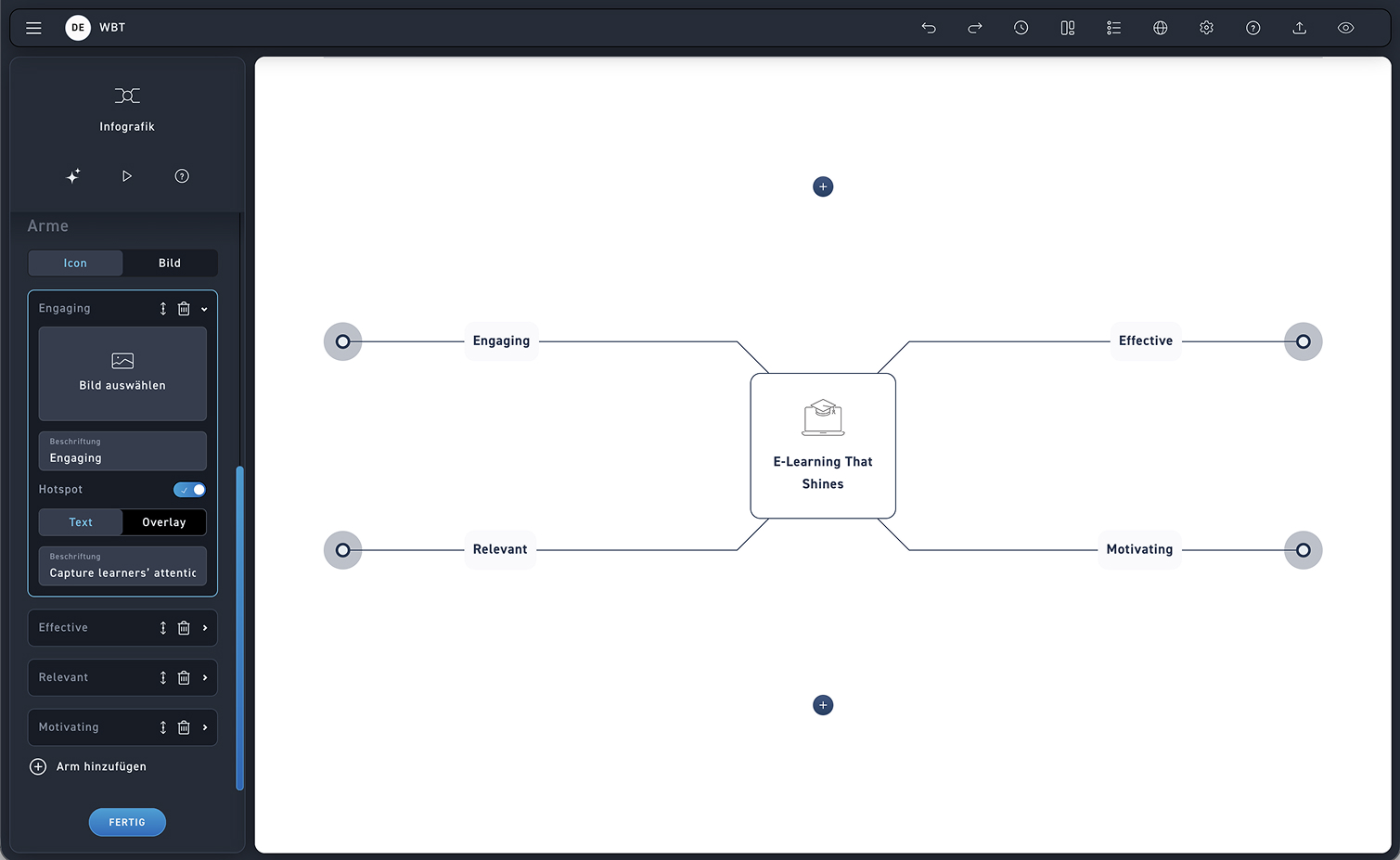
The infographic initially features four arms. You can increase the number to up to eight arms. The arms can be moved freely and can be deleted using the trash can icon if needed.
Edit arms
In the arm settings, choose whether you want to show icons or images. Add an image and a label for each arm.
Hotspots
At the end of the arms, you can add hotspots that either display text when hovered over with the mouse or open an overlay upon being clicked. Afterward, edit the overlay in the overlay editor.