Button
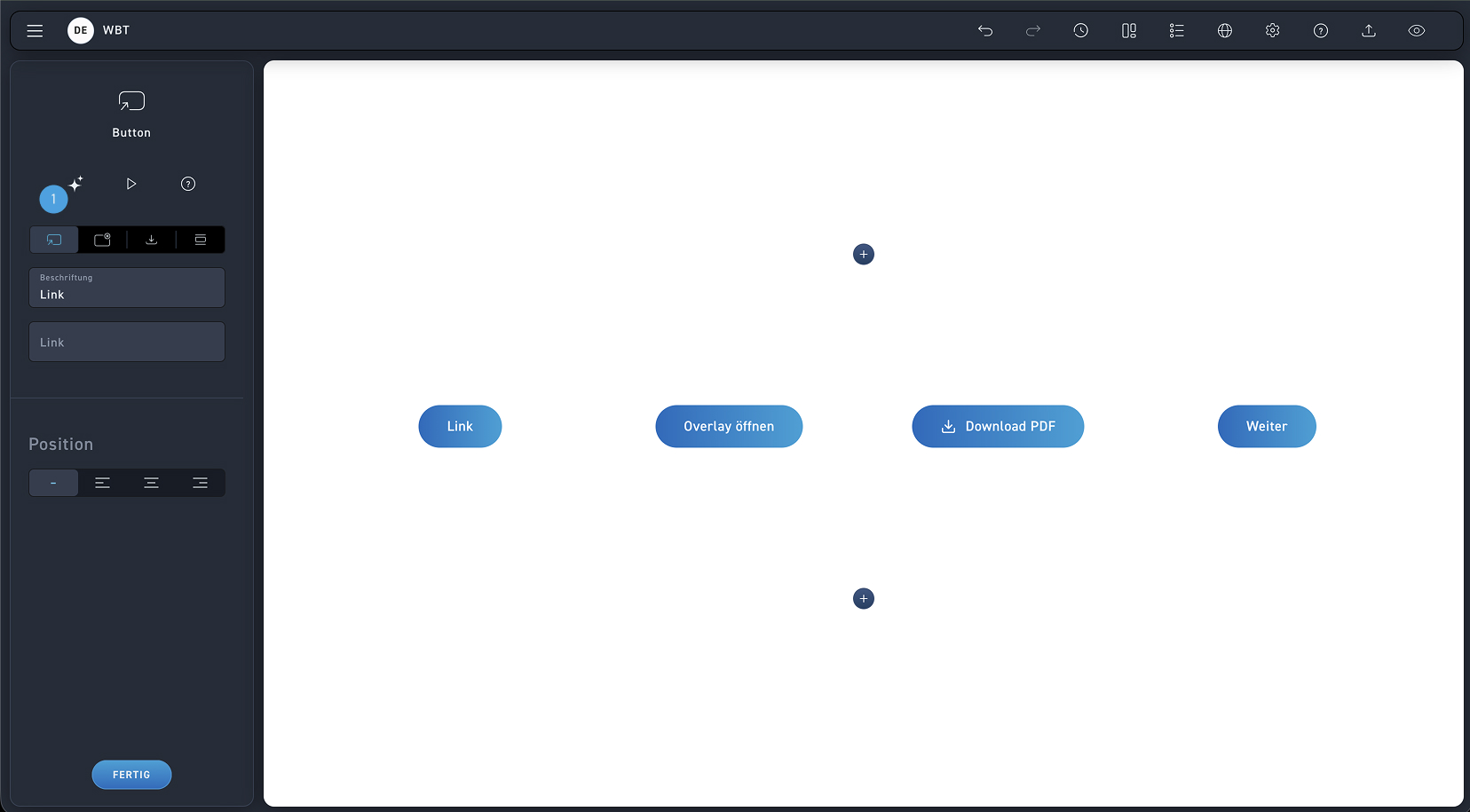
Link Button
Select the link type button to link content. Add a label and a link.
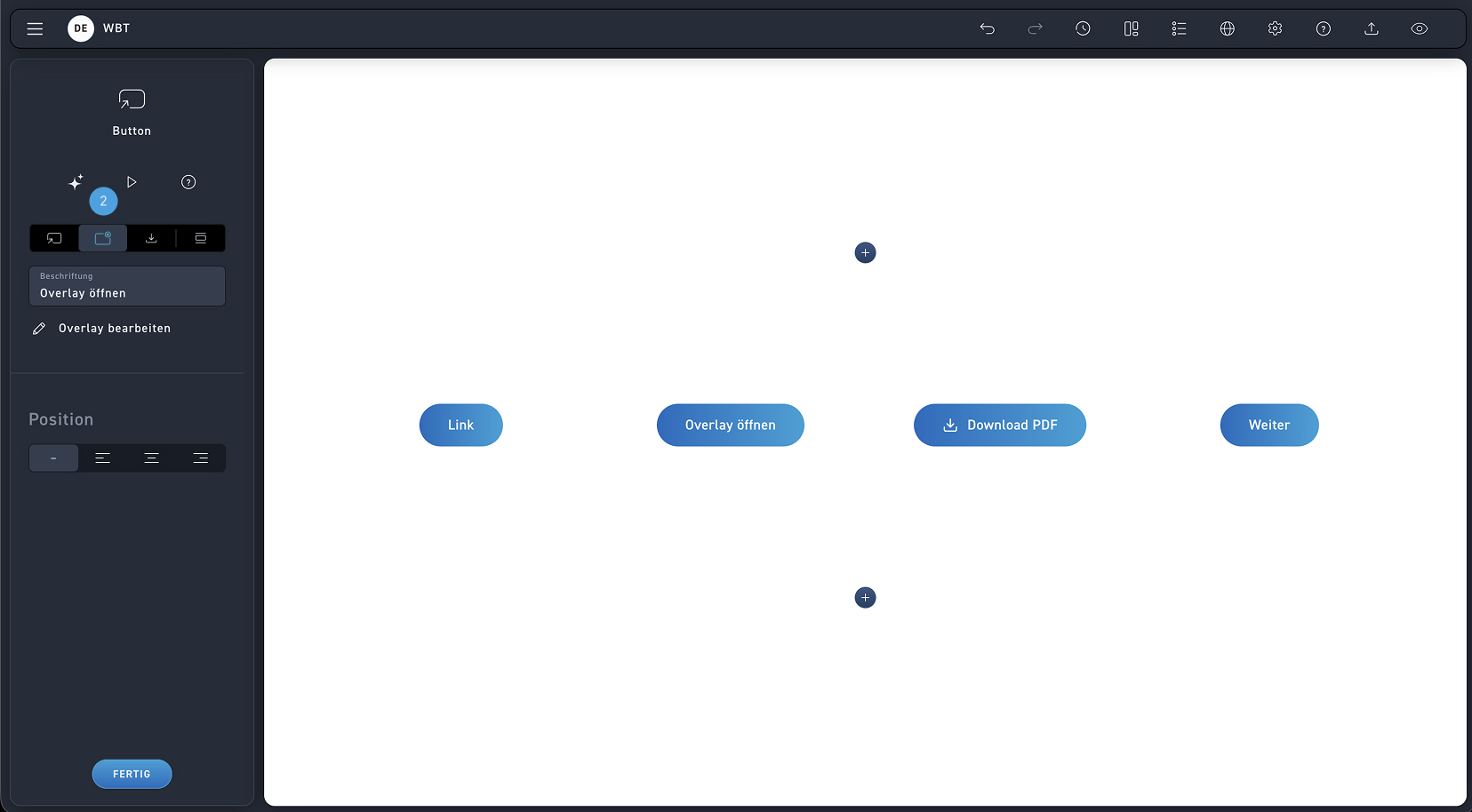
Overlay Button
Select the Button overlay type to display content in an overlay. Edit the overlay as usual.
Overlay Button
Select the Button overlay type to display content in an overlay. Edit the overlay as usual.
Select the Button overlay type to display content in an overlay. Edit the overlay as usual.
Overlay Button
Select the Button overlay type to display content in an overlay. Edit the overlay as usual.
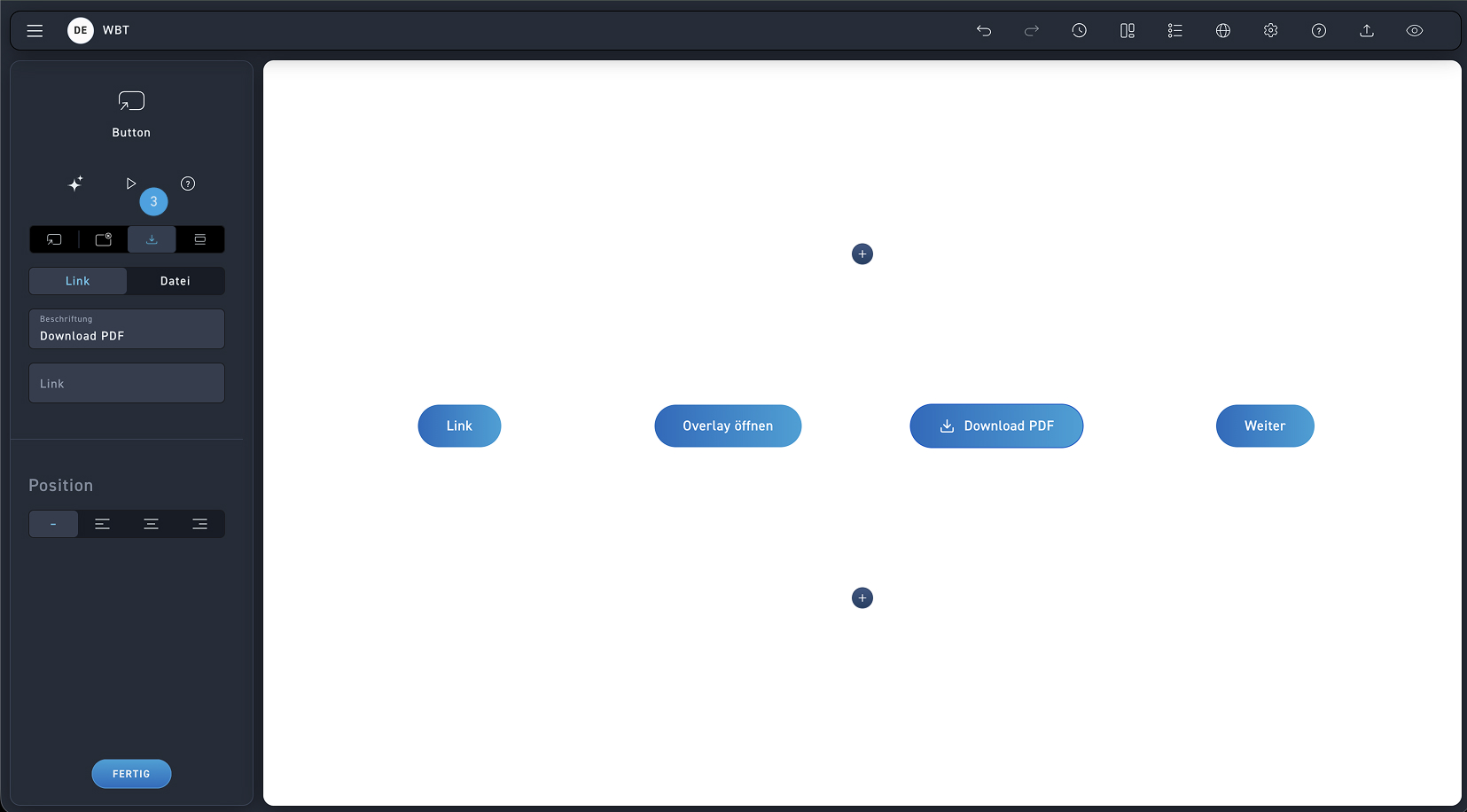
Download Button
Select the download button to make content available for download.
Overlay Button
Select the Button overlay type to display content in an overlay. Edit the overlay as usual.
Download Button
Select the download button to make content available for download.
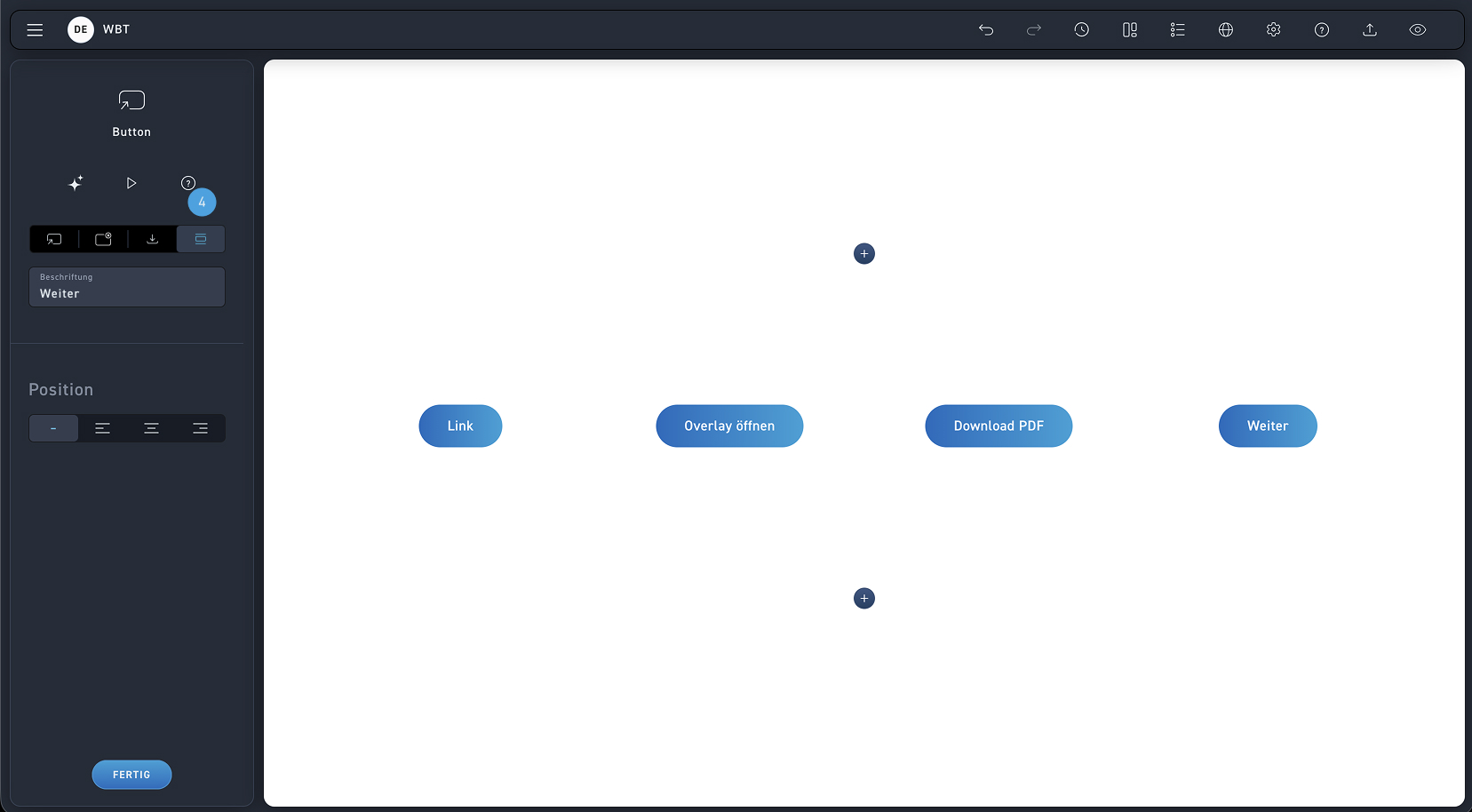
Next button
Use the next button so learners can get to the next section.