Typography
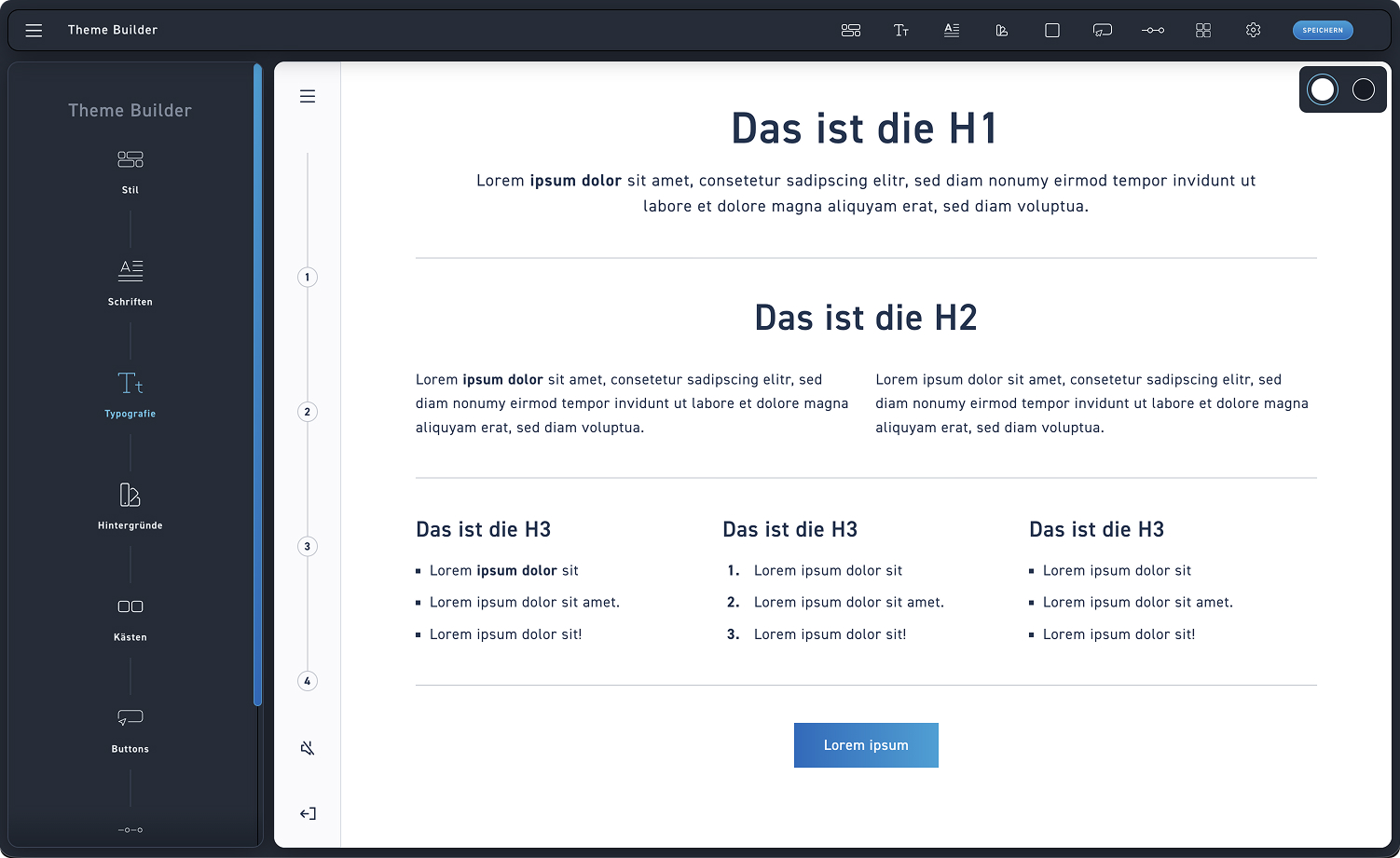
Typography
Select typography to see more settings.
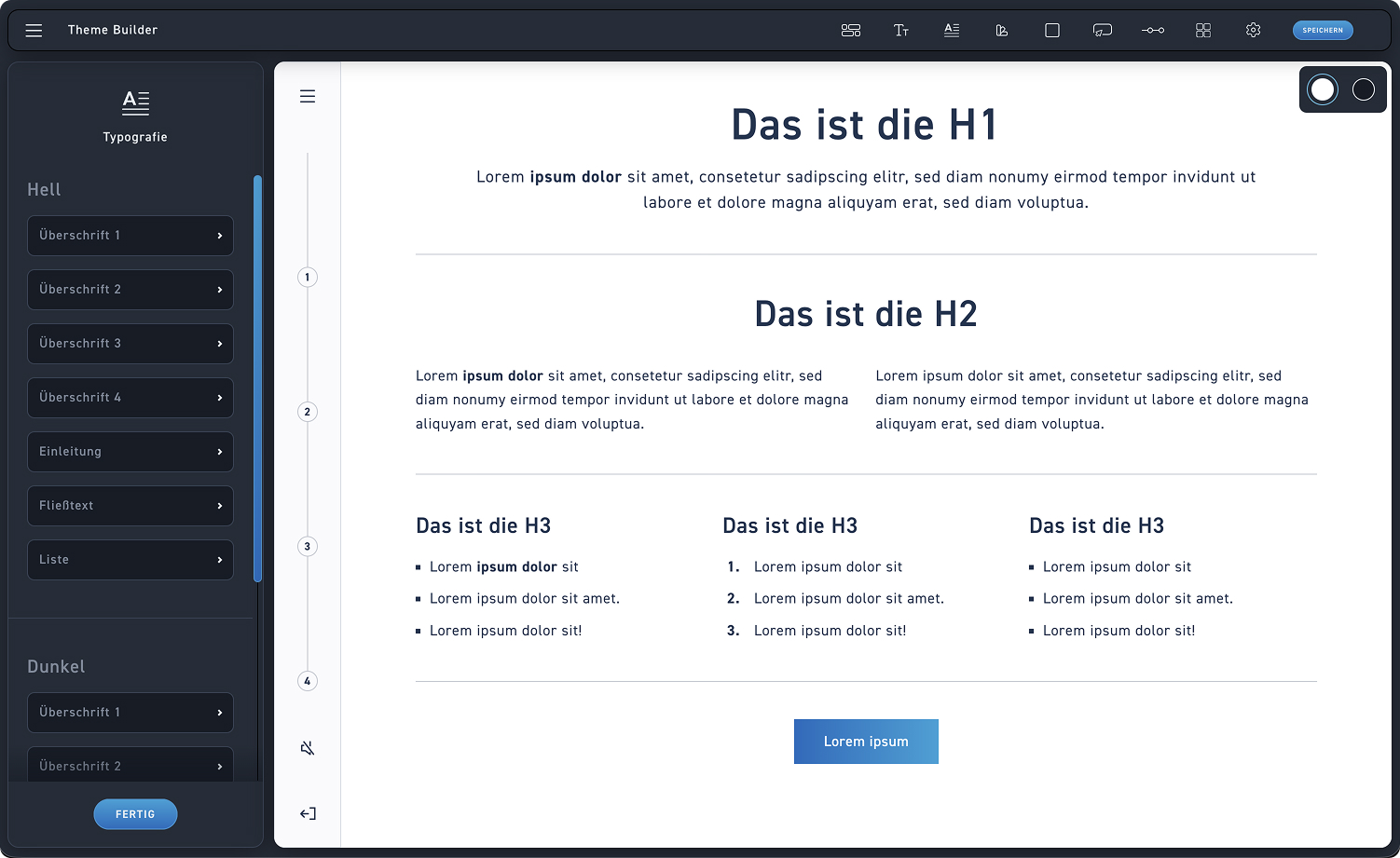
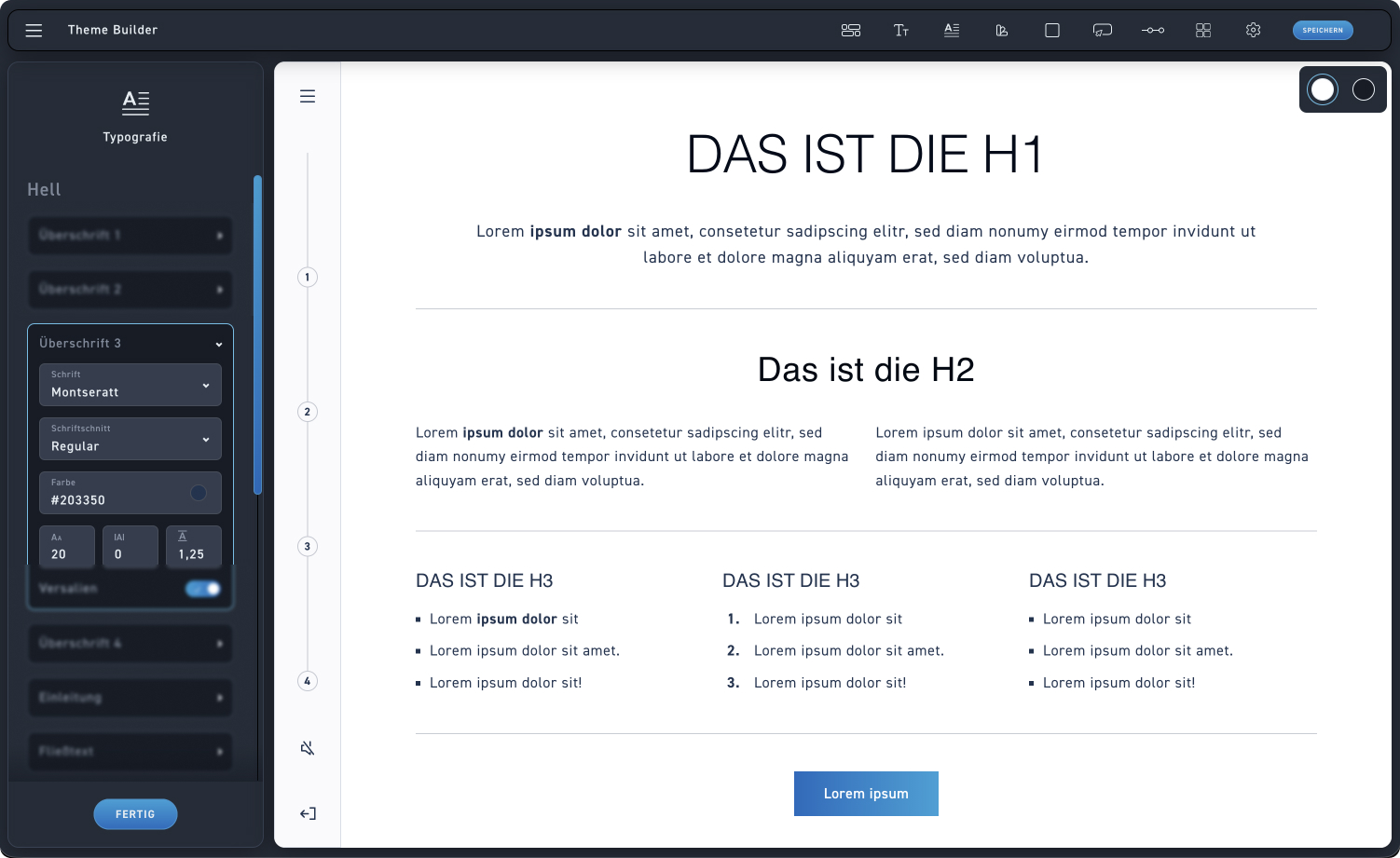
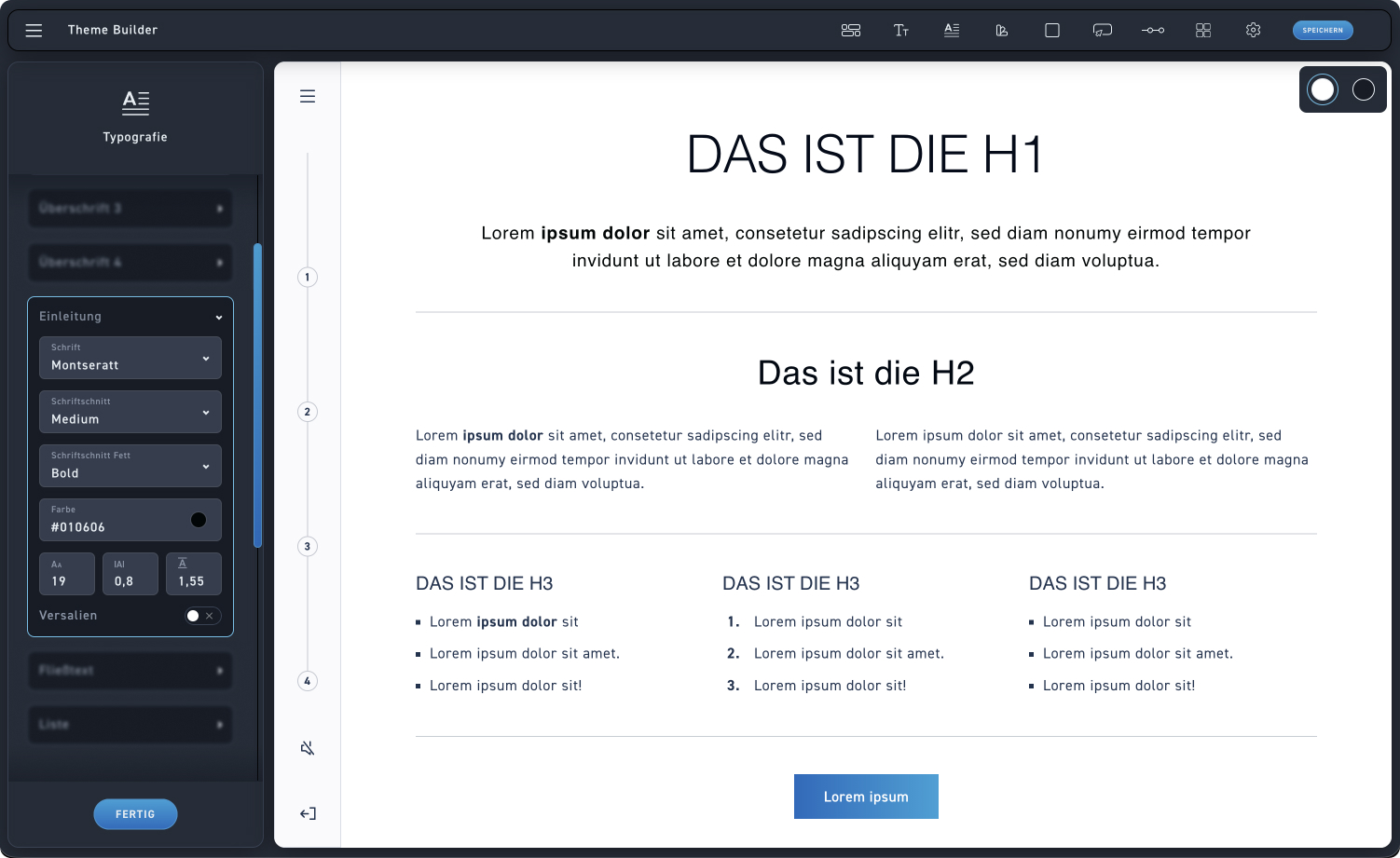
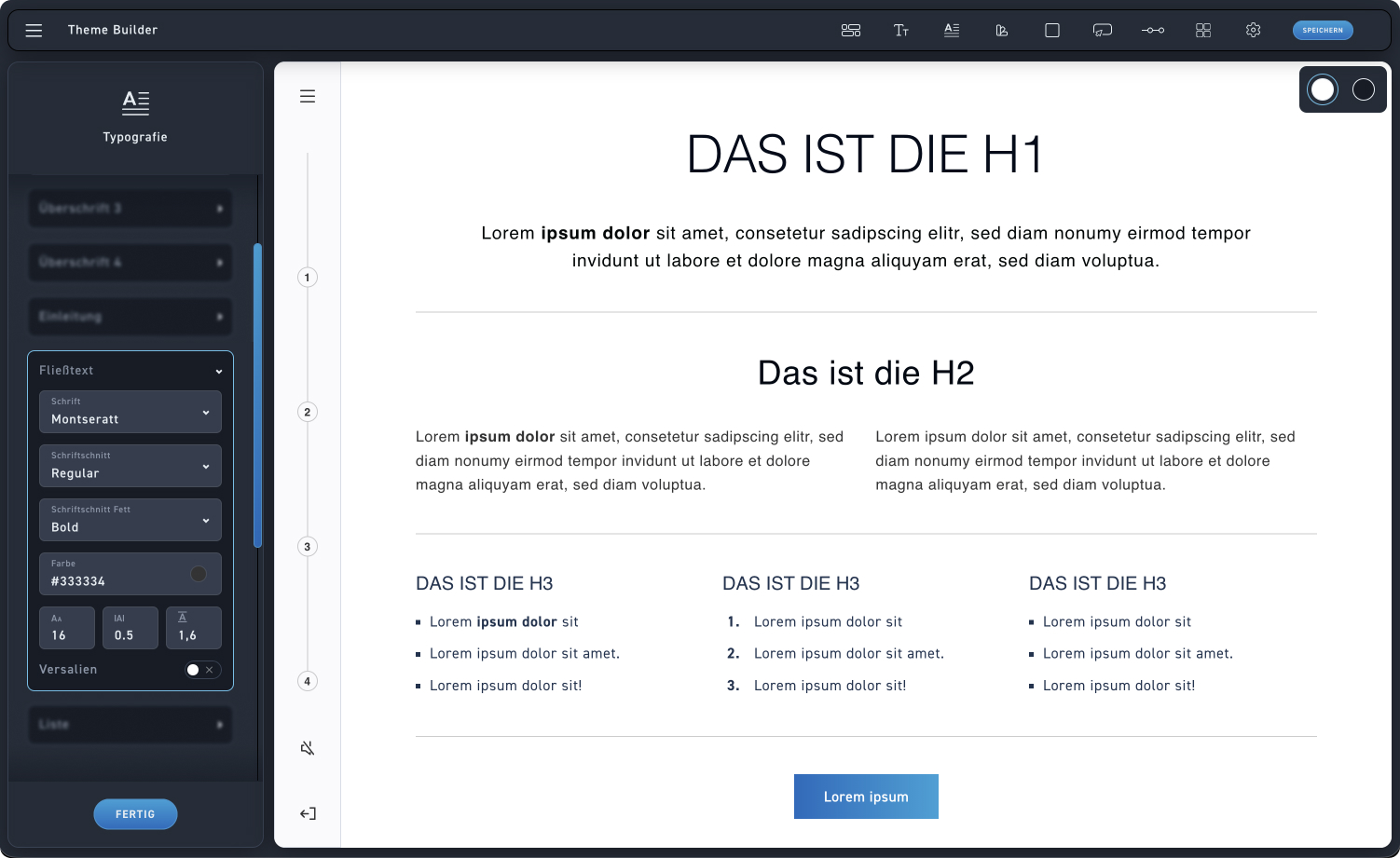
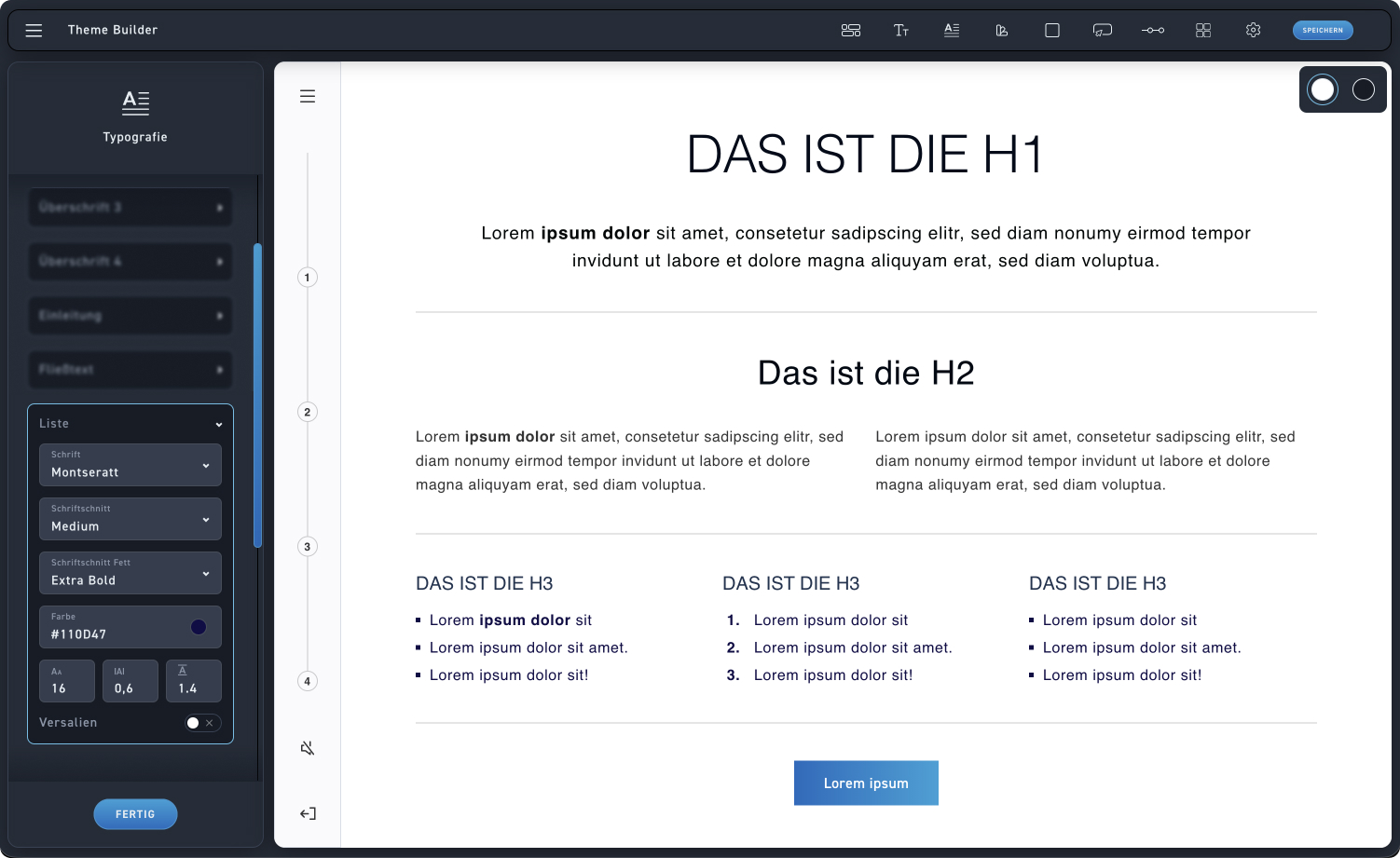
Typography settings
Adjust all typography values step by step. These will be applied to the dark backgrounds. In the second step, you will then only adjust the colors for the dark backgrounds.
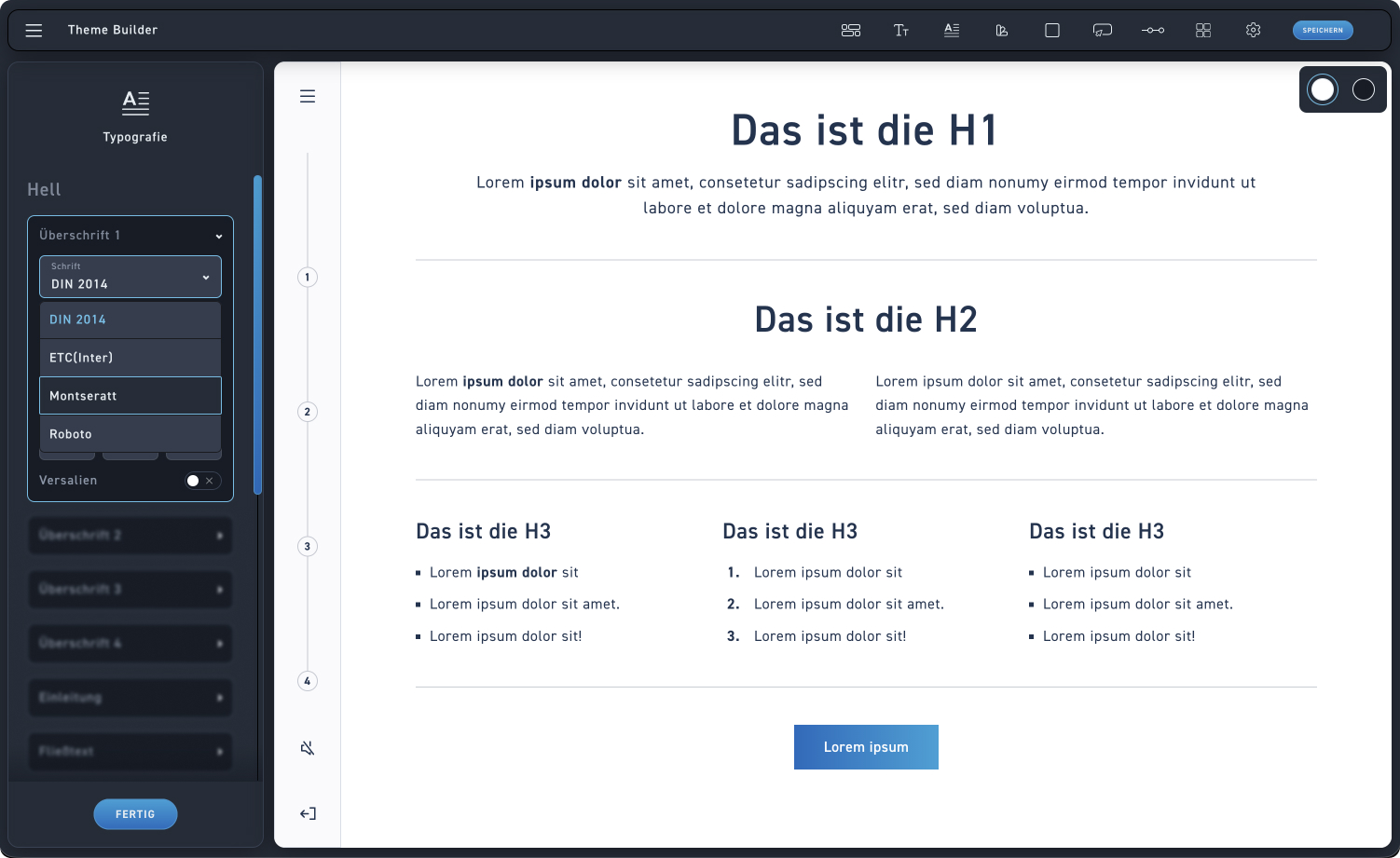
Writing
Choose one of your already uploaded fonts to use for Heading 1.
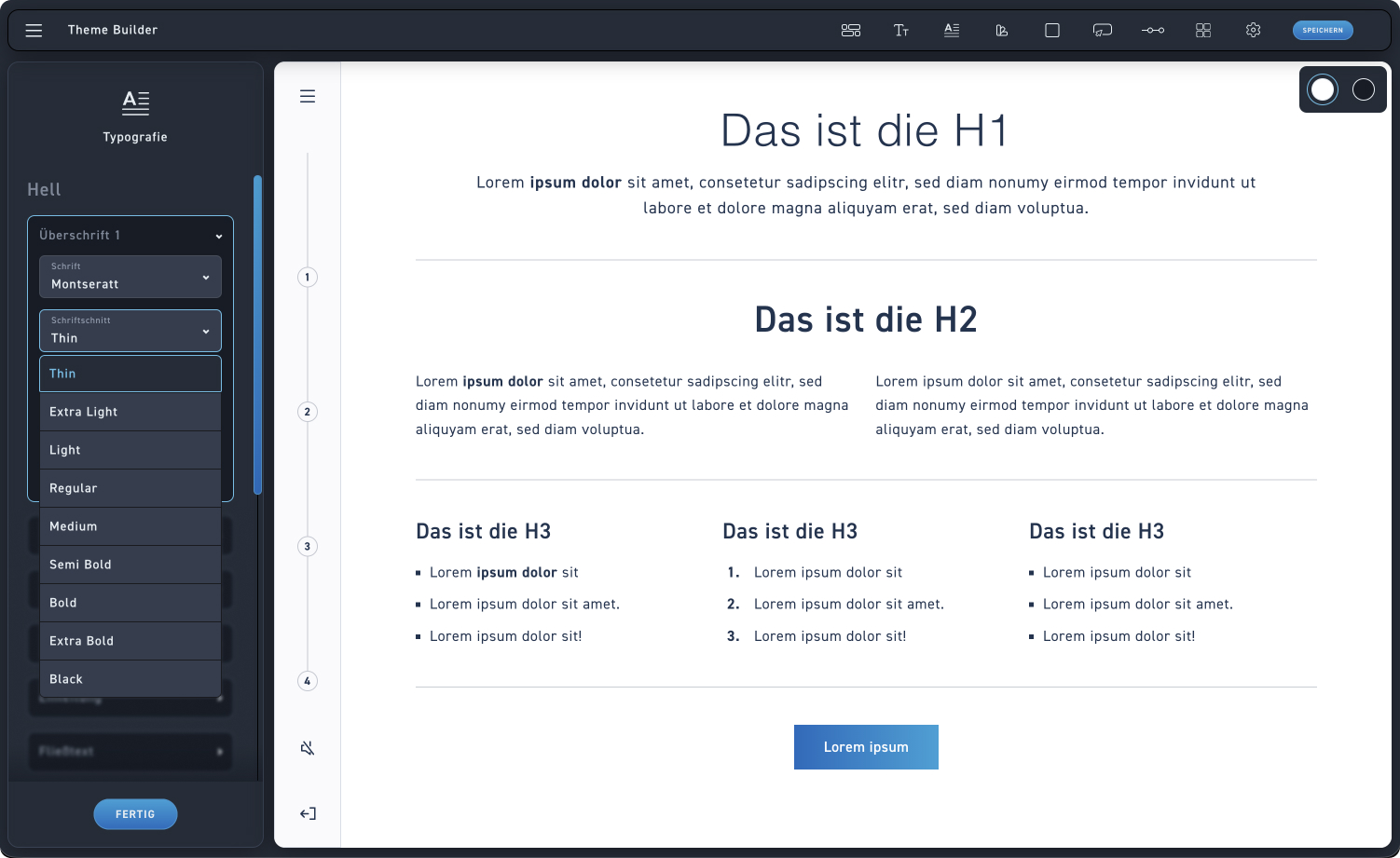
font style
Select one of your uploaded font weights to apply it.
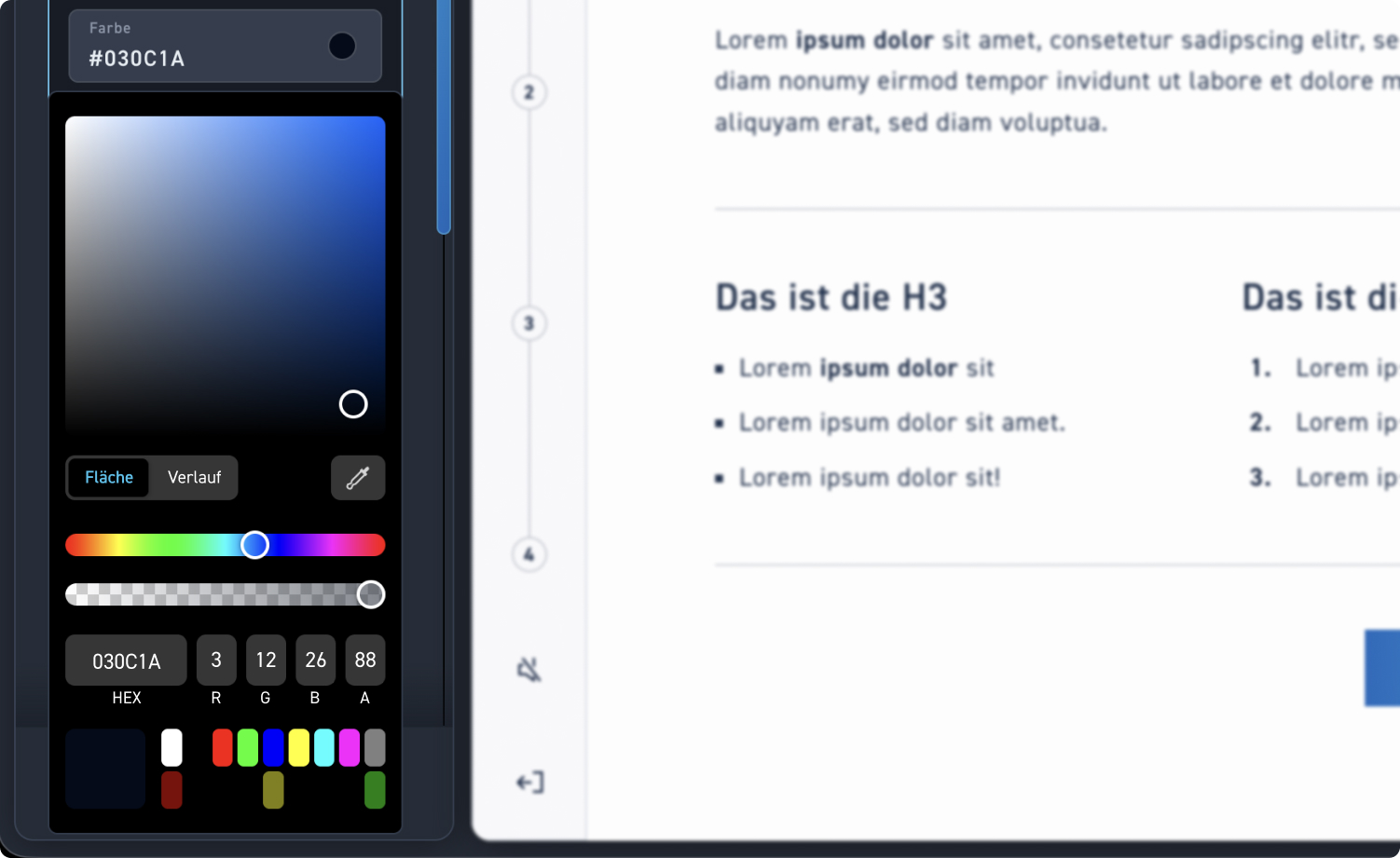
Color field
Intuitively determine your desired color using the free color field to visually select the appropriate shade.
Fill, Gradient & Eyedropper
Switch flexibly between a solid color and a gradient, or use the eyedropper tool to pick any color directly from your screen.
Hue & Opacity
Using the sliders, you can precisely adjust both the hue and the opacity of your selection.
Color values & favorites
Enter your exact HEX or RGB values directly to match brand colors precisely, or quickly access the most used colors at the bottom.
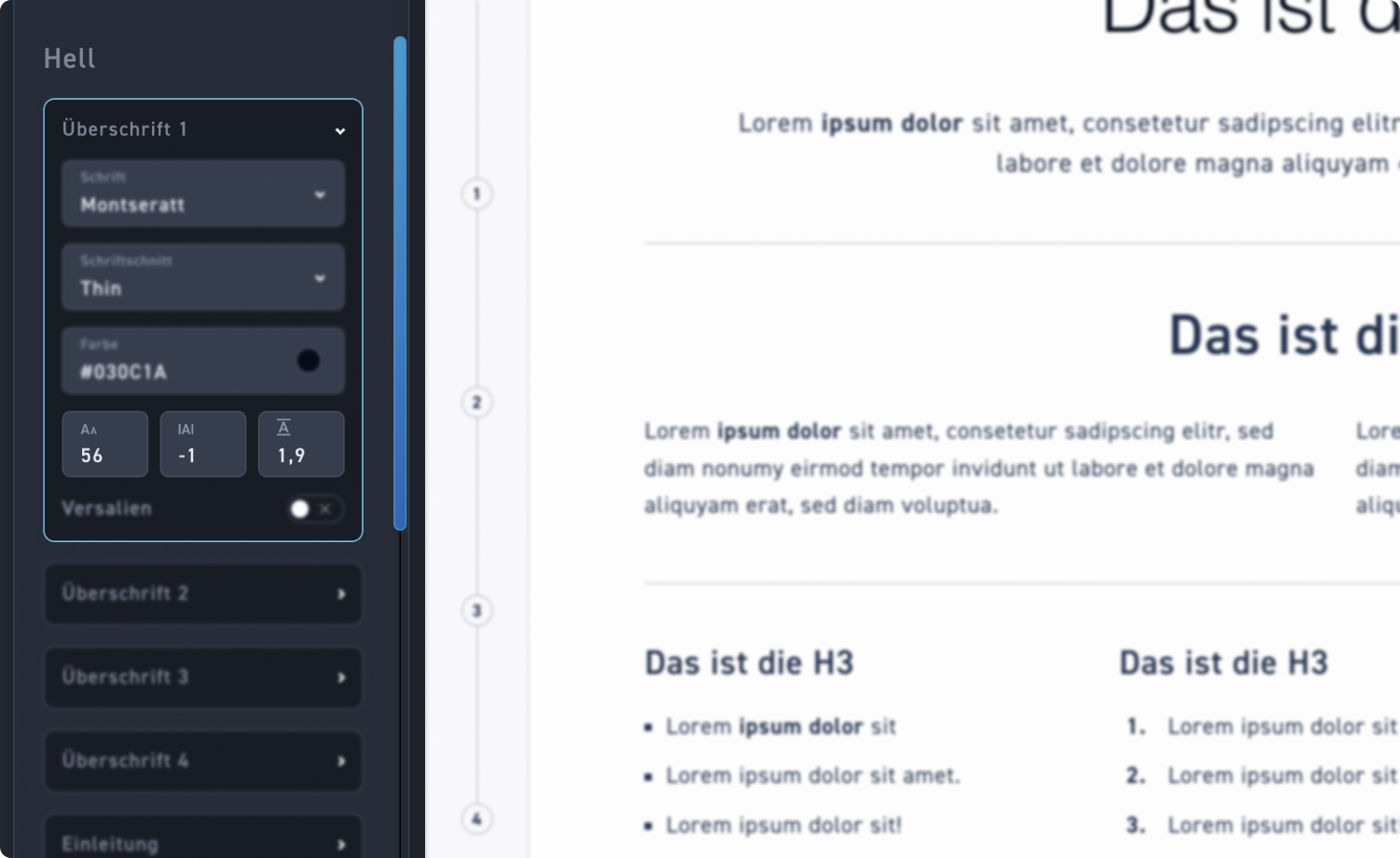
Font size
Adjust the size of the characters individually to guarantee optimal readability for your texts.
Tracking / Letter spacing
Determine the spacing between the individual letters to optimize legibility or aesthetics.
Line height
Adjust the vertical spacing between the lines of a paragraph.
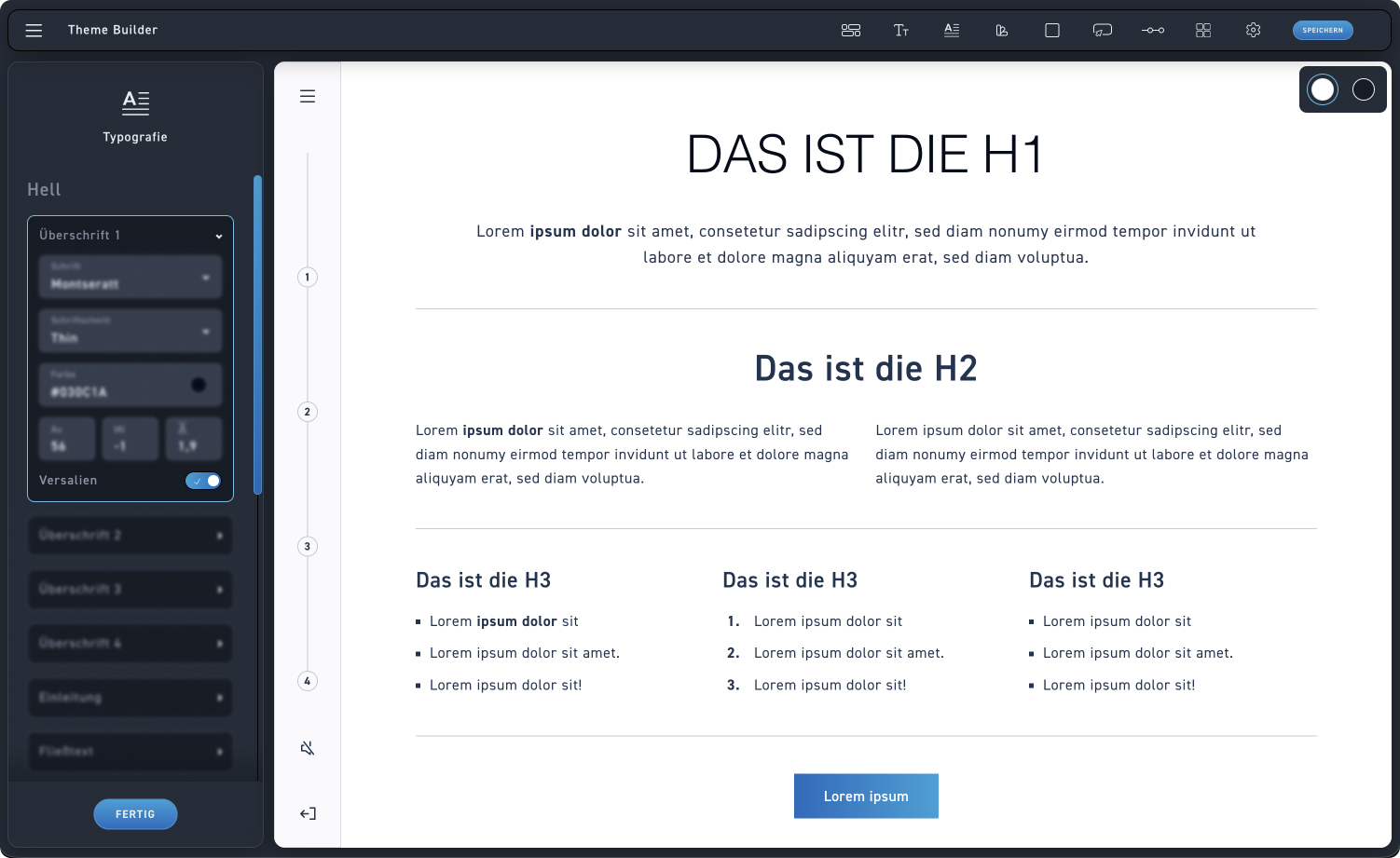
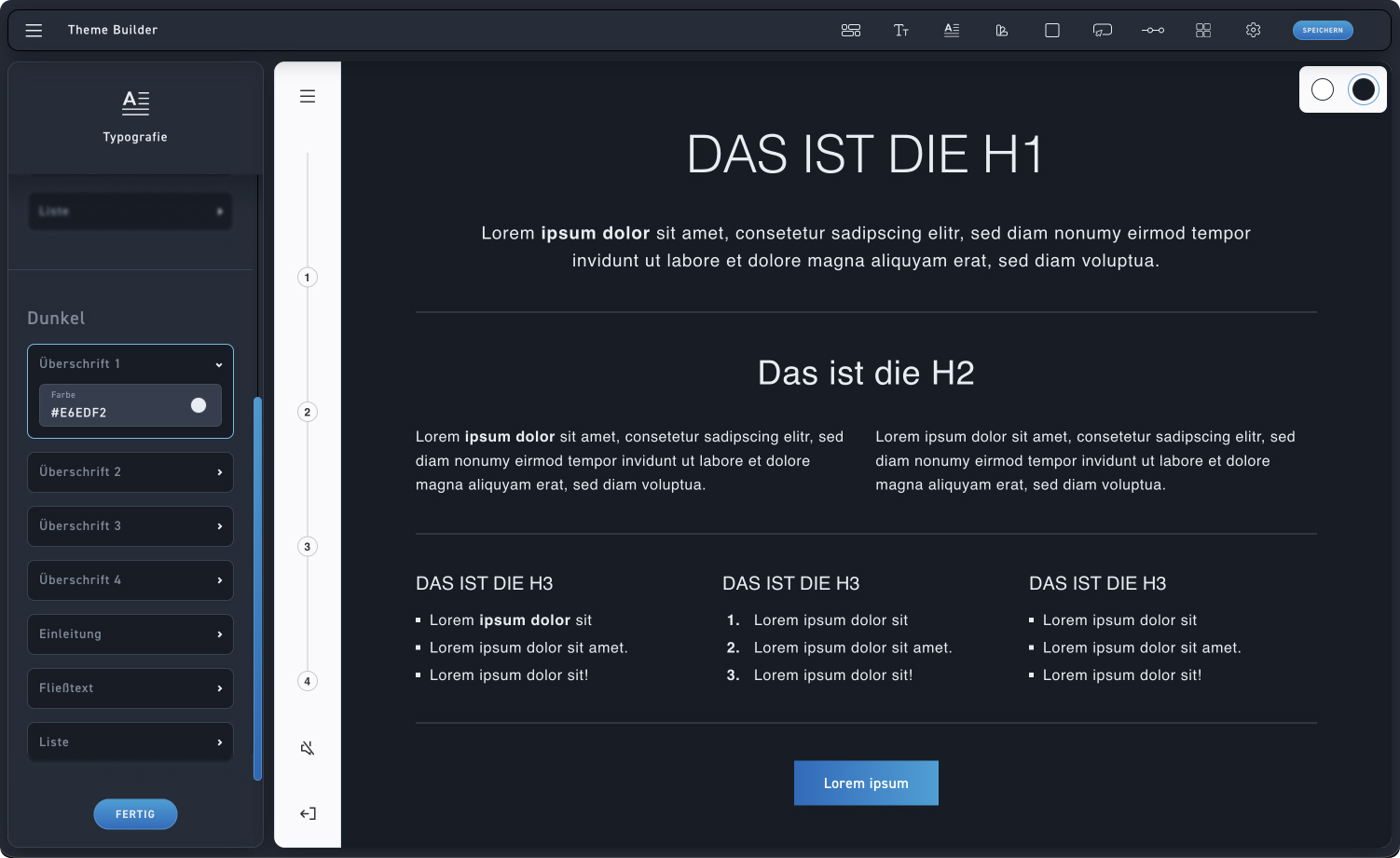
Change background color
Easily change your theme's background color here to perfectly adjust the contrast.
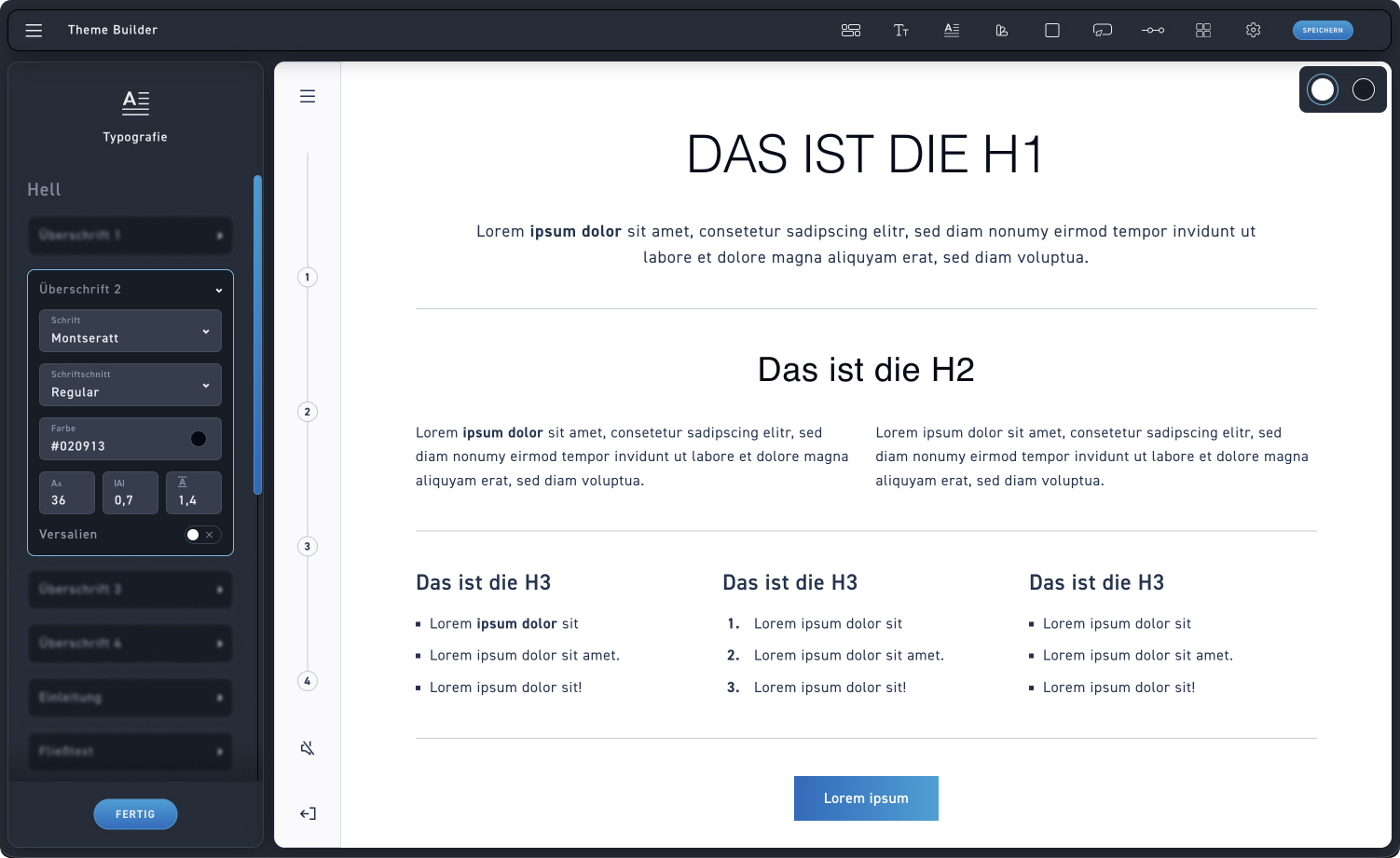
Optimize typography contrast
Adjust the typography color using the color picker to guarantee optimal readability on dark backgrounds.